MPEG Streamclip on PC, Premiere Pro

El Producto

Active member
So I'm confused as to what setting to export my video to in MPEG StreamClip. When it asks me to please choose a task, I select "Export to Quicktime". Then I select my output folder.

However, I don't know what Compression to use for the MPEG Streamclip - Movie Exporter.

I'm trying to use Streamclip so I don't have to edit the native HD files in Premiere Pro. The Apple tutorial looks easy, as all you have to do is select ProRes, but I'm not sure on a PC. Any ideas?
 
So I tried to Apple Cinnepak codec and it seems to take 5-10 minutes to process 1 10 second clip :-(

I also tried to edit the native 7D movie files and Premiere CS3 didn't like that at all :-(

Any input would be greatly appreciated!
 
What CPU/RAM/graphics etc? Your system sounds pretty slow. I'm using an AMD Phenom II quad core and editing the raw footage seems to work pretty well, even though I only have 4gb of DDR1 RAM in it right now (I've just been putting off an upgrade). You can put together a good core system for under $500 now.

Also, consider two other possibilities: load the footage up in Premiere and export it to something (rather than using QT), and/or export footage to DV size (keep the same filename as the original, but export to a new folder) and edit quickly with that, then point it at your original footage when you're done editing.

If your machine is slow then just run the conversions overnight. or pick up a second machine for cheap and do your conversions on one while you edit on the other. Or buy a case of beer and some pizza, invite three friends with laptops to your house and have a footage conversion party.
 
I reckon any MPEG 4 based format would be best... small file sizes, not too CPU intensive compared to some codecs, and great encoding quality for the bitrate.

What about XDCAM EX? Do you have that on your Windows system along with other Apple codecs like Prores?
 
You have atleast two good choices: Neoscene which cost around 99$ and free avids codec DNxHD which is free. Both codecs are used via mpegstream.
 
just tried the avid codec thru streamclip and it just exported the audio.

This is seriously ridiculous that there is no competent solution for us without being a rocket scientist. I see so many beautifully edited 5d Videos on Vimeo and I know they didn't spend 16k on a an avid system or sit and convert 50 hours of 5d footage and proxies.

I believe the solution is the i7 imac and FCP $4k is a bit much to edit a few wedding video's.
 
just tried the avid codec thru streamclip and it just exported the audio.

This is seriously ridiculous that there is no competent solution for us without being a rocket scientist. I see so many beautifully edited 5d Videos on Vimeo and I know they didn't spend 16k on a an avid system or sit and convert 50 hours of 5d footage and proxies.

I believe the solution is the i7 imac and FCP $4k is a bit much to edit a few wedding video's.

Then you did something very wrong.

I've edited hundreds of videos, and none of them have been on a Mac. This is not that difficult, but if you refuse to follow some rules, then you will always have trouble. Very few people have machines hot enough to edit 5D footage natively. FCP encodes it to ProRes. Avid trancodes it to DnxHD. Final Cut Express will change it to AIC.

I can cut it native in Vegas on my editing machine (and sadly have had to do it that way) but it's slow and painful. I have used Mpeg Streamclip to convert it all to DNxHD and it works fine if you use the correct settings.
 
The encoded file is visible with quicktime player and maybe media player classic only. Don't mind that; try to drag those converted files to your editing program and see what happens.

Only other problem is that you are using quicktime alternative which atleast for me refused co-operating when converting files with mpegstreamclip.

Being in frontline in still quite new technology allways requires more battle will to survive, be strong! ;-)

-Mike
 
Then you did something very wrong.

I've edited hundreds of videos, and none of them have been on a Mac. This is not that difficult, but if you refuse to follow some rules, then you will always have trouble. Very few people have machines hot enough to edit 5D footage natively. FCP encodes it to ProRes. Avid trancodes it to DnxHD. Final Cut Express will change it to AIC.

I can cut it native in Vegas on my editing machine (and sadly have had to do it that way) but it's slow and painful. I have used Mpeg Streamclip to convert it all to DNxHD and it works fine if you use the correct settings.

Once converted in streamclip with dnxhd codec, will you use that file as a proxie or just edit that footage realtime.

also..PLEASE

What are your exact export settings in streamclilp. I have 50 files of more than 50gb and don't want to waste hours and days exporting incorrectly.

thank you in advance
 
It depends on the project. For big projects, I convert with the DNxHD 36 codec for proxies. And do a higher bit rate for the online files. On a smaller project, I just do an online edit.

I can't tell you my exact settings because they change based on the project I am doing, and what my source footage is.

Tell me what you are trying to do, and I'll take you through the workflow.
 
I'm not sure what is a large or small project in your eyes. I have about 3 hours of 5d2 footage all raw .mov on a dual core pc on adobe premiere pro and need to put into a timeline then on to encore for a dvd template menu. I might need some color correcting and very simple transitions. I will need all the audio from the 5d2 footage. My system is an 2.33ghz with 4gb ram and about 100gb of free space left.
 
Oh ok. Use the DNxHD 36 codec. It will translate to about DNxHD 45 on that 30p footage. It will look fine.

I don't know how to set up a template in Premiere though. Last time I edited in Premiere, there was no HD video!

Drop a file into Mpeg Streamclip, do convert to quicktime, select the Avid DNxHD codec. Customize it, select DNxHD36 (1920x1080). Choose RGB. And let the system convert the file. Once it's done, open it in quicktime and have a look at it
OH, and BE SURE to set the quality slider in Mpeg Streamclip to 100%. I used to think it made no difference but it does for some reason.
 
there is a check box for interlaced or interlaced scaling and deinterlaced video.

also I don't have the option to select quality when selecting quicktime.

When I select the DNxHD it has the option for 1920 x 1080/24 36 8-bit. I don't see a 1920 x 1080/30 36 8-bit option. Leave audio at 44khz? There is also an option for FPS. You can put in any value you want.
 
If you are shooting the 7D in progressive mode, then remove the check for interlaced.

Yes, choose 1920x1080/24. It will see that there are 30fps and adjust accordingly. Change audio to 48 Khz. Not sure why it has something different. Leave the FPS alone. It will read what you have and set it the same.

Let me go convert a video now so I can try to remember all the settings...
 
Ok,

Right under the setting where you choose the compression type is a quality slider. Set that to 100%

Sound should be Uncompressed Stereo Auto

Frame Rate should be left blank.
 
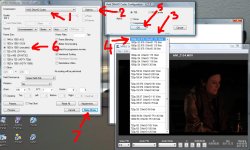
There is also an options box to the right, click on that. On Vista, the display for this box is FUBAR. at least on my laptop, there is the very top of a dialogue box visible in the bottom center of the Option pop up box. Clicking on that hidden box will give you a list of quality settings for the codec.

I attached a screengrab that should remove the rocket science. : )
 

Attachments

  • mpeg_streamclip.jpg
    mpeg_streamclip.jpg
    383.4 KB · Views: 0
There is also an options box to the right, click on that. On Vista, the display for this box is FUBAR. at least on my laptop, there is the very top of a dialogue box visible in the bottom center of the Option pop up box. Clicking on that hidden box will give you a list of quality settings for the codec.

I attached a screengrab that should remove the rocket science. : )

Thanks for doing the screenshot. I was just too tired last night to fool with it. And the settings box is not being hampered by Vista. It's no different on XP or Win7.
 
Thanks for doing the screenshot. I was just too tired last night to fool with it. And the settings box is not being hampered by Vista. It's no different on XP or Win7.

No problem. Sometimes a picture is worth a thousand posts. : )

The settings box seems to show up properly in After FX only for some reason, it's hidden in everythig else.
 
Back
Top