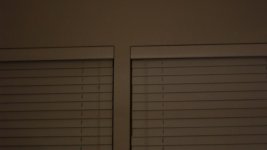
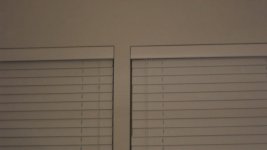
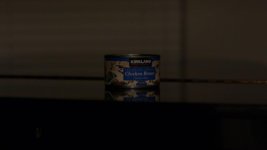
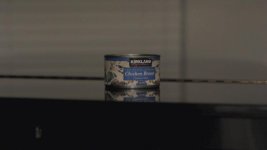
I'm starting a new thread because I can't find the one in which the initial findings were discussed. (My apologies to the two members who came up with this. I'm not trying to take any credit away from them.) The initial suggestion was to use the iA Mode on the camera's top dial to reduce FPN. The second suggestion was to use the P mode.
After doing a few initial tests I was more than sceptical. But now, after some tweaking, I'm convinced that I'm now getting significantly less FPN in lighting situations in which it's nearly unbearable with the normal manual settings.
I have no scientific explanation for this, and if anyone can prove that it's all humbug, I'll gladly stand corrected. But subjectively, I find the difference astounding.
The settings can be stored as one of the three custom settings, so they only need to be done once:
- Set mode dial on camera top to P.
- Set ISO to AUTO.
- Menu / record / aspect ratio: 16:9
- Menu / motion picture / rec mode / avchd
- Menu / motion picture / rec quality / FHD
- Menu / motion picture / metering mode / 1st
- Menu / custom / af/ae lock / af/ae
- Menu / custom / af/ae lock hold / on
- Menu / custom / movie button / ON !!!!
NOW:
- Menu / custom / cust.set mem. Select C1 C2 or C3 and SAVE these settings.
NOW set mode dial on camera top to CUST (I rarely change this, because I have C1 for photos, C2 for movies in manual mode and c3 for this "automatic" mode. Select the custom mode you have just created.
Now, it takes a while to become accustomed to this work flow, but after a while it becomes fairly intuitive.
Exposure is controlled by the wheel at the front of the camera. Press in on it so that the exposure compensation (-3 to +3) turns orange. Lightly press on the shutter release to focus (if using a Panasonic lens) and evaluate exposure. Turn the front wheel until the scene looks right. Tip: Panning slightly to a darker area makes the entire scene brighter and visa-versa. This is often quicker than turning the front wheel. When satisfied with the scene, press AF/AE lock on back of camera.
Now press DEDICATED MOVIE BUTTON on back of camera to begin recording. In many cases (especially dark scenes) you should see far less FPN than you normally would.
Observations and down-sides:
- Often what you see before you hit the movie button is not what you'll get when recording starts. Just stop recording, tweak briefly, restart.
- Occasionally the optimum settings for recording will look strange in preview (greyed-out whites, etc.)
- If you want to use a particular f-stop, you can: press the front wheel so f-stop and shutter speed turn orange, then turn the dial so the desired f-stop appears. (In dark scenes, the shutter speed indicated might be 1/2 second, but I think once you hit the movie button the camera records at the minimum 30th of a second for AVCHD.)
- If you lightly press the shutter release, you'll see the ISO the camera selects, but I doubt that this is a true indication, just a rough idea.
I can't explain why this appears to work so well, but it reminds me of what you can observe when taking photos in P mode: When you lightly press the shutter release, the preview often looks terribly noisy, but when you take the picture and review it, it's often creamy smooth (even if it's not always WYSIWYG -- just retake the photo).
This might just be a "Hail Mary" setting if you're caught in a terribly dark shooting situation with no lamps, but after playing around with it for a while, I find I can work quite well with it even in normal situations. You'll find yourself locking and unlocking the AF/AE lock button and turning the front wheel quite a lot, but it's easy to become accustomed to.
I'd be delighted if some of the technical experts in our forum could find the time to look into this. As I said, if you think it's a bunch of malarkey, just say so -- but please tell us the technical reasons WHY. Thanks! For the moment, this setting seems to indicate there IS such a thing as a free lunch.
After doing a few initial tests I was more than sceptical. But now, after some tweaking, I'm convinced that I'm now getting significantly less FPN in lighting situations in which it's nearly unbearable with the normal manual settings.
I have no scientific explanation for this, and if anyone can prove that it's all humbug, I'll gladly stand corrected. But subjectively, I find the difference astounding.
The settings can be stored as one of the three custom settings, so they only need to be done once:
- Set mode dial on camera top to P.
- Set ISO to AUTO.
- Menu / record / aspect ratio: 16:9
- Menu / motion picture / rec mode / avchd
- Menu / motion picture / rec quality / FHD
- Menu / motion picture / metering mode / 1st
- Menu / custom / af/ae lock / af/ae
- Menu / custom / af/ae lock hold / on
- Menu / custom / movie button / ON !!!!
NOW:
- Menu / custom / cust.set mem. Select C1 C2 or C3 and SAVE these settings.
NOW set mode dial on camera top to CUST (I rarely change this, because I have C1 for photos, C2 for movies in manual mode and c3 for this "automatic" mode. Select the custom mode you have just created.
Now, it takes a while to become accustomed to this work flow, but after a while it becomes fairly intuitive.
Exposure is controlled by the wheel at the front of the camera. Press in on it so that the exposure compensation (-3 to +3) turns orange. Lightly press on the shutter release to focus (if using a Panasonic lens) and evaluate exposure. Turn the front wheel until the scene looks right. Tip: Panning slightly to a darker area makes the entire scene brighter and visa-versa. This is often quicker than turning the front wheel. When satisfied with the scene, press AF/AE lock on back of camera.
Now press DEDICATED MOVIE BUTTON on back of camera to begin recording. In many cases (especially dark scenes) you should see far less FPN than you normally would.
Observations and down-sides:
- Often what you see before you hit the movie button is not what you'll get when recording starts. Just stop recording, tweak briefly, restart.
- Occasionally the optimum settings for recording will look strange in preview (greyed-out whites, etc.)
- If you want to use a particular f-stop, you can: press the front wheel so f-stop and shutter speed turn orange, then turn the dial so the desired f-stop appears. (In dark scenes, the shutter speed indicated might be 1/2 second, but I think once you hit the movie button the camera records at the minimum 30th of a second for AVCHD.)
- If you lightly press the shutter release, you'll see the ISO the camera selects, but I doubt that this is a true indication, just a rough idea.
I can't explain why this appears to work so well, but it reminds me of what you can observe when taking photos in P mode: When you lightly press the shutter release, the preview often looks terribly noisy, but when you take the picture and review it, it's often creamy smooth (even if it's not always WYSIWYG -- just retake the photo).
This might just be a "Hail Mary" setting if you're caught in a terribly dark shooting situation with no lamps, but after playing around with it for a while, I find I can work quite well with it even in normal situations. You'll find yourself locking and unlocking the AF/AE lock button and turning the front wheel quite a lot, but it's easy to become accustomed to.
I'd be delighted if some of the technical experts in our forum could find the time to look into this. As I said, if you think it's a bunch of malarkey, just say so -- but please tell us the technical reasons WHY. Thanks! For the moment, this setting seems to indicate there IS such a thing as a free lunch.

 cheers