
Navigation
Install the app
How to install the app on iOS
Follow along with the video below to see how to install our site as a web app on your home screen.
Note: This feature may not be available in some browsers.
More options
You are using an out of date browser. It may not display this or other websites correctly.
You should upgrade or use an alternative browser.
Why does my footage suck?
- Thread starter Andor
- Start date

PerroneFord
Deals in Lead
Unfortunately I can't see the difference either. But I noticed your mp4 file is very jerky compared to Vimeo 24p one.
Then you noticed the difference!

Those files went through EXACTLY the same workflow and were actually created from the same timeline in Vegas with the only difference in .mp4 settings being one was output as 24p and the other as 60i. Same bitrate, same everything.
 : ??
PerroneFord
Deals in Lead
The point of the exercise is to:
A. Start with a GH1 captured 24p file wrapped in a 60i stream.
B. Use VirtualDub to remove pulldown and create a native 24p file.
C. Render the new 24p file and a file that has not had pulldown removed
D. Allow end users to compare the "look" of the two newly rendered files.
To accomplish this we:
1. Got a 60i/24p file from the GH1
2. Dropped that file onto a Vegas timeline and rendered it as a lossless 60i .avi file (file "x")
3. Used VirtualDub to remove pulldown from file "x" creating 24p lossless file "y".
4. Put file "y" on the Vegas timeline and render a 24p mpeg4.
5. Put file "x" on the timeline creating a 60i mpeg4
6. Upload both files so that users could compare.
Make sense?
PerroneFord
Deals in Lead
I completely understand what you did. What I'm confused about is, there seem to be no difference between the two clips (at least to my eyes). So what did we gain by converting 60i to 24p ?
Sorry if I sound too newbie but I'm confused outta my mind
The fact that you don't see a difference doesn't mean that there isn't one. In fact, there are two MAJOR differences. One from the pulldown being removed, and the other from the deshake.
Honestly, I'd have expected you not to notice the pulldown removal so much. But I am rather shocked that you didn't see the effects of the deshaker. But perhaps your eye isn't as critical yet, so that's ok.
If you look at the 60i video critically, you will be able to tell that the users hand was not steady as the camera rotates slightly left and right, and the camera bounces some as it's panned. The deshake has removed much of that, and quite cleanly I must say.
Again, if you can't see the differences, and your clients (if you have any) can't either, then nothing to worry about. Just keep doing what you're doing. It's not worth all the trouble if you really can't tell the difference.
ah, see, that might be why it isn't working for me. I am trying to take the 1280x720 60p footage and convert it to, well, anything. I would prefer the 24p / 25p etc, but at this point I could care less if it was 30p or even 60p. Anytime I render it to 1280x720, it lags.The point of the exercise is to:
A. Start with a GH1 captured 24p file wrapped in a 60i stream.
B. Use VirtualDub to remove pulldown and create a native 24p file.
C. Render the new 24p file and a file that has not had pulldown removed
D. Allow end users to compare the "look" of the two newly rendered files.
To accomplish this we:
1. Got a 60i/24p file from the GH1
2. Dropped that file onto a Vegas timeline and rendered it as a lossless 60i .avi file (file "x")
3. Used VirtualDub to remove pulldown from file "x" creating 24p lossless file "y".
4. Put file "y" on the Vegas timeline and render a 24p mpeg4.
5. Put file "x" on the timeline creating a 60i mpeg4
6. Upload both files so that users could compare.
Make sense?
Granted, the 1920x1080 lagged too, but I do not care to shoot in this format considering most of what I film will have plenty of movement in it.
What I just tried again for the third time:
1. Put GH1 footage into Vegas Movie Studio (and do NOTHING else to it)
2. Render footage with Lagarith (Frame Size: 1280x720 / Frame Rate: Tried it each way)
3. Open footage in Virtualdub and apply the filter and click "File > Save As .avi"
4. Open that .avi into Vegas Movie Studio and it is read as 47.952fps.
5. Anything rendered in 1280x720 has a skipping video
6. My head explodes and I start over.
PerroneFord
Deals in Lead
WHOA!!!!
Hold the phone. What kind of video are you starting with? 1080/60i or 720/60p? These are two TOTALLY different things that demand a very different process.
720/60p has no pulldown. It is progressive from the start and trying to remove pulldown (duplicate frames) that aren't there is going to cause a total mess.
If you are truly starting with 720/60p video and trying to get to 30p or 24p in virtualdub then you need to open the 60p video in VirtualDub, select Video > Frame Rate, then in Frame Rate Conversion choose "convert to" 23.976" (for 24p) or "29.97" (for 30p). Leave all other settings at the default and click OK. Then select video > compression, and choose your codec. Then save as whatever file name you want.
This should solve your issue.
I'm starting with 720/60p
Ah! Ok, so should I do this step at the end of my editing then? Also, I would still need to convert the file to a lossless .avi, right? I mean, VirtualDub doesn't accept AVCHD...
I just attempted to convert the file using the method you describe and the video plays in slow-mo and the audio doesn't sync up. I think it might be that I am converting it to an .avi wrong?
(Post edited for spelling error)
PerroneFord
Deals in Lead
I'm starting with 720/60p
Ah! Ok, so should I do this step at the end of my editing then? Also, I would still need to convert the file to a lossless .avi, right? I mean, VirtualDub doesn't accept AVCHD...
I just attempted to convert the file using the method you describe and the video plays in slow-mo and the audio doesn't sync up. I think it might be that I am converting it to an .avi wrong?
(Post edited for spelling error)
If you start with a 720/60p file, there is no need for you to go to Virtualdub if you don't want to. The ONLY reason that was suggested for the other user was that he needed to remove pulldown which Vegas cannot do. Your 720/60p video does not have any pulldown so you don't need that step.
What you DO need to do is to make certain that Vegas properties are set to 720/60p (59.94) before you edit. When you finish editing, you simply need to render to whatever format you want.
When you render to 30p you will be throwing away HALF of what you recorded. It's going to show. When you render to 24p, you're going to be throwing away even more, so it is DEFINITELY going to show. This is why we recommend shooting in 24p if you intend to play BACK at 24p. Otherwise things just get convoluted and messy.
Mr. Ford
Mr. Ford
Fantastic advice and thank you. I believe I was able to follow your steps, and create...well...not a masterpiece, but a foundation for the future. Thank you so much.
The mp4 from the rendered AVI looks great.
I did the initial 1080i@29 in Vegas to AVI and that dropped down nicely to 24p in Virtual Dub.
Thank you so very much for your help.
I have tried rendering it several different ways now, but each way either has the tearing at the edges of moving objects or lags (in the case of .mov and .avi @ 60fps). The first one I rendered (24fps) looks the best (least tearing, etc), so as I went to upload it to YouTube (since Vimeo rejected my uploads the other day) I noticed the file size was 1.1gigs. So I compress the video using VirtualDub (wasn't sure what the proper way to do it was...), and got it down to 138.3mb and is uploading now. However, the video is only about 25 seconds long.If you start with a 720/60p file, there is no need for you to go to Virtualdub if you don't want to. The ONLY reason that was suggested for the other user was that he needed to remove pulldown which Vegas cannot do. Your 720/60p video does not have any pulldown so you don't need that step.
What you DO need to do is to make certain that Vegas properties are set to 720/60p (59.94) before you edit. When you finish editing, you simply need to render to whatever format you want.
When you render to 30p you will be throwing away HALF of what you recorded. It's going to show. When you render to 24p, you're going to be throwing away even more, so it is DEFINITELY going to show. This is why we recommend shooting in 24p if you intend to play BACK at 24p. Otherwise things just get convoluted and messy.
Long story short:
No demo footage of what I'm seeing quite yet, but which format do you suggest rendering to? And which compressor do you recommend?
And of course, I greatly appreciate all the help you have given. I feel that it's just my poor questions that is causing this thread to be so many pages.
PerroneFord
Deals in Lead
I have tried rendering it several different ways now, but each way either has the tearing at the edges of moving objects or lags (in the case of .mov and .avi @ 60fps). The first one I rendered (24fps) looks the best (least tearing, etc), so as I went to upload it to YouTube (since Vimeo rejected my uploads the other day) I noticed the file size was 1.1gigs. So I compress the video using VirtualDub (wasn't sure what the proper way to do it was...), and got it down to 138.3mb and is uploading now. However, the video is only about 25 seconds long.
You have a compression problem. We can fix that.
Long story short:
No demo footage of what I'm seeing quite yet, but which format do you suggest rendering to? And which compressor do you recommend?
I suggest rendering to mpeg4/avc/h.264. Nearly every video website takes those videos, they are efficient, and preserve quality very well. We just need to sort out some settings for you to get the best results.
And of course, I greatly appreciate all the help you have given. I feel that it's just my poor questions that is causing this thread to be so many pages.
Well, now that I know what your problem is, we can get it sorted out pretty quickly. It would be helpful if you could take some screenshots and post them or email them to me so I can see exactly what setting you are choosing. So do this. Highlight about 5 seconds of video, and let's work on getting it compressed in a way that will work. But before we get there, you need to make sure you Vegas settings match your footage. There are two thoughts on this. One is to make the Vegas settings match your input footage. The other, is to make the Vegas settings match your OUTPUT. In this case, I think it would be useful to set up Vegas to match your output footage.
So you'll want to go to File > Properties and set up a 1280x720 progressive, square pixel, 24 fps project. You can do all this with the file on the timeline. And then when you go to render, we will need to select a container (mp4) and a codec (Sony AVC) that will make the kind of file you want. Then all that is left, is to get the frame rate correct, and select a bit rate. And I am going to suggest 6 Mbps. That should give you a nice playing video that looks good when it uploads.

Right off I notice that it doesn't give me a 24p option, hmm... So I select PAL (25p) and continue!
I only add one filter "Studio to Computer RGB" because I like the darker colors. And then I go to render:

And so there wasn't a right template under the .mp4 for 1280x720 (and Sony AVC was the only one that allowed me to click the "customize" buttom). So I add in the bit rate, screen size, etc myself. BUT, I leave it on PAL 25.
End result? It works! Great too, except when I upload it to YouTube it isn't seen as 1280x720 HD. I got it to recognize a different render I attempted (the wrong way) and it accepted it, but the footage was all black so I deleted it.
So, thank you I guess? I'm sure there's still ways I can improve on this, but it is what I was looking for (1280x720 footage that doesn't lag or skip). I plan on shooting a short film or two this weekend in my local down-town area to give some demo footage that will be more than my face and a wall.
EDIT: YouTube took awhile, but turns out it did accept it as HD... Link here:
http://www.youtube.com/watch?v=GChVeRNsUIE
PerroneFord
Deals in Lead
Do yourself a favor. Do NOT select PAL 25p as your project type. Choose 720/30p and then manually put in a frame rate of 23.976. You'll be MUCH happier (and you audio will stay in sync).
When you go to render, use the Sony template like you did here, but choose 23.976 for the frame rate, and change Entropy encoding to CABAC. Everything else looks fine.
Perrone, I think if you made me love you any more I would be buying a sex change. Just putting that out there.Do yourself a favor. Do NOT select PAL 25p as your project type. Choose 720/30p and then manually put in a frame rate of 23.976. You'll be MUCH happier (and you audio will stay in sync).
When you go to render, use the Sony template like you did here, but choose 23.976 for the frame rate, and change Entropy encoding to CABAC. Everything else looks fine.
PerroneFord
Deals in Lead
Perrone, I think if you made me love you any more I would be buying a sex change. Just putting that out there.
Dude.... uhhhh..... dude.

ajamils
Well-known member
somthing is REALLY wrong here !!!
somthing is REALLY wrong here !!!
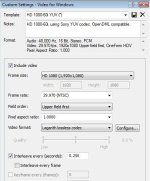
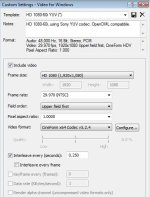
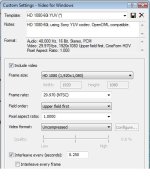
I took some footage (1080 @ 60i) yesterday and decided to try the conversion again. First I ran it through VP9 and rendered it as lossless avi using Lagarith lossless codec and ended up with a humongous file (11 Gb file from a 121 MB original file). After conversion I tried playing it on my computer and it made my computer crawl to its knees. Not only did it played like a slide show, the video also looked darker than original. I still went ahead and run it through VirtualDub and the resulting file was same size but was completely unusable because it was blocky, jerky and muddy. It looked like a low resolution file was upconvered to 10 times it resolution.
Next I tried rendering the original file using Cineform x64 codec and resulting file was around 1.5 GB and it looked same as the original. I then ran this file through VirtualDub and ended up with a file like before.....11GB file which my computer had a hard time playing.
Another thing I noticed that after installing Lagrith codec, VP9 behaves differently because even if I use the builtin "Uncompressed" rendering option, I still get a huge file which I wasn't getting before.
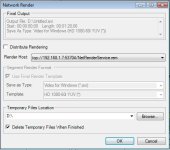
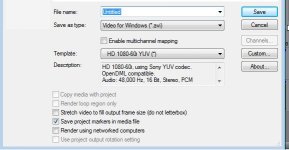
Also, I don't how or why now everytime I render (with whatever codec), I get a "Network rendering" (I do not have that option selected) window in VP9. I have no idea where that came from.
The only thing that's changed since last couple of days is that I installed lagarith codec and I don't know how or why it would be causing all this issue.
Any suggestion ??
Attachments
Last edited:
PerroneFord
Deals in Lead
I took some footage (1080 @ 60i) yesterday and decided to try the conversion again. First I ran it through VP9 and rendered it as lossless avi using Lagarith lossless codec and ended up with a humongous file (11 Gb file from a 121 MB original file). After conversion I tried playing it on my computer and it made my computer crawl to its knees. Not only did it played like a slide show, the video also looked darker than original. I still went ahead and run it through VirtualDub and the resulting file was same size but was completely unusable because it was blocky, jerky and muddy. It looked like a low resolution file was upconvered to 10 times it resolution.
You camera records at about 16-20 Mbps. Lagarith is going to be around 250 Mbps. So the file size is expected. Uncompressed is closer to 400 Mbps. Your computer is not capable of playing back as much data as Lagarith encoded files demands. Most computers can't. It is not intended to be played. Lagarith is a codec that is used to preserve EVERYTHING in a file. Codecs that are intended for playback are all very lossy. It's darker than the original because of a change in color space. That is a topic all to itself.
I don't know what you did in Vegas on the render, but we need to examine that process because it was not right. And we don't know what you did in VirtualDub either so we can examine that.
Next I tried rendering the original file using Cineform x64 codec and resulting file was around 1.5 GB and it looked same as the original. I then ran this file through VirtualDub and ended up with a file like before.....11GB file which my computer had a hard time playing.
The Cineform codec uses a lossy (but excellent) codec and it works differently than Huffyuv and Lagarith. You had issues in VirtualDub because you did not tell VirtualDub to save it's output as a Cineform file. This is easy to do. You need to Video > Compression and select Cineform instead of whatever it is defaulting to.
Another thing I noticed that after installing Lagrith codec, VP9 behaves differently because even if I use the builtin "Uncompressed" rendering option, I still get a huge file which I wasn't getting before.
I am not sure what you mean here, because "uncompressed" always, ALWAYS, creates huge files. That is it's nature.
Also, I don't how or why now everytime I render (with whatever codec), I get a "Network rendering" (I do not have that option selected) window in VP9. I have no idea where that came from.
Clearly some setting has changed. Installing Lagarith would not have caused this in Vegas.
The only thing that's changed since last couple of days is that I installed lagarith codec and I don't know how or why it would be causing all this issue.
It's not. Something else is going on. You've also installed Cineform. And I don't know what that has done.
...... anyway, here are two videos uploaded that use the tips you gave me:Dude.... uhhhh..... dude.
Regular speed:
http://www.youtube.com/watch?v=Six7k7QTw2Q
Slowed down:
http://www.youtube.com/watch?v=H1YaVcFYXtk
When I play the video on my PC it seems to blur the tumbler a little, but that isn't really noticeable on YouTube (as much).