
Navigation
Install the app
How to install the app on iOS
Follow along with the video below to see how to install our site as a web app on your home screen.
Note: This feature may not be available in some browsers.
More options
You are using an out of date browser. It may not display this or other websites correctly.
You should upgrade or use an alternative browser.
You should upgrade or use an alternative browser.
Settings for green screen
- Thread starter BigBill
- Start date

24p and 24pa are pretty much the same. The only difference is how the pull-down is added in anticipation of editing in 29.97 or 23.98. I'd say go with 24pa so that you don't have any frames that cause you problems. But DV is DV, progressive or not. The biggest factors are in good and even lighting.
The biggest factors are in good and even lighting.
Yup, that and a super tight junk matte in after effects Keylight will get you very realistic keys!
I'd say go with 24pa so that you don't have any frames that cause you problems.
I believe the editor plans to edit at 30fps, so wouldn't 24p be better?
Also, what do you mean by "frames that cause you problems"?
Thanks for the advice!

Jaimebailon
Well-known member
if the editor is going to edit in 30 then there is no question shoot 24p(which is not true progressive) or why not shoot 30p

NC17z
Well-known member
I have a better suggestion for ya.... Make sure your green screen is lit consistently and make sure your subject is half the distance from the green screen and the camera. Meaning 16 feet away is your camera and 8 feet away from your camera is your subject.
The exposure of your subject should be twice/double of what your green screen should be.
Use the marker setting to test the expouser... point it at the green screen, it should be at 40 to 50 %... and your subject should be exposed/lit up with light at about 80-90 %...
These settings work great for green screen... and definitely use a rim/hair light on the subject...
The exposure of your subject should be twice/double of what your green screen should be.
Use the marker setting to test the expouser... point it at the green screen, it should be at 40 to 50 %... and your subject should be exposed/lit up with light at about 80-90 %...
These settings work great for green screen... and definitely use a rim/hair light on the subject...
Use the marker setting to test the expouser... point it at the green screen, it should be at 40 to 50 %... and your subject should be exposed/lit up with light at about 80-90 %....
Sorry for my ignorance, but what is the marker setting?
I always thought that the green screen should be lit better than the subject, who should also be well lit, and with our lack of lights, I planned to do it that way, but I'll definitely try this out.
Thanks!
NC17z
Well-known member
When you open up your LCD and inside is a Zebra Button... Push the Zebra Button until it says MARKER ON... wait a second or two and then in the left hand corner of your LCD you will see a Two Digit Percentage. This is where your exposure level is. Light up your green screen (evenly as possible)... how can you tell if it is evenly lit. Use the marker percentage pan and scan all over the green screen. There will be a small box in the center of the LCD that you aim. Try it out on the other side of the room, aim it in a dark corner and then aim it at a light, you'll see what I'm talking about. You'll know if your too hot or not. Try to keep the green screen as even as possible. This makes for better keying in post. Then introduce the subject and light him accordingly to the content your creating however, try and make the subject brighter (lit more) (by 30 to 40% more) then the green screen. This gives you the right kind of contrast between the two. I've been using this method for some time now and it has never let me down. My keying ends perfect.

NoNoob
Carbonite Member
Lighting and separation are the key to a good green screen production.
The green screen material should be flat and non-reflective.
*Wal-Mart has this excellent fabric that is great- and cheap. I think they make moo-moos out of it.
It should be taut and smooth so the light falling on it is absolutely even.
From one side to the other and up and down- no more than one ƒ-stop deviation in level.
There's no 'rule of thumb' for distances- because the math just doesn't work in some instances.
I've done adequate green screen shots in small offices, without moving anything to accommodate 'doubling'. OH- it'd be great if you could, but don't depend solely on having double the distance from subject to screen.
Lighting is the utmost important consideration.
Most important factor- ESPECIALLY working in 4:1:1 color space?
Sufficient rim light around the subjects to define the edge between them (in the key light) and the background material.
I use straw gels on small lamps at an off angle just to pull this off.
It works great in the matting process.
Laying down a good choker matte beforehand is beneficial.
But "Keylight" is just awesome!
Jaw dropping excellence, and highly recommended.
[there are other plug-in and stand alone software packages that provide superb results, but can be quite costly. It this is a once in a while thing, rely on Keylight to do the job.]
Hair- especially boufy big hair with lots of curls and spikes- is the BANE of separation.
It'll kill a good matte job.
4:1:1 is not deep or robust enough to handle the process easily, and you give up quality for style with some outfits and hair.
Darker clothes (and gosh forbid, no WHITE shirts!) work well, and good makeup on the talent is very important.
Action should be limited to small, controlled movement.
I did a como with six actors in costume who had to be set on a moving BG of a tropical isle.
We did a test (in the studio*) and refined 'action' so that there was no lag in the key (revealing the key effect). *It's a good idea to have the ability to test your footage as you shoot- saves time and effort in the long run.
If your action is a cross or walk through- you'll have all kinds of headaches with the light levels unless on a perpendicular plane.
Say- crossing from screen right to left- on a straight line, all things should be equal; BUT, doing the same cross but at a 45°, the level can change dramatically (possibly ruining the shot).
Good planning and testing makes the grade.
After all, we're really faking out the system by doing this.
In some places green screen is probably agin the law....
good luck - and let's see some footage once you get it down!
The green screen material should be flat and non-reflective.
*Wal-Mart has this excellent fabric that is great- and cheap. I think they make moo-moos out of it.
It should be taut and smooth so the light falling on it is absolutely even.
From one side to the other and up and down- no more than one ƒ-stop deviation in level.
There's no 'rule of thumb' for distances- because the math just doesn't work in some instances.
I've done adequate green screen shots in small offices, without moving anything to accommodate 'doubling'. OH- it'd be great if you could, but don't depend solely on having double the distance from subject to screen.
Lighting is the utmost important consideration.
Most important factor- ESPECIALLY working in 4:1:1 color space?
Sufficient rim light around the subjects to define the edge between them (in the key light) and the background material.
I use straw gels on small lamps at an off angle just to pull this off.
It works great in the matting process.
Laying down a good choker matte beforehand is beneficial.
But "Keylight" is just awesome!
Jaw dropping excellence, and highly recommended.
[there are other plug-in and stand alone software packages that provide superb results, but can be quite costly. It this is a once in a while thing, rely on Keylight to do the job.]
Hair- especially boufy big hair with lots of curls and spikes- is the BANE of separation.
It'll kill a good matte job.
4:1:1 is not deep or robust enough to handle the process easily, and you give up quality for style with some outfits and hair.
Darker clothes (and gosh forbid, no WHITE shirts!) work well, and good makeup on the talent is very important.
Action should be limited to small, controlled movement.
I did a como with six actors in costume who had to be set on a moving BG of a tropical isle.
We did a test (in the studio*) and refined 'action' so that there was no lag in the key (revealing the key effect). *It's a good idea to have the ability to test your footage as you shoot- saves time and effort in the long run.
If your action is a cross or walk through- you'll have all kinds of headaches with the light levels unless on a perpendicular plane.
Say- crossing from screen right to left- on a straight line, all things should be equal; BUT, doing the same cross but at a 45°, the level can change dramatically (possibly ruining the shot).
Good planning and testing makes the grade.
After all, we're really faking out the system by doing this.
In some places green screen is probably agin the law....
good luck - and let's see some footage once you get it down!

You want progressive. You don't want any interlaced frames. So, if he's going to edit at 29.97, you should shoot 30p.
I believe the editor plans to edit at 30fps, so wouldn't 24p be better?
Also, what do you mean by "frames that cause you problems"?
Thanks for the advice!
David Jimerson pretty much answered the question, but here's the "why."
It does not matter what mode you shoot with the DVX. Whether you are shooting 60i (standard "video" mode), 24P, 24PA, or 30P, all of them hit the tape at a true rate of 29.97. That's the rate that DV uses.
Both 24P and 24PA are converted in-camera by having the pull-down added in so that they record at 29.97. This creates interlaced frames every so often. 24P footage has a pull-down added that is intended to be edited at 29.97, meaning that the interlaced frames will remain in the signal. The pull-down can be removed with a third-party program (Cinema Tools if your using FCS), but it's a real pain in the arse. 24PA, however, has a pulldown added in that is inteded to be removed before editing, and most NLEs have a capture setting that does this. Even after the puldown is removed, the image is still not (since we are still in the digital video world) running at a perfect number of frames, so we're now working with 23.976 (aka 23.98).
The interlaced frames will give you awkward edges that will mess with your keying edges. To avoid them, either shoot in 24PA so that you edit with 24 progressive (non-interlaced) frames at 23.98, or shoot in 30P and edit in a regular 29.97 time line.
I have to clarify, simply to stave off confusion which will inevitably show up in other NLE threads elsewhere. 
There is only one NLE which makes a pain out of removing pulldown from 24p standard (not 24pA) footage, and that's FCP.
Avid will remove either pulldown during capture, and all the other (pro-level) NLEs capture the footage as 29.97 and then automatically remove either pulldown on a 24p timeline, but leave the pulldown intact on a 29.97 timeline. With those, you can edit 24p standard on a 24p timeilne just as easily as you can edit 24pA. There will be no difference between the two.
There is only one NLE which makes a pain out of removing pulldown from 24p standard (not 24pA) footage, and that's FCP.
Avid will remove either pulldown during capture, and all the other (pro-level) NLEs capture the footage as 29.97 and then automatically remove either pulldown on a 24p timeline, but leave the pulldown intact on a 29.97 timeline. With those, you can edit 24p standard on a 24p timeilne just as easily as you can edit 24pA. There will be no difference between the two.
I have to clarify, simply to stave off confusion which will inevitably show up in other NLE threads elsewhere.
There is only one NLE which makes a pain out of removing pulldown from 24p standard (not 24pA) footage, and that's FCP.
Avid will remove either pulldown during capture, and all the other (pro-level) NLEs capture the footage as 29.97 and then automatically remove either pulldown on a 24p timeline, but leave the pulldown intact on a 29.97 timeline. With those, you can edit 24p standard on a 24p timeilne just as easily as you can edit 24pA. There will be no difference between the two.
Thanks, David. I tend to get locked in the FCP mindset in these forums.
Isn't the challenge of the pull-down removal with 24P that the clips must be logged at the flagged frames in order to have the proper frames removed? Is that still just the FCP/Cinema Tools issue or does it go for the other NLEs?
The footage, using either pulldown, carries flag data in the bitstream, which is captured with the footage pretty much with any program you might use to capture DV (even, say, Windows Movie Maker). The NLEs which remove the pulldown automatically on the timeline read that data in the captured files. It's not a process done at capture; the flags are put in when the footage is recorded.
So, no; capture does not need to begin at a particular frame in order to remove 24p standard pulldown. The flags in the data stream tell the NLEs where the A-frame is.
So, no; capture does not need to begin at a particular frame in order to remove 24p standard pulldown. The flags in the data stream tell the NLEs where the A-frame is.
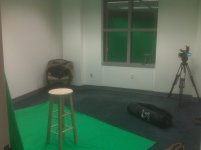
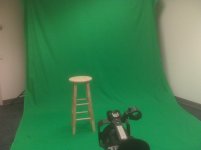
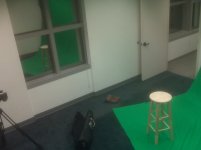
Another issue is the size of the room. It's pretty small, although we were able to film in there before and pull off a decent video. Last time we didn't have proper lighting, so the screen and subject weren't well lit and there was no separation between the subject and the screen. This time around we'll have better lighting and push the subject farther from the green screen.
Below you'll see photos of the room. (Lights not set up yet) The subject can only stand about 4 feet in front of the green screen and 7-8 feet in front of the camera in order to get a full body shot, which we need. Since we need to film in this room, are there any tips you guys can give me on maximizing what we can do? We're probably going to focus more on medium close ups vs full body. We don't plan to do any walking shots, except for entering/exiting the frame.
Also, we're going with two 250 watt work lights from Home Depot to light the screen and we have some smaller lights to light the subject. (The best we can do with the timing and budget) None of the lights are professional, all make shift. For the lights for the subject, can you recommend a good bulb?
Below you'll see photos of the room. (Lights not set up yet) The subject can only stand about 4 feet in front of the green screen and 7-8 feet in front of the camera in order to get a full body shot, which we need. Since we need to film in this room, are there any tips you guys can give me on maximizing what we can do? We're probably going to focus more on medium close ups vs full body. We don't plan to do any walking shots, except for entering/exiting the frame.
Also, we're going with two 250 watt work lights from Home Depot to light the screen and we have some smaller lights to light the subject. (The best we can do with the timing and budget) None of the lights are professional, all make shift. For the lights for the subject, can you recommend a good bulb?
Attachments
Last edited:
If you're doing only medium/CUs, get rid of the green on the floor. That's only more spill you'll have to deal with.
And speaking of spill, if you can, gel a hairlight with magenta.
And speaking of spill, if you can, gel a hairlight with magenta.
It's not really the bulb which matters with a work light, but if you can get something closer to putting out a greenish light to light the screen with, that'll be better.