
Navigation
Install the app
How to install the app on iOS
Follow along with the video below to see how to install our site as a web app on your home screen.
Note: This feature may not be available in some browsers.
More options
You are using an out of date browser. It may not display this or other websites correctly.
You should upgrade or use an alternative browser.
You should upgrade or use an alternative browser.
GH5 Paul Leemings New LUT for HLG Footage
- Thread starter TheDingo
- Start date

Marionathan
New member
The crushing of the blacks is because DW's LUT is designed for "video" levels, while Paul's is full range.
Once you've sorted that, they look very close.
Once you've sorted that, they look very close.
fboonzaier
Well-known member
Personally I have to say Paul's LUT gets me very close to where I want to be with very little further adjustment, unless I was going for an effect...have not tried Driftwood's LUT, but he was one of the main pioneers of the GH2 settings and I still use his Drewnet 9 long GOP patch whenever I shoot on my GH2...I imagine his LUT is excellent too!
mikee_mike
New member
Yes. Quoting Paul
https://www.facebook.com/groups/LeemingLUTOne/permalink/2001365696753442/
"I wish the clips would automatically get set to the appropriate levels, but they don't. So doing it manually ensures that I know they are always set correctly, irrespective of what the auto option wants to do.
HLG for example gets set to video levels if put on a Rec709 timeline (which is my LUT workflow). V-LogL is fine, since it is already pegged within the 0-100% IRE. Cine-D seems to get set to video levels, but it should be FULL."
[...]
All I'm doing is ensuring that all clips use the full 0-1023 range from the beginning, which is necessary to prevent HLG footage for example from clipping both ends. So what I'm doing is the correct way to ensure the full data levels of a clip are used.
[...]
I arrived at this by trial and error as I'm new to Resolve. What I found was that to reliably get the levels to work properly with LUTs, I needed to change Clip Attributes to Data Levels FULL, which is basically a way to tell the system that the highest white is to be set to 1023 and the lowest black is set to 0. Once that is done, we have successfully mapped the entire clip range between 0-1 for LUT and data level purposes, meaning we have a known baseline with everything fitting within the correct levels range
[...]
@JDW
"FCPX I'm not 100% sure about, as I'm PC based, so if someone has a sure fire method of ensuring that the 0-1 of the LUT maps correctly to the 0-[100-109]% IRE values of a clip, let me know as that will be included in the manual."
https://www.facebook.com/groups/LeemingLUTOne/permalink/2001365696753442/
"I wish the clips would automatically get set to the appropriate levels, but they don't. So doing it manually ensures that I know they are always set correctly, irrespective of what the auto option wants to do.
HLG for example gets set to video levels if put on a Rec709 timeline (which is my LUT workflow). V-LogL is fine, since it is already pegged within the 0-100% IRE. Cine-D seems to get set to video levels, but it should be FULL."
[...]
All I'm doing is ensuring that all clips use the full 0-1023 range from the beginning, which is necessary to prevent HLG footage for example from clipping both ends. So what I'm doing is the correct way to ensure the full data levels of a clip are used.
[...]
I arrived at this by trial and error as I'm new to Resolve. What I found was that to reliably get the levels to work properly with LUTs, I needed to change Clip Attributes to Data Levels FULL, which is basically a way to tell the system that the highest white is to be set to 1023 and the lowest black is set to 0. Once that is done, we have successfully mapped the entire clip range between 0-1 for LUT and data level purposes, meaning we have a known baseline with everything fitting within the correct levels range
[...]
@JDW
"FCPX I'm not 100% sure about, as I'm PC based, so if someone has a sure fire method of ensuring that the 0-1 of the LUT maps correctly to the 0-[100-109]% IRE values of a clip, let me know as that will be included in the manual."

visceralpsyche
Well-known member
Alright, I'm home after a nice New Year's break (and knackered, but that's irrelevant!). Let's put this issue to bed once and for all (I'm cutting and pasting this post from my Facebook support group).
Let me start by saying that I'm using Davinci Resolve 14.2 Studio, so my examples come from that system (which IMHO is currently the best system out there for range adjustment and consistency).
All LUTs, if they are designed properly, map the 0-1 range of the .cube LUT format to the 0-100% IRE levels of the video clip in a 1:1 fashion.
But wait, you say, some formats use compressed levels, like V-LogL, and others use superwhites to 109% IRE and other out-of-bounds values, like Cine-D and HLG.
Correct, they do!
OK, so how do you map those different levels to the 0-1 of the .cube LUT so they match properly again?
Can you alter the LUT? No, it's already following the standard 0-1 range (precision comes from the decimal points between those two absolutes).
Can you non-destructively alter the video clip to fit the 0-100% IRE to match the 1:1 relationship? Yes, you can!
How then, do you adjust the levels so that the LUT correctly applies itself 1:1 to the 0-100% IRE?
For Davinci Resolve, the very simple answer is to choose Clip Attributes - Data Levels FULL.
Bam! Any clips with out-of-bounds IRE values get re-mapped to 0-100% IRE (Cine-D and HLG). Any clips with IRE values within the 0-100% IRE space (V-LogL) stay just as they are.
It's an incredibly elegant solution to all the myriad formats out there, and puts all values for all profile types properly into the 0-100% IRE range, to match 1:1 with the 0-1 LUT standard.
That's why my first instruction with ALL footage imported to Davinci Resolve is to immediately highlight all your clips, and batch change Clip Attributes - Data Levels FULL.
So what about Premiere 2018? Well, older versions used to map the LUT to the range of the clip itself. Reversed thinking compared to Davinci Resolve, but the end result was the same, so it worked. With Premiere 2018, Adobe appears to have shifted to a similar standard as Resolve, which is to treat the LUT as 0-1 correctly, but allow for the clips themselves to go out of bounds, meaning that without some sort of compensation or manual shift back within bounds, any superwhites for example would be clipped from the LUT's point of view, and treated as 100% white.
Luckily for Premiere 2018 users, they also provided a new tool which I found to work in a consistent manner, to pull back the out of bounds values, and that is the Full to Legal Range 12 bit Lumetri preset. So you apply that globally to all your clips AHEAD of the normal Lumetri Color panel, then choose your LUT in the following instance (you end up with two Lumetri instances in your Effects Control panel). I am no longer using Adobe software, but when you do this with HLG footage at least, it correctly maps back to the proper range to apply my LUT to.
So, now to the sticky problem - FCPX!
I'm Windows based, so I have no way to test the new FCPX 10.4 behaviour with HLG footage and my LUTs. As a result I've been asking users to help nail down a similar method to Resolve that can consistently and repeatably pull out-of-bounds footage back to 0-100% IRE, so that the LUT can be applied and have the correct 1:1 relationship work as it's supposed to.
There seems to be several ways people are finding, but so far I've not seen a method that doesn't rely on some form of manually pulling down out-of-bounds levels back into their proper place, whereas I want there to be a simple way to properly re-map the ratios so that they fall precisely on the 1:1 relationship at the end of the method, meaning my LUTs will work as they should with all the various profiles.
Why is this important to figure out? Because my LUTs rely on getting the proper range of 0-100% IRE values to work properly at their 1:1 ratio.
If, as seems to have been the case with JDW's tests, you don't properly re-map your footage for the 1:1 relationship, you end up with crushed shadows and overblown highlights, because the curve in my LUT is designed to prevent clipping at both ends and rolls off in a precise manner to do so, meaning that the shadows end up much darker than they should, and highlights end up much brighter than they should (which manifests as a sort of false S-curve).
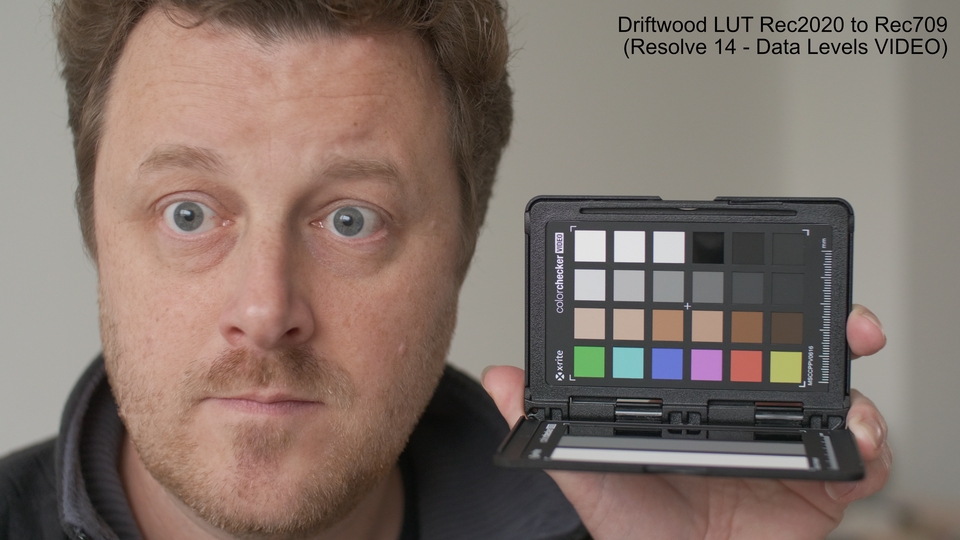
Nick Driftwood's LUT seems to be a mathematical conversion and not a hand-built one, and so I suspect that because Rec2020 is designed to have backwards compatibility with Rec709, it's using the video levels (16-235 equivalent) as its baseline and mapping in a non-linear relationship to the full 0-255 range to be mathematically correct for the Rec709 subset. Which is fine, except that you MUST then set your clip attributes to Data Levels VIDEO (in Resolve) to give the Driftwood LUT the correct starting point, or the equivalent re-mapping in Premiere 2018 and FCPX.
How is all this relevant to the supposed issue of crushed shadows etc?
It's simple. You need to start with the correct baseline range for each LUT to have them be directly comparable.
So for my LUT, you need to set your clip to FULL data levels (0-255), and for Driftwood's LUT, you need to set your clip to VIDEO data levels (16-235).
Do that, apply each LUT to the correctly ranged clip, and you'll find that the curve is almost identical, and there are no longer any crushed or overblown areas in the image (provided it was shot properly of course!).
See the sample of my LUT and the Driftwood LUT with their respective properly adjusted input levels below, so you can see how close the curve aspects are in reality, when processed correctly.
With all that done and dusted, let me close simply by saying that I've built my LUT by hand because like the other profiles in the Panasonic GH5, the HLG profile is not accurate for colour out of the box. While HLG is by far the closest attempt by Panasonic to 'get it right', it still falls short, and that's why my LUT is important if you care about accuracy (which I absolutely do).
So you can of course use the Driftwood LUT to get a nice mathematical conversion to Rec709. But if you want your colours to be spot on accurate, then Leeming LUT One for Panasonic HLG is still your best choice (not to mention my commitment to supporting you guys for all your questions, be it for the shooting phase or the post production phase).
Hope this helped clear things up!

Let me start by saying that I'm using Davinci Resolve 14.2 Studio, so my examples come from that system (which IMHO is currently the best system out there for range adjustment and consistency).
All LUTs, if they are designed properly, map the 0-1 range of the .cube LUT format to the 0-100% IRE levels of the video clip in a 1:1 fashion.
But wait, you say, some formats use compressed levels, like V-LogL, and others use superwhites to 109% IRE and other out-of-bounds values, like Cine-D and HLG.
Correct, they do!
OK, so how do you map those different levels to the 0-1 of the .cube LUT so they match properly again?
Can you alter the LUT? No, it's already following the standard 0-1 range (precision comes from the decimal points between those two absolutes).
Can you non-destructively alter the video clip to fit the 0-100% IRE to match the 1:1 relationship? Yes, you can!
How then, do you adjust the levels so that the LUT correctly applies itself 1:1 to the 0-100% IRE?
For Davinci Resolve, the very simple answer is to choose Clip Attributes - Data Levels FULL.
Bam! Any clips with out-of-bounds IRE values get re-mapped to 0-100% IRE (Cine-D and HLG). Any clips with IRE values within the 0-100% IRE space (V-LogL) stay just as they are.
It's an incredibly elegant solution to all the myriad formats out there, and puts all values for all profile types properly into the 0-100% IRE range, to match 1:1 with the 0-1 LUT standard.
That's why my first instruction with ALL footage imported to Davinci Resolve is to immediately highlight all your clips, and batch change Clip Attributes - Data Levels FULL.
So what about Premiere 2018? Well, older versions used to map the LUT to the range of the clip itself. Reversed thinking compared to Davinci Resolve, but the end result was the same, so it worked. With Premiere 2018, Adobe appears to have shifted to a similar standard as Resolve, which is to treat the LUT as 0-1 correctly, but allow for the clips themselves to go out of bounds, meaning that without some sort of compensation or manual shift back within bounds, any superwhites for example would be clipped from the LUT's point of view, and treated as 100% white.
Luckily for Premiere 2018 users, they also provided a new tool which I found to work in a consistent manner, to pull back the out of bounds values, and that is the Full to Legal Range 12 bit Lumetri preset. So you apply that globally to all your clips AHEAD of the normal Lumetri Color panel, then choose your LUT in the following instance (you end up with two Lumetri instances in your Effects Control panel). I am no longer using Adobe software, but when you do this with HLG footage at least, it correctly maps back to the proper range to apply my LUT to.
So, now to the sticky problem - FCPX!
I'm Windows based, so I have no way to test the new FCPX 10.4 behaviour with HLG footage and my LUTs. As a result I've been asking users to help nail down a similar method to Resolve that can consistently and repeatably pull out-of-bounds footage back to 0-100% IRE, so that the LUT can be applied and have the correct 1:1 relationship work as it's supposed to.
There seems to be several ways people are finding, but so far I've not seen a method that doesn't rely on some form of manually pulling down out-of-bounds levels back into their proper place, whereas I want there to be a simple way to properly re-map the ratios so that they fall precisely on the 1:1 relationship at the end of the method, meaning my LUTs will work as they should with all the various profiles.
Why is this important to figure out? Because my LUTs rely on getting the proper range of 0-100% IRE values to work properly at their 1:1 ratio.
If, as seems to have been the case with JDW's tests, you don't properly re-map your footage for the 1:1 relationship, you end up with crushed shadows and overblown highlights, because the curve in my LUT is designed to prevent clipping at both ends and rolls off in a precise manner to do so, meaning that the shadows end up much darker than they should, and highlights end up much brighter than they should (which manifests as a sort of false S-curve).
Nick Driftwood's LUT seems to be a mathematical conversion and not a hand-built one, and so I suspect that because Rec2020 is designed to have backwards compatibility with Rec709, it's using the video levels (16-235 equivalent) as its baseline and mapping in a non-linear relationship to the full 0-255 range to be mathematically correct for the Rec709 subset. Which is fine, except that you MUST then set your clip attributes to Data Levels VIDEO (in Resolve) to give the Driftwood LUT the correct starting point, or the equivalent re-mapping in Premiere 2018 and FCPX.
How is all this relevant to the supposed issue of crushed shadows etc?
It's simple. You need to start with the correct baseline range for each LUT to have them be directly comparable.
So for my LUT, you need to set your clip to FULL data levels (0-255), and for Driftwood's LUT, you need to set your clip to VIDEO data levels (16-235).
Do that, apply each LUT to the correctly ranged clip, and you'll find that the curve is almost identical, and there are no longer any crushed or overblown areas in the image (provided it was shot properly of course!).
See the sample of my LUT and the Driftwood LUT with their respective properly adjusted input levels below, so you can see how close the curve aspects are in reality, when processed correctly.
With all that done and dusted, let me close simply by saying that I've built my LUT by hand because like the other profiles in the Panasonic GH5, the HLG profile is not accurate for colour out of the box. While HLG is by far the closest attempt by Panasonic to 'get it right', it still falls short, and that's why my LUT is important if you care about accuracy (which I absolutely do).
So you can of course use the Driftwood LUT to get a nice mathematical conversion to Rec709. But if you want your colours to be spot on accurate, then Leeming LUT One for Panasonic HLG is still your best choice (not to mention my commitment to supporting you guys for all your questions, be it for the shooting phase or the post production phase).
Hope this helped clear things up!
If, as seems to have been the case with JDW's tests, you don't properly re-map your footage for the 1:1 relationship, you end up with crushed shadows and overblown highlights, because the curve in my LUT is designed to prevent clipping at both ends and rolls off in a precise manner to do so, meaning that the shadows end up much darker than they should, and highlights end up much brighter than they should (which manifests as a sort of false S-curve).
Paul, here is the new screencast I made today, showing you the S-curve extracted from your HLG LUT and how things work in FCPX 10.4:
https://youtu.be/gtr0sPGAiwY
I of course look forward to seeing how this problem can be solved in FCPX. I do not wish to switch to another video editor. Thanks.
Marionathan
New member
Paul, have you considered to release second version of your HLG LUT suitable for "video" levels (64-940 range)?
Instead of trying to fix all sorts of compatibility issues with different NLEs, one will simply need to use the correct version of the LUT.
The mapping of the 0-1023 to the 64-940 range should be pretty simple thing to do, after all.
Instead of trying to fix all sorts of compatibility issues with different NLEs, one will simply need to use the correct version of the LUT.
The mapping of the 0-1023 to the 64-940 range should be pretty simple thing to do, after all.
But wait, you say, some formats use compressed levels, like V-LogL, and others use superwhites to 109% IRE and other out-of-bounds values, like Cine-D and HLG.
Correct, they do!
GH5 HLG uses always limited range 64-940. GH5 histogram shows it too. I think it is also the common standard for HLG.
joe12south
Veteran
Just think...in a couple of months we'll have the GH5s, a new sensor, and the fun of all new color science!
visceralpsyche
Well-known member
James, you are coming at this with flawed methodology. Did you read my long post above? Did you see the comparison images with my LUT set to full data range, and Driftwood's with video range?Paul, here is the new screencast I made today, showing you the S-curve extracted from your HLG LUT and how things work in FCPX 10.4:
https://youtu.be/gtr0sPGAiwY
I of course look forward to seeing how this problem can be solved in FCPX. I do not wish to switch to another video editor. Thanks.
Your video doesn't address that at all.
My curve is flat exactly where it matters, IF you put your HLG clips to full range so that the end points of clipping highlights and shadows fall around the 64-940 marks before applying my LUT. In fact, the reason I have the rolloff is to prevent hard clipping, and to re-capture single channel clipping so that it rolls of gracefully and not sharply.
The base issue is simply that FCPX doesn't seem to allow you to tell it which range to use (16-235 or 0-255), meaning it wants to guess for you. If it's wrong, then you get the results you are seeing.
If you are knowledgeable about FCPX 10.4, please figure out how to tell it to treat clips as either 16-235 or 0-255 manually. THAT is the issue I'm trying to solve, so that I can instruct everyone using FCPX how to set their footage up to correctly use my LUTs.
Cheers,
Paul


TheTrickster
Well-known member
Doesn't the color space override work as required?
visceralpsyche
Well-known member
For everyone using FCPX and Premiere 2018 with my Panasonic HLG or Cine-D LUTs, could you please download the following file which contains two new "Fixie" LUTs, one for Full to Video Range and the other for Video to Full Range.
http://www.visceralpsyche.com/downloads/Leeming_LUT_Fixies.zip
They are designed to place BEFORE the corrective LUT in the case where your footage is not properly being seen as full range and clipping highlights and shadows as a result.
For FCPX users in particular, you need to place the Video to Full Range Fixie LUT in front of the Panasonic HLG LUT, to have the HLG LUT work properly.
I haven't tested it with Premiere, but I suspect that wherever I've mentioned to use the Full to Legal Range 12 bit Lumetri plugin in front of the main Lumetri panel, you can probably substitute the Video to Full Range Fixie in place of it.
Please give feedback on this, and if everything is working as it should, I'll update the Installation and Usage Manual with new instructions.
Thanks in advance, and cheers to Jim Robinson for your suggestion
http://www.visceralpsyche.com/downloads/Leeming_LUT_Fixies.zip
They are designed to place BEFORE the corrective LUT in the case where your footage is not properly being seen as full range and clipping highlights and shadows as a result.
For FCPX users in particular, you need to place the Video to Full Range Fixie LUT in front of the Panasonic HLG LUT, to have the HLG LUT work properly.
I haven't tested it with Premiere, but I suspect that wherever I've mentioned to use the Full to Legal Range 12 bit Lumetri plugin in front of the main Lumetri panel, you can probably substitute the Video to Full Range Fixie in place of it.
Please give feedback on this, and if everything is working as it should, I'll update the Installation and Usage Manual with new instructions.
Thanks in advance, and cheers to Jim Robinson for your suggestion
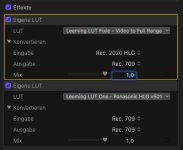
Thank you Paul, your Fixie LUT did the trick! No clipped highlights or crushed shadows anymore. In a Driftwood/Leeming HLG LUT comparison deep shadows appear to be darker after the Leeming combo is applied, which is okay for me. This is how I set up the LUTs in FCP 10.4:
Last edited:
visceralpsyche
Well-known member
That looks perfect in terms of workflow. Thanks for sharing!Thank you Paul, your Fixie LUT did the trick! No clipped highlights or crushed shadows anymore. This is how I set up the LUTs in FCP 10.4:
View attachment 128657
If there's anyone with English FCPX who can do a similar screenshot and test, and with a short text guide as to how one puts the LUT effect onto a clip, please post it below and then I can update the guide.
Cheers,
Paul
Yay! I wish I had a chance to try it out...
Be sure to give it a try, Jon. In FCPX 10.4:
1. Apply the Fixie as your CAMERA LUT. No need for "Color Space Override" as that popup appears to be disabled whenever you apply a CAMERA LUT.
2. Go to your effects browser and drag Custom LUT onto your clip.
3. Set that Custom LUT to "Leeming LUT One - Panasonic HLG v501" (leave Convert settings at their defaults, Rec.709, Rec.709 and 1.0)
4. Grade
5. Admire your handiwork (thanks to Paul's LUT)!
I did side-by-side comparisons using Paul's FIXIE LUT & HLG LUT with the Driftwood HLG. Paul's FIXIE LUT brings up the darks almost to the level of the Driftwood, but not exactly. It is very close though. I asked Paul about this and he told me that was by design, saying:
"I'm doing a manual rolloff to ensure that a single RGB channel clipping rolls off smoothly instead of hard clipping. When you have a strong source like LED, it can often clip one channel before the others, and my rolloff helps recover some of that information and give smoother edge transition, which looks more organic."
So give the FIXIE a go and see what you think.
Lastly, I would encourage everyone reading this to send Apple feedback on FCPX so we can avoid this kind of trouble in the future. Specifically, I submitted feedback to Apple asking them to add a feature in FCPX akin to what Adobe Premier and DaVinci Resolve offer; namely, the ability to switch between the Legal range of 64-940 and the Full Range of 0-1023 (for 10-bit).
https://www.apple.com/feedback/finalcutpro.html
Last edited:
Jon, the only way I've found to use "Color Space Override" is to leave "CAMERA LUT" set to None. Otherwise, if you do add a Camera LUT, that LUT will override whatever you have chosen in "Color Space Override."
In terms of ORDER, the CAMERA LUT gets applied first, which follows Paul Leeming's advice. He said we need to use his FIXIE LUT "first." That's why we must subsequently use the Leeming HLG LUT as a "Custom LUT" (Effects). After that, we apply our grading.
Are there disadvantages to using more than 1 LUT in FCPX 10.4? Apparently there is a small one. The CAMERA LUT seems to get applied without any extra rendering required. But EFFECTS, including the CUSTOM LUT, require rendering. On a fast Mac you may not notice the rendering because it goes on in the background, but it does happen nonetheless. Rendering in the background may also result in dropped frames, especially if you've not transcoded your imported footage to ProRes. Because of that, it would be ideal to have a single LUT as the CAMERA LUT which converts Rec.2020 to Rec.709; but since Paul's HLG LUT is designed for 0-1023 (Full Range in 10-bit), and since Panasonic forces use of the Legal Range (64-940) when shooting HLG, and since FCPX won't allow us to change ranges, we must either use Paul's HLG LUT alone as the CAMERA LUT and get smashed darks (no thanks!), or use his new FIXIE LUT as a CAMERA LUT effect and also use Paul's HLG LUT as the CUSTOM LUT. That's why I suggest every FCPX user send FCPX feedback to Apple to ask Apple to add a feature like Premier and Resolve which allows us to switch the range (Full <-> Legal) on footage as we see fit. If we could switch the range to 0-1023, the FIXIE LUT would no longer be needed and we could just since the HLG LUT as the CAMERA LUT, add our grading and be done!
I hope this helps!
In terms of ORDER, the CAMERA LUT gets applied first, which follows Paul Leeming's advice. He said we need to use his FIXIE LUT "first." That's why we must subsequently use the Leeming HLG LUT as a "Custom LUT" (Effects). After that, we apply our grading.
Are there disadvantages to using more than 1 LUT in FCPX 10.4? Apparently there is a small one. The CAMERA LUT seems to get applied without any extra rendering required. But EFFECTS, including the CUSTOM LUT, require rendering. On a fast Mac you may not notice the rendering because it goes on in the background, but it does happen nonetheless. Rendering in the background may also result in dropped frames, especially if you've not transcoded your imported footage to ProRes. Because of that, it would be ideal to have a single LUT as the CAMERA LUT which converts Rec.2020 to Rec.709; but since Paul's HLG LUT is designed for 0-1023 (Full Range in 10-bit), and since Panasonic forces use of the Legal Range (64-940) when shooting HLG, and since FCPX won't allow us to change ranges, we must either use Paul's HLG LUT alone as the CAMERA LUT and get smashed darks (no thanks!), or use his new FIXIE LUT as a CAMERA LUT effect and also use Paul's HLG LUT as the CUSTOM LUT. That's why I suggest every FCPX user send FCPX feedback to Apple to ask Apple to add a feature like Premier and Resolve which allows us to switch the range (Full <-> Legal) on footage as we see fit. If we could switch the range to 0-1023, the FIXIE LUT would no longer be needed and we could just since the HLG LUT as the CAMERA LUT, add our grading and be done!
I hope this helps!
Last edited:
I wonder why the GH5 HLG Leeming LUT wants to use full range because the GH5 HLG always records limited range?
I also wonder when the video industry will get rid of data levels/video levels confusion? Editors and new standards like rec2020 and HLG should start using full range. It would be much easier if the computer monitor and photo systems would be compatible with video world. Now we must all the time think luminance levels and superwhites/superblacks. All editors works differently when combining video and photo files. 8bit video has also banding issues when it uses only limited range.
I also wonder when the video industry will get rid of data levels/video levels confusion? Editors and new standards like rec2020 and HLG should start using full range. It would be much easier if the computer monitor and photo systems would be compatible with video world. Now we must all the time think luminance levels and superwhites/superblacks. All editors works differently when combining video and photo files. 8bit video has also banding issues when it uses only limited range.