output issues... workflow ideas people?

spratrbo

Member
I have recently shot some stock footage to be uploaded, but having an issue with output. Here's current workflow.

footage shot in 720pn mode
P2 card dumped into PC laptop and DVDs 4.7gig burned to store and transfer
Raw footage dumped onto harddrive on mac
Final cut P2 capture imported
Edit scenes and go to transfer

Here's where the problems arise. I cannot find the proper settings to output files without black borders on top and bottom. I have tried exporting using Compressor. I have tried outputting using Quicktime conversion. Nothing is getting rid of the black borders top and bottom, and depending on which setting I use it will strech or squeeze the image. iStock is taking files Quicktime compressed using Photo JPG or HDV, but will not take DVC Pro HD. As well files imported are shown in Final cut as 720x980 and not 720x1280. Maybe it is the import where things are getting screwed up. And even 1080i files do not show in the details as 1920 wide.

If anyone has input I would greatly appreciate it on how to output these files with Quicktime. I am not using the latest version of Final Cut with the Production Suite 2. It is the version before that but will take the P2 imports.

jp
 
Post some screen shots- sounds like you have some import or sequence settings set incorrectly.

Noah
 
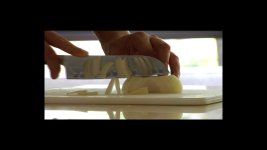
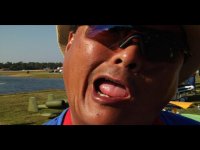
Ok... finally got some screen shots here. This is a sampling of 1080i and 720p files. For 720 (the guy's face) files the sequence settings are
Frame size: HD (960x720) (16:9)
Pixel Aspect ratio : HD (960 x 720)
Field Dominance; Lower (even)


For the 1080i Onion shot here are the settings

Frame size: HDTV 1080i (16:9)
Pixel aspect : Square
Field dominance: Upper (odd)


720p shots in the logging bin read as HD (960x720)
1080i shots in the logging bin read as HD 1280x1080)

This is all so strange... I am running FCP 5.1 and utilizing the P2 import to get files from the hard drive.


PLEASE HELP!!!
 

Attachments

  • onion2.jpg
    onion2.jpg
    47.2 KB · Views: 0
  • rennie2.jpg
    rennie2.jpg
    74.4 KB · Views: 0
Can we see screenshots in FCP with your sequence settings? Clearly you've got your footage in the wrong sort of sequence- perhaps an NTSC DV setting or an HD at 1280x720 rather than 960x720?

Noah
 
I thought I kinda did that by telling you the settings above the pics posted. Maybe this is a better question... when setting up the preferences in your sequence what should the setting be for footage shot in 720pn 30fps as well as 1080i 30fps. And is there any special way I should be importing these into FCP? Currently I am taking the p2 card and transferring data onto a laptop. Then burning DVDs and transferring that data onto the mac. Then in FCP I use "p2 Import" and find the files on the hard drive.

Shouldn't 1080i files be seen as 1920x1080? It seems FCP is seeing them as 1280x1080. And 720p files be seen as 1280x720? FCP is seeing my 720p files as 960x720. Perhaps the issue is in the import.

I know burning DVDs off the laptop in the field is not the quickest way to do all this but I am not about to go spending the dough yet for a designated p2 portable HD.
 
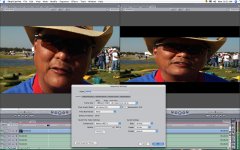
I think this is more what you wanted
 

Attachments

  • Picture 1.jpg
    Picture 1.jpg
    158.2 KB · Views: 0
  • Picture 1(2).jpg
    Picture 1(2).jpg
    214.6 KB · Views: 0
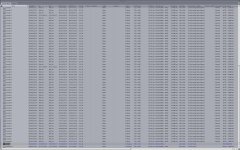
Disregard the 2nd screen shot of the bin. This is a better pic... Look in bin 2 for the files to see how FCP reads them. The other files are NTSC from another project.
 

Attachments

  • Picture 3(2).jpg
    Picture 3(2).jpg
    205.1 KB · Views: 0
There we go much easier to see what's going on. Not all HD is at the same resolution. DVCPROHD imports at 960x720 and 1280x1080. That's normal. So your sequence settings are a bit off. Number one- your compressor should be DVCPROHD not Motion JPEG-A.

The simplest way to fix is to click on the button called Load Sequence preset on the lower left. Then select the 720p30 preset. You need to do this with a new, empty sequence for the settings to take. Then start dropping in your clips. If you're not in FCP 6 you would also need to scale the clips that are not 720p- for example NTSC clips would need to be enlarged on their motion tab scale settings, and 1080i clips the other way.

Noah
 
As Noah says, the easy set up presets are the way to go.

I'm curious why you have the motion jpeg as the compressor.

Didn't you use the DVCProHD 720/24p easy set up?
 
It's a x-mas miracle it works!!! The reason why you see that Motion JPEG in there as I was messing with settings while waiting for a response here. That was not what was originally in there. However this brings up another issue...

I am trying to submit some of my footage as stock. This agency is very sticky as to how they will accept files. As a final submission here's how the file needs to conform.

Format: Quicktime MOV
Codec: Photo JPEG, MJPEG- A or B, HDV, DV
Compression: 3:1, 95%, Best

I tried using the HDV codec but I am running into two issues. 1) The file is 1440x1080i automatically and 2) I cannot increase the quality to "best"
Any hints here?

JP
 
If I am trying to send these as "high def" files though and so they are seen as high def won't it need to be in a HD codec like HDV? Or does that not matter. I called them today as well and it's gotta be a Quicktime mov file for sure. What settings would I use if all I have are Photo JPEG, MJPEG- A or B, HDV, DV and I want this as high def?
 
Well DV is NTSC and HDV is a pretty horrendous codec to send source footage as. I guess I'd go for Photo JPEG but as my export to Compressor codec, not my sequence setting.

Noah
 
50-80 megs is commonplace for a 20-30 second clip. Issues I have with HDV is I cannot adjust the quality to its highest. It comes through as medium quality. And then using Photo-JPG only gets so big pixel wise. I know this is just a matter of finding the right combination to make it all work. And fortunately today I at least got the sequence setting issues out of the way. That all works, but quickly finding the speed limitations of the dual processor 2.5 G5. Still have to get it compressed into a nifty "little" file that this agency will take and recognize as HD.
 
I'm having a very similar problem right now. I'm trying to export a movie from the timeline through QT Movie option on the export pull down menu. For whatever reason, that must be some kind of error inside FCP. I'm getting 1280x720 files instead of 960x720, which is what was shot and edited with. I've found that if I just export one clip or certain portions of the timeline then it will give me a 960x720 file. But there's something in the timeline that is throwing a wrench into this whole thing. I mean the file should be whatever I tell it to be in the export menu. Also the files that get changed to 1280x720 also get there pixel aspect ratio changed from HD (960x720) to square.
 
I figured out what happened. It is something inside FCP. If you have the render settings different from the sequence settings then FCP will render out the file in 1280x720 with a square pixel setting.
 
file size in export is tied to the viewer and canvas size

file size in export is tied to the viewer and canvas size

I noticed something funny too today when exporting 24pn footage brought to fcp using its file log and transfer option.
I did not edit anything. I just selected the clip from the browser, control click on it and export it with quick time compression. I set the size to current and got a weird size result. This happened with every codec I chose (h.264, uncompressed, etc). When I did a change my windows arrangement from 2 up to standard, I noticed that the exported size of my exported clips I was exporting changed too.
So in conclusion: FCP uses the size of your viewer or canvas literally to set the size of the files that you export if you choose current with or without native when exporting with quicktime conversion.
The only way that I got the right size was by typing the size manually. The word current does not refer to you current file settings; it reers to the current size of you viewer.
 
Back
Top