GH4 Interesting Discovery about GH4 Luminance Settings

dvbrother

Well-known member
I recorded 3 clips with the exact same exposure settings but switched the "luminance level" setting for each one and brought them into Premiere CC on an iMac.
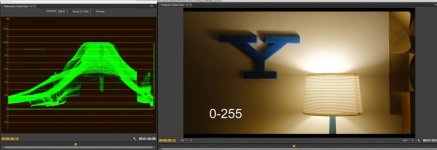
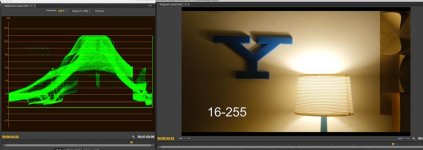
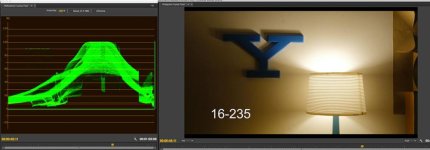
'0-255' and '16-235' look exactly the same and on the waveform they both clip at 100 IRE...BUT the interesting discovery is that '16-255' displays with superwhites and goes to 110 IRE and the image looks more blown out. More is clipped.

So it appears that, in Premiere CC at least, 0-255 gets mapped correctly, 16-235 gets mapped full range, but 16-255 doesn't get mapped correctly. The latter setting alone may be what's causing the clipped highlights many are seeing on Vimeo, etc. So, when the GH4 is set to 0-255, I don't think there is any need to "recover highlights" by doing any special color correction for it. The problem is only when the camera is set to 16-255.

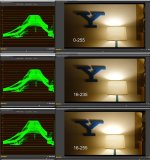
Here are some photos that show the issue:
16-255.jpg
 

Attachments

  • Screen-Shot-2014-05-11-at-2.09.55-AM.jpg
    Screen-Shot-2014-05-11-at-2.09.55-AM.jpg
    41.3 KB · Views: 0
  • Screen-Shot-2014-05-11-at-2.10.19-AM.jpg
    Screen-Shot-2014-05-11-at-2.10.19-AM.jpg
    44.3 KB · Views: 0
  • Screen-Shot-2014-05-11-at-2.10.07-AM.jpg
    Screen-Shot-2014-05-11-at-2.10.07-AM.jpg
    42.6 KB · Views: 0
Last edited:
Interesting Premiere issue!

Hmm, I know that our tests have certainly been accused of having issues, however... that wasn't the cause. We were shooting 0-255 and processing properly.

Also, notice how in ALL of your lamp highlights, you have a band of pink, then a band of very light green, then white. It's more intense in the 16-255 clip but is present in the others as well if you turn up the saturation.

I think that's due to the red, green and blue channels clipping at different places, and the GH4's color science making a mess of everything as a result.

Bruce Allen
www.boacinema.com
 
Interesting Premiere issue!

Hmm, I know that our tests have certainly been accused of having issues, however... that wasn't the cause. We were shooting 0-255 and processing properly.

Also, notice how in ALL of your lamp highlights, you have a band of pink, then a band of very light green, then white. It's more intense in the 16-255 clip but is present in the others as well if you turn up the saturation.

I think that's due to the red, green and blue channels clipping at different places, and the GH4's color science making a mess of everything as a result.

Bruce Allen
www.boacinema.com
very good point! I see what your saying..
 
Also, notice how in ALL of your lamp highlights, you have a band of pink, then a band of very light green, then white. It's more intense in the 16-255 clip but is present in the others as well if you turn up the saturation.

I think that's due to the red, green and blue channels clipping at different places, and the GH4's color science making a mess of everything as a result.

Bruce Allen
www.boacinema.com

I was shooting in Cinelike-D. I haven't had a chance to do tests using different picture styles to see if clipped highlights look different between them.

But Cinelike-D has always been notorious for this. The extra latitude comes with the price of no knee in the highlights. Much of this is easy to fix in post by desaturating the highlights a little.
I don't think the clipped highlights look as bad as they do on the AF100.

BTW, the 16-255 clip does the same thing in FCP 7, so it might be a Quicktime thing and not a Premiere thing. Maybe I'll repeat the test shooting MP4 instead of MOV on the camera and see if the same thing happens.
 
Doesn't that just mean that 16-255 is recording a less flat (more contrasted) image?
Eric,
It's difficult to see with the small JPEG I attached, but the 16-255 clip actually goes to 110 IRE on the Premiere waveform monitor, where the other 2 clips go to 100 IRE. All 3 clips were shot at the exact same exposure. The 0-255 clip is being properly flagged to remap it's values to a broadcast legal range, but the 16-255 clip isn't. This causes the 16-255 clip to have clipped highlights (or MORE clipped in this case as I intentionally exposed all 3 shots to have an area of clipping above the lamp shade).
 
...
So it appears that, in Premiere CC at least, 0-255 gets mapped correctly, 16-235 gets mapped full range, but 16-255 doesn't get mapped correctly. The latter setting alone may be what's causing the clipped highlights many are seeing on Vimeo, etc. So, when the GH4 is set to 0-255, I don't think there is any need to "recover highlights" by doing any special color correction for it. The problem is only when the camera is set to 16-255.

Good to know - thanks for the info!
 
On the GH1 and GH2 (and presumeably the GH3), AVCHD files are tagged with Metadata that indicates that the luminance ranges from 0-255. You can confirm this by putting Adobe After Effects in Managed Color mode, and setting its internal color space to "Rec 709 (0-255)". After importing an AVCHD file, you can check its Interpret Footage dialog, and AE will indicate that its colors have not been remapped, because the video's color space matches AE's internal color space. If you instead set AE's internal color space to "Rec 709 (16-235)" and reload the file, AE will remap the colors, compressing the file's 0-255 range into 16-235. (Of course, if you are in 32-bit pixel depth, AE will do this in floating point with no loss in image quality.)

With the GH4, I'd hope Panasonic has taken care to mark each video file with metadata indicating its correct color space setting. However, I don't know whether there's a standard tag that indicates "16-255" range. If not, Panasonic may have been forced to tag these videos as "16-235" to work compatibly with editors that set 100 IRE to 235 and allow superwhites to range up to 120 IRE. That may be why Premiere Pro is clipping your highlights in 16-255 videos. Unlike After Effects, however, Premiere Pro has no Managed Color mode that could be used to test this possibility.
 
Looking at this, it's clear to me that you'd want to shoot in 0-255, which is the option that gives you the best gradation, and looks fine when opened in the editor. By using 16-235, you get 10,648,000 different colors instead of 16,777,216. You can convert to 16-235 in post if you want, and you'll get less banding issues after grading the image. (all of this, in theory, of course)
 
Looking at this, it's clear to me that you'd want to shoot in 0-255, which is the option that gives you the best gradation, and looks fine when opened in the editor. By using 16-235, you get 10,648,000 different colors instead of 16,777,216. You can convert to 16-235 in post if you want, and you'll get less banding issues after grading the image. (all of this, in theory, of course)

I think I agree (per my other thread) but would like some uber geek that can post up proof, as I am not skilled in the black arts of the technical side. 0-255 in camera tells ME I woul dbe recording more across the cam's luminance range - SLIGHTLY less banding hopefully - than recording 16-235. Not sure about the color count, but 256 levels of luminance seems better than 220 levels, IF the camera deals with it that way.

Anyone prove this?
 
Hi

At some point for most people those 0-255 will need to become 16-235. Shooting 0-255 allows you to slide the more usual 16-235 range within that and rescue highlights or shadow detail.

Sony Vegas will let you keep the whole 0-255 range (the time line runs at 0-255) however it will not render an AVC file with a full-range flag, so unless the media player has a manual override to say it's full range, then it will simply take 16-235 from that 0-255 range, expand it to 0-255 and sent it to the display, so anything that is very dark grey becomes black, and highlights vanish.

I've found exporting to CineForm YUV from Vegas, then using X264 with the range set as PC (0-255), will create an H264 file with the full-range flag set.

Regards

Phil
 
so, 0-255 is the BEST way to capture the MOST inside this camera, right?
Yes, I'd recommend sticking with full-range 0-255 format, as it's the standard used in other DSLR models from Panasonic, Canon, and Nikon. Studio-swing 16-235 format would be more useful for compatibility with older videocams that shoot in that format. I'd stay away from the oddball 16-255 format, as I suspect it's not properly identified by the video file's metadata tags.
 
Hey fellas - sorry for the necro post but wanted clarification on something. I just watched the 'recover superwhites' video:

https://vimeo.com/92613144

And had a question about how it relates to Premiere's settings.

As suggested, I could use the Fast Color Corrector on an adjustment layer and just clamp my whole video to 235, using Output Levels. I noticed that this brings the highlights down on the YC Waveform to 80-85 IRE.
Could I achieve the same thing by just keeping highlights down btw 80-85 IRE during correction/grading for each clip? I guess what I'm trying to ask is if the Output Levels are one in the same as what I see on the Luminance Scale for the YC Waveform.
Thanks!
 
I think this is a problem because there's only 2 possible values in the metadata: Full or Limited. So if the video is recorded as 16-255, it is interpreted as 16-235 thus clipping the highlights.

In fact my footage recorded like that looks fine in Premiere, but once I export it, it looks overexposed. I tried the method shown in the video above but that doesn't change it much.

What should be done to correctly prepare 16-255 footage for the export?
 
I don't know no nothings about no Premiere, but in Vegas-land, I can pretty much ingest, edit, and output ANY levels from any file with no problems. Any clipping mistakes were bad judgement in my rendering output. Is this all just a Premiere only issue?
 
I don't know no nothings about no Premiere, but in Vegas-land, I can pretty much ingest, edit, and output ANY levels from any file with no problems. Any clipping mistakes were bad judgement in my rendering output. Is this all just a Premiere only issue?

It has been an issue until CC 2014.2 ;)
 
Back
Top