GH4 Fixing magenta issue. Even works with when using Varicam LUT.

CustomerGH4

Well-known member
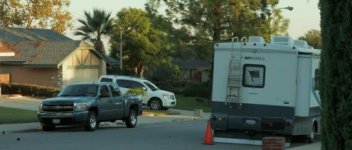
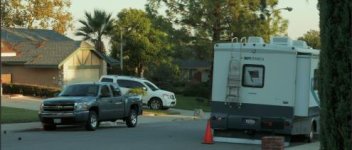
So here is a sample I just did using the fix:
After fix: http://www.upload.ee/image/5214716/P1160343.png
more colorful version http://www.upload.ee/image/5215400/P1160343.png

What I did with the footage up there.
Step one: import video to Photoshop.
Step two: Under filter choose a conver for smart filters. Make sure you choose all the frames.
Step three: Under filter choose camera raw filter.
Step four: Under detail in the raw filter use the Color noise reduction.
Step five: Make other adjustments as you please, contrast, exposure, tint etc. Or a LUT.
Step six: Export, render video with max settings and your done.

PS. I tested it with different footages, the better light in your source the better it works (Duh, obvious.)
Anyway big thanks to Joonas_T in personal-view.com , he discovered it all.
 
Last edited:
poo poo that! That workflow is a pain in the ass. I guess you could save a clip doing this, but I wouldn't do it to every clip (as every clip wouldn't need it).
 
poo poo that! That workflow is a pain in the ass. I guess you could save a clip doing this, but I wouldn't do it to every clip (as every clip wouldn't need it).

Yes, the workflow is a pain in the ass, but until a better solution is found Im going to use this one as it is seems to give the best results regarding the magenta issue currently.


Edit: you can fasten the workflow by saving the color noise reduction setting as a custom preset.
 
Last edited:
I remember looking at using Photoshop's excellent RAW filter for video in the past. If I recall, it takes FOREVER for Photoshop to export video.

Still, this gives hope that someone would write a plug-in that will work with NLE's.
 
Yes, the workflow is a pain in the ass, but until a better solution is found Im going to use this one as it is seems to give the best results regarding the magenta issue currently.


Edit: you can fasten the workflow by saving the color noise reduction setting as a custom preset.

But it's the NR application that slows the workflow to a snail slide. Takes forever.
 
What would clean it up nicely is to only desaturate areas of low saturation. Traditional 3-way correctors can't do this but some kind of saturation curve could easily do it. I don't use Resolve, but I'd guess it has the necessary controls. Could be very quick way to mask the problem.
 
In Neat Video you can save profiles so that you can load them up quickly.

If I really need to help the magenta issue I would edit, grade, and while grading mark the clips you need the help on. Once ready for export, go through the marked clips and add (by using copy paste effects) the neat video with profiles you created for the magenta issue. Apply and then export. The neat video will make export render slow down, so go out and get a burrito and a beer while the video renders. Hell of a lot faster as just as effective as running tones one clips through PS before you even get to editing.

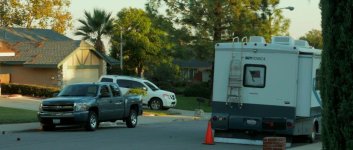
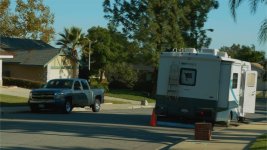
Before NV (look at the street and the white of the motor home)
before copy.jpg

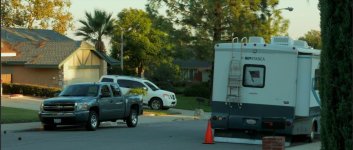
NV applied (look at same areas)
after copy.jpg
 

Attachments

  • before.jpg
    before.jpg
    20.9 KB · Views: 0
  • Screen Shot 2015-09-22 at 12.11.44 PM.jpg
    Screen Shot 2015-09-22 at 12.11.44 PM.jpg
    21 KB · Views: 0
Dusty, thats a big improvement over the PS method, it doesn't kill the rest of the tones in the image like PS does, but it still mutes them a bit, can it be masked ? ( never used NV )
 
I'm sure you could mask it somehow, but why? I mean, how long is a typical clip? 4, 5 , 6 seconds, unless some long narrative shot? And if your shooting a long narrative, use an external recorder.
 
Yeah, you're right, its me stupidly thinking as a stills shooter, gonna take a while to change a 27 year habit ! :cheesy:
 
Ok - been playing around with NEAT VIDEO. I shot a white wall and sure enough I can see (after applying the varicam LUT and adding lots of saturation) these 'magenta blocks' people have been mentioning.
I've not noticed these until now as I've been shooting exteriors and faces and getting very nice results.

So using Hue / Saturation in AFTER EFFECTS (32 BIT MODE) I attempted to isolate the magenta and reduce the saturation of the magenta.

It did nothing.

Switching over to the RED channel, I boosted this to isolate it and sure enough, its not magenta thats 'blocking' its the RED CHANNEL. I reduced the RED CHANNELS saturation and the blocks go away - but it effects the overall image colours way too much.

So..

I then tried NEAT VIDEO and i drew a box over the white wall and straight away NEAT said 'Clipping in R Channel'. In 'advanced mode, it gives you a curve showing you what's going on and sure enough the red channel is way way 'clipped' over 120%. In NEAT I adjusted down the red channel to below 100 (using the curve editor) and the blocks are gone.

Also - by just adjusting the Cr noise amounts (and not bothering with Y or Cb), it does a great job of smoothing out hard 'blocks of red' on faces and giving the appearance of more color depth.
 
Last edited:
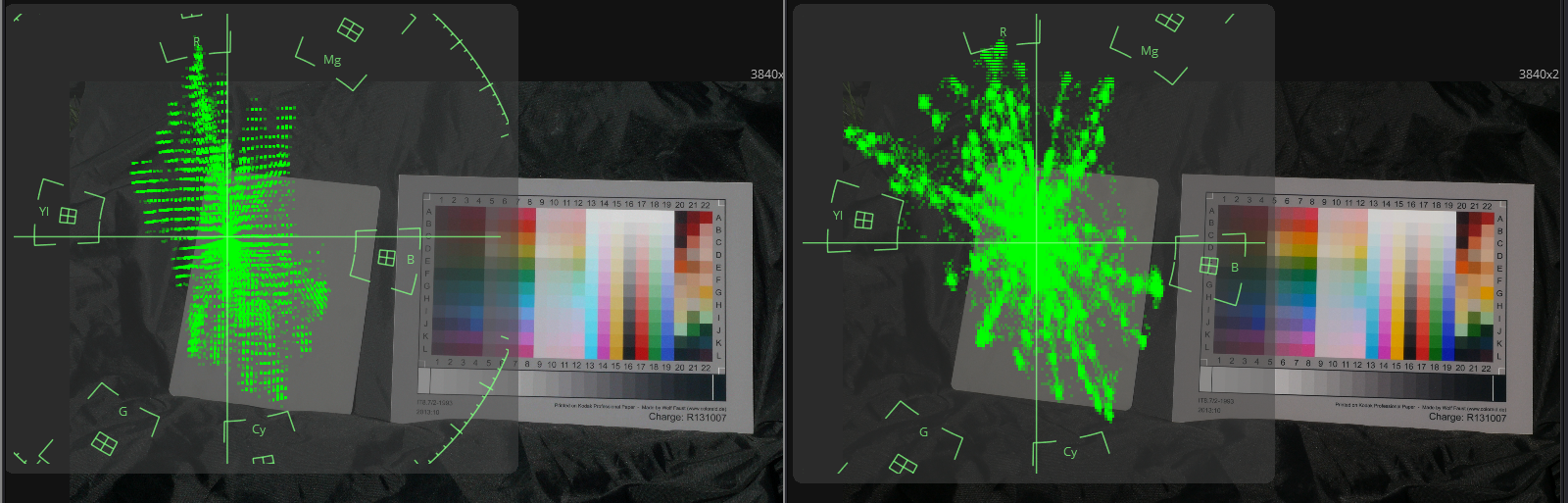
denoising the footage doesn't look very useful in this very case. noise just makes it visible, but it does look more like a quantization problem in the U-channel. look at this comparison of v-log+panasonic-LUT on the left and std profile footage on the right:
vlog-vectorscope.png
do you see this wide gaps in the vertical (V / red-cyan) direction? i think, that's the main reason for this ugly color artifacts. if you look at the levels of the YUV or XCbCr waveform, you'll see that panasonic isn't only wasting a lot of luminance values, it's also utilizing the available range of color channels in an incredible uneconomic way. visible banding in color gradients are the unavoidable consequence at least for 8 bit internal recording. :(
vlog-waveform.png
 
Last edited:
Fix for VLOG: don't use it. :) Or use it as an artistic filter when needed, KNOWING its limitations and colorations.

(Cinestyle from Technicolor was totally free..... grumble grumble)
 
Back
Top