Faster workflow with Canon T2i??

You're talking about something totally different. We're not comparing output codecs.

H.264 > ProRes Intermediate > Grade (in ProRes Timeline/Project) > Lossless - should look exactly the same as:
H.264 > Grade (in ProRes Timeline/Project) > Lossless

No I don't think so. I know from experience that grading goes better on ProRes then even pro codecs like DVCProHD, when the source footage was DVCPro HD so I am assuming that the same is true with the H.264 footage from the Canons...I wouldn't know because I've never not converted them to ProRes.
 
No I don't think so. I know from experience that grading goes better on ProRes then even pro codecs like DVCProHD, when the source footage was DVCPro HD so I am assuming that the same is true with the H.264 footage from the Canons...I wouldn't know because I've never not converted them to ProRes.

Did you see the other post above the one you quoted. Your source footage doesn't need to be ProRes, you just need a ProRes timeline. Having a ProRes source defaults FCP into a ProRes timeline which is why people think thats the reason but its really the ProRes timeline in FCP that's giving them the higher bit depth and higher quality. You can set a ProRes timeline without actually having ProRes sources. The output will be the same.
 
Did you see the other post above the one you quoted. Your source footage doesn't need to be ProRes, you just need a ProRes timeline. Having a ProRes source defaults FCP into a ProRes timeline which is why people think thats the reason but its really the ProRes timeline in FCP that's giving them the higher bit depth and higher quality. You can set a ProRes timeline without actually having ProRes sources. The output will be the same.

Filters in Final Cut Pro are applied on a per clip basis not a per track basis like in an audio program. Therefore the source footage does matter, or at least I'm pretty sure. In either case, I would transcode anyway because it will run faster.
 
Filters in Final Cut Pro are applied on a per clip basis not a per track basis like in an audio program. Therefore the source footage does matter, or at least I'm pretty sure. In either case, I would transcode anyway because it will run faster.

You might have a point but technically it shouldn't since FCP or any other program can convert 8bit frames into 16bit on the fly for effects and such. I know After Effects can. You can clearly see the difference by switching AFX comps between 8/16/32 bit modes and it does it on the fly without any changes to the source.

Sure, you should use faster intermediates anyway but I'm just trying to dispel the misinformation that you NEED a high bit depth source in order to edit at a high bit depth.
 
You guys are comparing a non linear editor (final cut pro) to a comping app (after effects).
Final cut should be compared to another NLE like Adobe Premier, not AE.

They are two different things with two different purposes.
eg
if you want to do a chroma key, use after effects because FCP effects suck at that.
if you have 10,000 clips to sort and edit into a 30 minute documentary use an NLE like premier or final cut because
you will just collapse and die trying to do it in AE !!

:badputer:

:furious3:

:engel017:
 
Last edited:
@ Shao - Final cut doesn't hold your work in ram like AE, it organizes & manages files on hard drives like Premier. If a clip doesn't match the timeline codec then FCP
transcodes and saves it on the scratch disk. Most basic effects on clips can be rendered in real time but anything with any complexity must also be rendered to scratch.

Also the FCP timeline has clips sequentially back to back across on every layer. AE as you well know must have 1 clip per layer.
 

Attachments

  • fcp_timeline.jpg
    fcp_timeline.jpg
    105.1 KB · Views: 0
Last edited:
Also the FCP timeline has clips sequentially back to back across on every layer. AE as you well know must have 1 clip per layer.


Not sure what the significance of this would be ?

Aren't 'layers' just conceits, ideas, to make the interface analogy easier for us humans to understand (ie: they don't exist, there is just maths).

After all you could chop some footage up in AE - pre-compose it - putting it all on one layer.

Maybe I have misunderstood what it is you are saying here !?
 
Last edited:
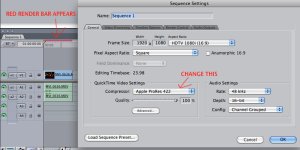
So, I see that in FCP, under sequence settings there is the first tab "General" where you set the timeline sequence codec, which you want to have match the files you're bringing it, whether it be H.264 or ProRes 422. However, under "Render Control" you can set a seperate codec to render into. I assume this is what we're talking about is bringing the native H.264 files in and just setting to render into ProRes 422, in which case, nothing should be lost or any artifacts introduced, right?

My machine is just out of reach of being able to process 1080p H.264 content when in full screen (whether in Quicktime 7 Pro or Final Cut Itself) and so I'll continue to transcode for playback speed primarily. However, it seems like setting the render codec and not sequence codec to ProRes, you are in fact color correcting and adding effects and transitions in just as good a way as if all the footage was converted to ProRes and the timeline codec was ProRes (and therefore the render codec by default would be ProRes).

Thoughts from more experienced FCP editors?
 
Hmm. My initial little test shows the rendered transition between 2 H.264 clips on a H.264 timeline with ProRes set as the render codec still comes out as H.264.
 
Hmm. My initial little test shows the rendered transition between 2 H.264 clips on a H.264 timeline with ProRes set as the render codec still comes out as H.264.

I think you need the input or whatever its called set to prores but if it ends up transcoding it anyway then its a moot point. I initially thought it would do the bitdepth translation in realtime like After Effects.
 
We transcode all footage for speed and efficiency. Media processing time to batch transcode is cheap/free, edit is expensive. It is not a small difference in speed of edit. Rendering out takes FOREVER when you are staring at it (especially if you add effects or change things around). Why do that in your edit session? Isn't your time (and clients time) valuable.
 
Oh really? Thats a bummer. Boooo.

...I initially thought it would do the bitdepth translation in realtime like After Effects.

no bummer, this is a really good thing. If it didn't do it this way it would be a lousy editing app. Remember AE is designed for comping not editing. They are each designed with two completely different goals in mind.
Remember my earlier example of sorting 10,000 clips to create a 30 min documentary? AE would be terrible choice of application for this task simply because it is not designed to edit with. You would die trying to do it.

Hmm. My initial little test shows the rendered transition between 2 H.264 clips on a H.264 timeline with ProRes set as the render codec still comes out as H.264.

Sorry bro you are doing it wrong. See the pic attached to this post, it should help you. Remember to choose export movie from the file menu. Don't export from FCP with quicktime conversion. FCP is a great editor but lousy as an export compressor. If you need further conversions, use the Compressor app or go back and alter your timeline settings again.

We transcode all footage for speed and efficiency. Media processing time to batch transcode is cheap/free, edit is expensive. It is not a small difference in speed of edit. Rendering out takes FOREVER when you are staring at it (especially if you add effects or change things around). Why do that in your edit session? Isn't your time (and clients time) valuable.

Bingo. This dude gets it.
I work edit time efficiently and bill for it. At night while I sleep the mac renders and if it is dailies I bill half price for that too.


(attachment below for seq codec changes)
 

Attachments

  • seq.jpg
    seq.jpg
    187.3 KB · Views: 0
Last edited:
no bummer, this is a really good thing. If it didn't do it this way it would be a lousy editing app. Remember AE is designed for comping not editing.

I don't really see on-the-fly bit depth conversion as being specific to either editing or comping. I think its a general feature that should exist in both realms. When H.264 editing becomes faster with new code optimizations and faster processing, on the fly bit depth translation will be a real time and space saver since you won't need to make or store all those intermediates.
 
Sorry bro you are doing it wrong. See the pic attached to this post, it should help you. Remember to choose export movie from the file menu. Don't export from FCP with quicktime conversion. FCP is a great editor but lousy as an export compressor. If you need further conversions, use the Compressor app or go back and alter your timeline settings again.

No, I get it. (I think). I have the sequence settings set to H.264 and the Render setting to ProRes. When I render a transition and go into Final Cut Pro Documents > Render Files, the video file there, of just the brief transition, is still H.264. I'm not exporting or compressing anything.

Anyways, I'm talking about stuff I don't know all the "ins and outs" about, and since I need to use ProRes for speed anyways, I'm sort of done exploring it. :happy:
 
No, I get it. (I think). I have the sequence settings set to H.264 and the Render setting to ProRes. When I render a transition and go into Final Cut Pro Documents > Render Files, the video file there, of just the brief transition, is still H.264. I'm not exporting or compressing anything.

Anyways, I'm talking about stuff I don't know all the "ins and outs" about, and since I need to use ProRes for speed anyways, I'm sort of done exploring it. :happy:

Hey Ryan, I know its a moot point but just for your reference, leave the Render Tab alone. The default on that tab is 'Same as Sequence Codec' which means it will render to whatever you have selected in the General tab (see my pic attached to earlier post).

Knowing how to switch the codec on the timeline with the General tab is a very handy thing.
 
Hey Ryan, I know its a moot point but just for your reference, leave the Render Tab alone. The default on that tab is 'Same as Sequence Codec' which means it will render to whatever you have selected in the General tab (see my pic attached to earlier post).

Knowing how to switch the codec on the timeline with the General tab is a very handy thing.

Yeah, no trouble there. I'm not that desperately new to this. :happy:

I was just exploring changing the render codec to see if one could avoid converting to ProRes entirely along shaocaholica's line of thinking...
 
I was just exploring changing the render codec to see if one could avoid converting to ProRes entirely along shaocaholica's line of thinking...

Yeah I think I might have been wrong, not in theory but in real world implementation of FCP. However, I think After Effects still behaves the way I described albeit a compositing app and not a NLE.

Still, I'm exploring using Lightroom to do by primary and secondary grading and that program operates at 16bit internally regardless of the source. Not something I would recommend for the faint of heart since its primarily an image editing program but I've been told its workflow and quality are similar to pro color systems like DaVinci. Who knew the "cheap" RAW developers are converging with the super high end color for motion industry.
 
I work directly with the native H.264 files. Transcoding time = 0 !!

I'll second Lee's comment. I too work with H.264 files directly with Vegas Pro. No transcoding, no duplication of files, no wasted drive space. Sometimes breaking "the general rule of thumb" can prove the rule unfounded.
I'm curious as to the hardware specs for the above statements. What are the minimum requirements to get acceptable editing performance on a PC without transcoding? Doesn't Vegas use only CPU power, not GPU hardware acceleration?
 
Last edited:
Back
Top