What are the best practices for combining interlaced and progressive footage

Imamacuser

Veteran
Hi everyone,

I recently shot a project at 3840x2160 30P with an A6300, and now the client would like me to combine it with footage I shot 10 years ago at 1440x1080 60i with a Sony SR-11.

I'm using the free version of Resolve 15 with a mid-2012 MBP that's been upgraded to an SSD, 16GB RAM, and the Intel HD4000 graphics card hacked to use 2GB of system RAM. The final video will be delivered to DVD and possibly YouTube. I'll be using Toast Titanium to encode the final video to DVD.

I can correct the 1440x1080 aspect ratio and scaling in Resolve by applying a 1.3 anamorphic desqueeze and zooming in 1.026%, so my only real concern is dealing with interlaced and progressive footage.

I tried deinterlacing with JES Deinterlacer, QuickTime 7, and MPEG StreamClip, but they all result in lots of artifacts.

It seems like a lot of DVDs are interlaced, should I just interlace my 3840x2160 30P footage, edit everything on an interlaced timeline, and export interlaced for DVD?
 
When I was younger, I had a job that entailed de-interlacing hundreds of hours of footage per week. I've seen it all and I do agree (I think everyone would) that certain de-interlacing processes produce artifacts and 'jagged edges' which I found very unpleasant.

It's been a very long time, but I think what I ended up settling on is using Compressor to change the footage to progressive with a very light blur.

I lost a tiny bit of quality (very little), but it looks so much nicer. Smoother, if you will.

Today, the software above may de-interlace better than it used to (or there are new options), but I don't know. MPEG Streamclip was one of the best (for many reasons), but they stopped working on it a while ago.

___

A lot of DVDs are indeed interlaced but that's because most of the content was natively interlaced. There are progressive DVDs too.

IMO, I would not interlace your progressive footage as you'll just ruin it.
 
Thanks for your input NorBro.

The artifacts aren't just jagged edges, it looks like random sections of pixilation and macroblocking going in and out.
Screen Shot 2019-07-13 at 1.06.47 PM.jpg

This brings me to another connected issue of matching frame rates. 60i = two 29.97 fields, so deinterlacing results in 59.94 FPS. What's the best way to get back to 29.97?
I assume that dropping every other frame and applying frame blending would be the wrong approach?
 
That doesn't look right...if you'd like to upload that clip above in its original state (even a few seconds), I'll de-interlace it for you and show a sample.

60i has 30 frames (the fields would blend), and when I de-interlaced it it stayed at 30 frames.

But if I mixed 60p with a 24p or 30p base, I would always let the NLE do its thing, which would indeed be dropping frames (or duplicating them if it was vice-versa but it rarely was).
 
Thanks, I appreciate the offer, but I think it would only establish that there's something wrong on my end, and wouldn't give an indication of what I need to do differently.

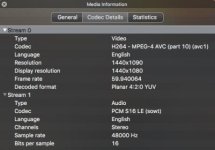
For some reason VLC reads my re-wrapped clip as 59.94 FPS.
Screen Shot 2019-07-13 at 7.48.14 PM.jpg
I tried transcoding to Prores with 5DtoRGB, once with chroma mode disabled and once with chroma mode set to progressive. Bothe versions look identical with very slight combing that's only really visible when you pause the action. I don't understand why 5DtoRGB would give me the best results so far, as it doesn't have a proper deinterlace feature, but perhaps it's just throwing away one of the fields.

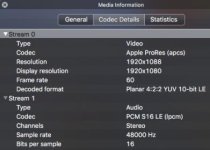
I just tried using a Yadif Deinterlacer plug-in with Resolve. It seems to produce good results, but my framerate ended up as 60 FPS.
Screen Shot 2019-07-13 at 8.28.07 PM.jpg
I have a friend who still has Premiere CS5, so I may try to borrow his computer at last resort.
 
Don't always trust software; it can be wrong.

Count the frames in your footage with your arrow keys to confirm. 1...2...3...

In this case, you'll immediately know if there are 60 frames by seeing each frame twice (which has been duplicated).
 
Just a suggestion having tried many programs for interlace to progressive conversions. If you can beg borrow or steal or get access to a decent PC download MAGIX Vegas Pro trial program and use the following settings. By far the best solution I have used so far.

https://www.vegascreativesoftware.com/au/trial-versions/vegas-pro/

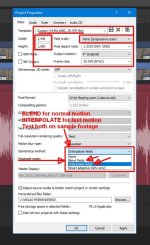
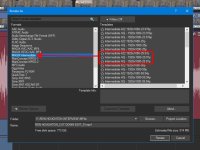
I have done hundreds and I mean hundreds of hours for broadcast history docos converting all manner of of formats and frame rates and sizes of footage with very good results with no artifact problems other than what may have been in the original archive material. See image #1 for the project settings and image #2 for rendering out to your flavor of ProRes, I see you are on MB Pro. Works great for a Resolve edit. The important things to set is the 'Progressive' field setting and then select how you want to de-interlace your footage, BLEND or INTERPOLATE. Blend works best for normal human motion. As a rough rule if it is faster moving than an average human I use INTERPOLATE. These settings will give you a full 1920 x 1080 progressive image. This rough rule of thumb has worked well on everything from interviews to high speed aerial combat footage... so far:)

Chris Young

Blend ot interpolate.jpgProRes settings.jpg
 
Have you tried After Effects yet? It might seem a bit simple vs. the more specialized solutions above, but it might be easier to get your hands on.

Just make a comp with your 1440 interlaced footage and transform using export settings (no need to use effects, de interlacers, or "interpret footage as...").

I've been shocked at how well this has worked for me because it just seems too easy (or maybe my needs weren't as great as yours, lol). Anyway, it might be worth giving this a shot. Good luck, hope it works out!
 
I wonder? Does the OP subscribe to Adobe? Good suggestion using AE in this way. Must give it a go!

Chris Young
 
Any pertinent software is attempting to do the same thing in its own way. Some work better than others, and some may be more convenient to use (especially because of an individual's unique situation). But you still have to tell AE what to do. The 'transform' process in the export setting(s) still has to de-interlace and/or convert the footage to progressive and/or interpret motion and/or apply any personalized filtration/effects (either by choice or by default as part of the conversion).

All of these applications, which have different settings - some more complex than others - and may and do look nonidentical are different options that have the capability of doing the same thing (some better than others depending on how much money and knowledge was put into that particular effort).
 
I'm not currently subscribed to any Adobe products, but I do have a friend who still has Premiere 5, so I could probably use his computer, but I'd like to keep that as plan B, plan A would be to sort it out on my end.

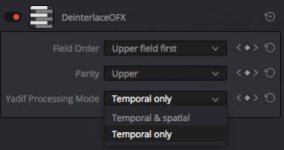
The Yadif deinterlacer plug-in looks promising, but it's rendering at 3 FPS and producing warping artifacts, I hope that tweaking the settings will clear this up.
Here's the deinterlacing options:
Screen Shot 2019-07-14 at 10.31.39 PM.jpg

I really should build a decent computer and buy the full version of Resolve, but video isn't my day job, and I haven't been doing enough paid gigs this year to warrant the expenditure.
 
I recommend that you have your friend with Premiere test a sample while you suss out your Plan A. If it works, you'll save yourself a ton of time (and maybe a bit of money).
 
I think that I'm finally starting to make some progress. Last night I de-interlaced a 30 min clip turned out well, using the Yadif OFX in Resolve.
 
Red Giant's Shooters Suite is available for Mac. I Forgot that. I've used it very successfully with AE. This is what they say about it's ability to de-interlace and the few times I've used it I've had no complaints with its output.

"Up-conversion & De-interlacing

Mixing old footage with modern video formats on the same timeline can slow you down and keep your work from looking its best. Shooter Instant 4K can Upconvert video to 4K resolution with better results than the scaling tools in your NLE. Shooter Frames can de-interlace, smooth and de-artifact your older footage and convert it to 24P."

Plus other rates as well of course. Trial version available.

Chris Young

https://www.redgiant.com/products/shooter-suite/
 
Thanks Chris. I downloaded the trial version, but I haven't tested it yet, as my last round with Resolve and Yadif worked, although, Resolve crashes on me sometimes.

I also just learned that you can deinterlace in Fusion, but I'm not nearly enough of a nerd to figure out Fusion. When I selected "deinterlace" it threw the scaling way off, distorting the image with a wide stretch and letterboxing.
 
I also just learned that you can deinterlace in Fusion, but I'm not nearly enough of a nerd to figure out Fusion. When I selected "deinterlace" it threw the scaling way off, distorting the image with a wide stretch and letterboxing.

LOL. Yes lot's to learn there. It's a bit of a daily suck-it-and see for me with the Resolve environment. A couple of years in and still heaps to learn. Made worse by the fact that every Resolve update has more new bells and whistles. Enough now!

Chris Young
 
Hopefully your current fotage looks better than the old footage. Maybe the old footage is 'history' in the film. "back in 2005 we launched our Series One Widget built in a garage"

In that case you could use it interlaced and put up with the stripes -they help tell the story of this being 'historical' footage.
 
Update: I had about 2.5 hours of footage to deinterlace, and am down to one 35 minute clip, but Resolve is consistently crashing on me somewhere between 3% - 20% of rendering. I'm not sure why this is happening, I'll try running more tests and trouble shooting tonight.
 
That's the part they don't tell you about Resolve (it's so random for everyone though as others may never experience a crash)...
 
Back
Top