Vegas 8.1 Pro Slo Mo Flo

elko99

Member
Hello everyone...I'm trying to get some information from some of you more savvy GH1 owner/ producers about how best to go about making some slo-motion video with the camera and Vegas 8.1 Pro software. I just got the GH1 yesterday, NTSC.

I've found that using the HDV 720p30 template in Vegas, then rendering at the same rate produces fairly decent results, however, I'm wondering what some of you folks use, because I've seen some lovely slo mo video uploaded to Vimeo, but I can't seem to duplicate the kind of results I've seen from some of the more well produced video there.

I'm using the 720p60 setting on the camera and dropping into a 30fps timeline in Vegas....but I'm wondering what some of you more experienced producers suggest to get the best slow motion results, especially results that look good on a 50 inch display after final production.

Thanks for any and all suggestions.
 
I'm using the 720p60 setting on the camera and dropping into a 30fps timeline in Vegas.
This just causes frame dropping, what you want is slowing video down. For proper overcranking effect select an event, then invoke context menu, Properties -> Video event -> Playback rate, and set it to 0.5. Or for 24p timeline set it to 0.4.
 
This just causes frame dropping, what you want is slowing video down. For proper overcranking effect select an event, then invoke context menu, Properties -> Video event -> Playback rate, and set it to 0.5. Or for 24p timeline set it to 0.4.

That is right!! 0.8 playback rate in a 24p timeline will also look well if a more subtle slo motion is wanted. Be sure to set clip properties to "disable resample" to aviod frame blending that causes ghosting.
Also be sure to record with a 1/120 shutter if slomo is gonna be applied (specially at 50% or 40% speed). 1/60 speed will result in footage with too much motion blur for slomo.
 
Thanks for the advice!

Thanks for the advice!

Thank you for the advice...I should have said that I use CTRL+Drag to extend the 720p60 @ 1/60 clip for slo-mo in the 30p timeline...however, I will try what you folks have suggested. Just getting familiar with the GH1 and Vegas 8.1, for that matter.

I really appreciate the comments.

I'll let you know in future posts how it's all coming out.
 
When using CTRL+drag in Vegas it is very hard to set an exact slomo rate.
Right click, insert/remove envelope>velocity and then moving down the velocity envelope is also a good way to do good slomotion, specially to do speed ramping/ slowing (hold control as you move the envelope down to move 1% at a time and set exact speeds).
When slowing 60p footage in a 24p timeline 80% and 40% slomo will look perfect. 60% will look good enough, but not as motion-perfect (you can tell frames are being dropped unevenly to achieve the slomo, but only if you chech frame by frame). Always disable resample to avoid ghosting.
In 30p timelines only 50% speed will look perfect.
 
Last edited:
When using CTRL+drag it is very hard to set an exact slomo rate.
Right click, insert/remove envelope>velocity and then moving down the velocity envelope is also a good way to do good slomotion, specially to do speed ramping/ slowing (hold control as you move the envelope down to move 1% at a time and set exact speeds).
When slowing 60p footage in a 24p timeline 80% and 40% slomo will look perfect. 50% and 60% look good enough, but not as motion-perfect (you can tell frames are being dropped unevenly to achieve the slomo, but only if you chech frame by frame). Always disable resample to avoid ghosting.
In 30p timelines only 50% speed will look perfect.

Good info. Thanks... don't know if u know but would you mind explaining why 1/125 is good for slo mo on 60p720hd (but only good for slomo and bad for regular shooting)? really appreciate it..
 
Last edited:
The "correct" shutter speed is usually what is called a 180 degree shutter that results in a speed of twice the frame rate (1/48 for 24p, 1/60 for 30p, 1/120 for 60p).

When you shoot 720/60p with your GH1 your "correct" shutter speed depends on the way you're gonna end up editing and rendering your footage.

If you're gonna edit and render to 60p, then 120 (or the closest you can get) will work.

If you're gonna edit and render to 24p without using slomo (that is what most of the people around here is planning to do to qet that "film speed" look) then 1/60 is recomendend (it is the closest to 1/48 you can go in 60p mode and get a good conversion, if you go below 1/60 the camera won't record 60 frames but will record doubled 30 frames that will not look well converted to 24p). The same applies if you're gonna edit and render to 30p, no slomo.

If you're gonna edit and render in 24p using slomo, then 1/120 is recommended as that is the shutter speed used in real filmmaking when shooting 60p for slomo. Shoot 60p at 1/120 and slow it down to 40%. If you slow down footage shot at 60p with a 1/60 shutter it will also work, but it will have more motion blur than the usual slo mo you see in movies and commercial ads. This same applies to 30p editing with slomo, only difference is footage would be slowed to 50%.
Hope that helps!
 
just to make sure i got it correct guys, if i shoot 60p at 1/120 , the best slow down would be 80% (20% slower than original speed) and 40% (60% slower original speed) is that correct?
thanks..
 
Most people will be slowing to 40% to get a real slo motion effect, 80% look pretty well but is a very subtle effect, I was just pointing out that this 2 speed changes result in perfect motion conversion.

When you slow 60 fps to 40% the original speed you end up playing those frames at 60*0.40=24 fps. You see all the original frames from the 60p footage, only at a different speed. As I said before, this is what most people that want a real slo mo effect will be doing and should shoot with a 1/120 shutter.

When you slow 60fps to 80% the original speed you end up with 60*0.80=48 fps. This 48 fps can be converted to 24fps by the NLE simply dropping every other frame, since the kept frames are evenly separated in time motion will look perfectly fluid. If you plan to slow footage only to 80% ona 24p timeline a 1/60 shutter will look fine.
 
When you slow 60 fps to 40% the original speed you end up playing those frames at 60*0.40=24 fps. You see all the original frames from the 60p footage, only at a different speed. As I said before, this is what most people that want a real slo mo effect will be doing and should shoot with a 1/120 shutter.

Does this mean optimal slow-mo on a PAL camera is achieved by filming at 50p with a 1/100 shutter, then slowing down to 50% on a 25p timeline?
 
Okay, this is going to sound stupid -- I usually see lots of references to shooting at 1/120, but only occasionally 1/125.

So I'm puzzled because the only choice I see in my cam is 1/125. Goes from 100 to 125 to 160.

Am I missing something (besides maybe some grey matter)?
 
Does this mean optimal slow-mo on a PAL camera is achieved by filming at 50p with a 1/100 shutter, then slowing down to 50% on a 25p timeline?

Correct - but 1/50 works ok for slow-motion. Better than 1/100 works for normal speed, it gets a jerky feel on any quick motion and pans. So if you are unsure it's probably better to use 1/50 for PAL - 1/60 for NTSC. I did this with 1/50 shutter slow-motion:

http://vimeo.com/groups/gh1/videos/5966843

My PAL model don't have 1/120, only 1/125 but I've seen so many references to 1/120 that I assumed the NTSC model had that shutter speed but apparently not. That could cause flicker troubles with 60 Hz lights.
 
To dmoreno.....

To dmoreno.....

Thank you for all of your input, it's so very helpful to someone just getting started.

I have but one last question:

When you put 0.4 into the video event playback rate...

How do you get the audio to playback synchronized at the same rate?

I can't seem to get that to work....

When you CTRL+drag, both the audio and video tracks slow at the same corresponding rate.

When I try to enter 0.4 into the audio event menu, it won't stay there.

You're exactly right. When you enter 0.4 in a 24p timeline, it's perfect slo-mo. But I'm having trouble synching the audio at the same rate.

Basically, I'm just trying to slow the audio down to correspond with the video. It's seems that it only works if you're inexact when dragging, as opposed to directly entering the value into the video event playback rate.

Thanks for all of your responses.
 
Correct - but 1/50 works ok for slow-motion. Better than 1/100 works for normal speed, it gets a jerky feel on any quick motion and pans. So if you are unsure it's probably better to use 1/50 for PAL - 1/60 for NTSC. I did this with 1/50 shutter slow-motion:

That was 1/50 slow-mo? That's nice and smooth. Looked great.

Was that 50% speed?
 
Thank you for all of your input, it's so very helpful to someone just getting started.

I have but one last question:

When you put 0.4 into the video event playback rate...

How do you get the audio to playback synchronized at the same rate?

I can't seem to get that to work....

When you CTRL+drag, both the audio and video tracks slow at the same corresponding rate.

When I try to enter 0.4 into the audio event menu, it won't stay there.

You're exactly right. When you enter 0.4 in a 24p timeline, it's perfect slo-mo. But I'm having trouble synching the audio at the same rate.

Basically, I'm just trying to slow the audio down to correspond with the video. It's seems that it only works if you're inexact when dragging, as opposed to directly entering the value into the video event playback rate.

Thanks for all of your responses.


Try this steps:
-drop 60p footage in 24p timeline
-right click video clip and set properties>playback rate to 0.40
-check the "Ignore Event Grouping" button in the toolbar
-drag de video track of the clip till it reaches its full length (will be more than twice as long as the audio part, you know it's fully extended when the white triangle appears on the clip)
-Ctrl+drag the audio to the same length of the video clip
 
When the white triangle appears on the clip...

When the white triangle appears on the clip...

Hello, once again.

Mr. Moreno, you have been very helpful, thank you.

You say drag the video clip until it is full length, and that I'll know by the "white triangle" that will appear on the clip when it is extended the right length.

There are white triangles in the different video boxes as you extend the clip, but I don't know when the clip is exactly at "full length" after the 0.4 speed application, therefore, I still don't know how far to extend the unjoined audio to make it synch up slow.

I still am having trouble synching the slowed down audio.

Any further explanation would be greatly appreciated.

Thank you.
 
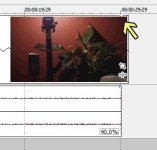
This the "white triangle" I am talking about (pointed by a yellow arrow I added). It shows up if you extend the clip farther than its complete length (the clip should automatically "snap" to its real full length when extending it, if the white triangle appears then you extended it too far and vegas starts repeating the first frames of the clip.
 

Attachments

  • whitetriangle.jpg
    whitetriangle.jpg
    38.2 KB · Views: 0
Back
Top