Poor Video Quality in DVD

djkoz

Well-known member
I am using Premiere Pro CS6 to edit video shot in 1280 x 720. I've linked the sequences from Premiere to Encore and created the DVD in Encore. I did not run the sequences through Media Encoder first but, rather, let Encore handle the transcoding and compression.

The video when viewed in Premier looks great. The video when previewed in Encore looks great. But the quality of the video when burned to a DVD is lousy. I believe that the video on the DVD is only standard definition, but the text is blurry and the images are fussy and jagged, more than I expected. Is there something else I should be doing in Premiere or Encore to ensure a higher quality DVD?

Thanks,

Dan
 
I am assuming that you created a standard definition, not a blu ray disc.

How many minutes of video were compressed for the DVD?

Depending on length, the encoding will be more compressed and result in compromised quality.

Encoding for DVD is part art and part science. Using automatic encoding isn't the best idea, especially if your video segment is long, and you used uncompressed audio.
 
The video is approximately 100 minutes long, including a slide show that is around 3 minutes and 40 seconds. I noticed that before I added the slide show Encore indicated that I had around 25 MB free space on the DVD. But, after I added the slideshow, the amount of free space actually INCREASED to 439 MB. Upon reflection, it appears that Encore may have increased the compression to accomodate the slideshow, thereby decreasing quality. Does this sound reasonable?

I may have to delete the slideshow.

Is there documentation someplace that would give the details as to the best practices to follow when creating a DVD (not Blueray).

Thanks, for your help.

Dan
 
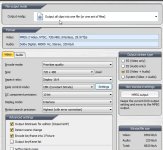
I have done many DVD masters for replication. I use TMPGEnc 4 Xpress for encoding. Below is a snapshot of my TMPGEnc settings for best results. Maybe your encoder has similar settings. At 8500kb/s bitrate you can get about 60 minutes on a standard DVD. For your 100 minutes you will have to either go to a dual-layer DVD or drop your video bitrate significantly, or encode the VBR to fit a standard DVD which will result in lower quality.
ScreenHunter_164 Feb. 22 23.13.jpg
 
Last edited:
I am using Premiere Pro CS6 to edit video shot in 1280 x 720.

DVD resolution maxes out at 720x480. IOW, you're throwing away something like 3/4 of the pixels to down-convert to DVD. If on top of that your source is 60p, you're throwing away half your frames to get down to 60i.

I've linked the sequences from Premiere to Encore and created the DVD in Encore. I did not run the sequences through Media Encoder first but, rather, let Encore handle the transcoding and compression.

That's a mistake. Encore CS6 is known to do a pretty poor job of transcoding. ME does a much better job. There are switches in Encore that make it use ME for transcodes. Use them.

The video when viewed in Premier looks great. The video when previewed in Encore looks great. But the quality of the video when burned to a DVD is lousy. I believe that the video on the DVD is only standard definition, but the text is blurry and the images are fussy and jagged, more than I expected. Is there something else I should be doing in Premiere or Encore to ensure a higher quality DVD?

Almost certainly. It's not as simple as pushing a button and having the computer read your mind. You actually have to participate -- you've got to make choices in how to encode the DVD. Of prime importance is how much compression you require to get your source on the DVD.

DVDs are cheap. Burn some DVDs, using different encoding. Go look at the results. Go back to the computer and change your setting to try to improve. Burn another DVD. Rinse and repeat as necessary.

Go and search the Adobe Encore forums. Your questions have been asked and answered plenty of times; you're sure to be able to answer most any of your questions if you search diligently. But don't get discouraged. Encore is a weird, complex, and somewhat buggy program. You can force good, even excellent results from it. But it takes some work and some hard won knowledge.
 
In case anyone else is having the same problem and is reading this post I will post my solution:


I tried just about every possible combination. The one that worked the best for me was to export the sequences from Premiere into Media Encoder with the MPEG-2 DVD Format and with the defaults for NTSC Progressive Widescreen High Quality.


However, what surprised me the most is that, though the video looked good on my computer, it still looked quite poor when viewed with my DVD player on my HDTV. However, my equipment (TV and DVD player) is around 9 years old. When I played the DVD on my daughter's DVD player and HDTV, which they bought only last year, I saw a dramatic improvement in the quality. Same DVD, just different equipment. Apparently, on older equipment, the algorithms that upscale the SD video on a DVD in order to play it on a HDTV are not as good as they are on newer equipment. At least that is my take on it.


So, if you are having quality issues with your DVD try my settings and be sure to play it on newer equipment.
 
To get a good picutere you need a dvd player with upscaler or bd player to play your dvd on a hdtv.
 
The video is approximately 100 minutes long, including a slide show that is around 3 minutes and 40 seconds. I noticed that before I added the slide show Encore indicated that I had around 25 MB free space on the DVD. But, after I added the slideshow, the amount of free space actually INCREASED to 439 MB. Upon reflection, it appears that Encore may have increased the compression to accomodate the slideshow, thereby decreasing quality. Does this sound reasonable?

I may have to delete the slideshow.

Is there documentation someplace that would give the details as to the best practices to follow when creating a DVD (not Blueray).

Thanks, for your help.

Dan

What's the frame rate of the video? 24p, by chance?

You save about 20% of your space if you export as 24p (no pulldown) and go to disk as 24p instead of 60i (29.97 interlaced).
 
There's a lot of variables in taking an HD movie and downscaling it to a SD DVD and then upscaling it again to HD for playback. The thing to keep in mind is that you should always try to retain as much quality in each step since once you lose it, every step after that can't bring it back and it will only look worse.
If you're just talking about playback, there's a huge difference in image quality from a DVD player connected via a single RCA plug and a BluRay player connected via HDMI.
 
Back
Top