Jason Rodriguez
Well-known member
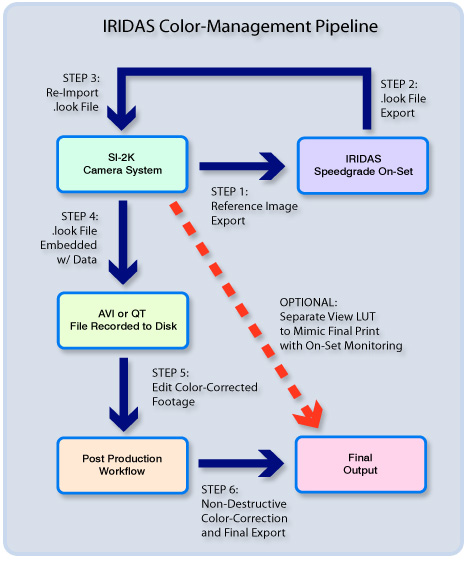
BTW, Chris, please re-download the .zip file, I forgot two LUT curves that need to go into it for it to work correctly in Speedgrade. Place the two LUT curves in the LUT directory in the Speedgrade OnSet folder. Place the .look file in that zip in the /Data directory of your SiliconDVR folder.
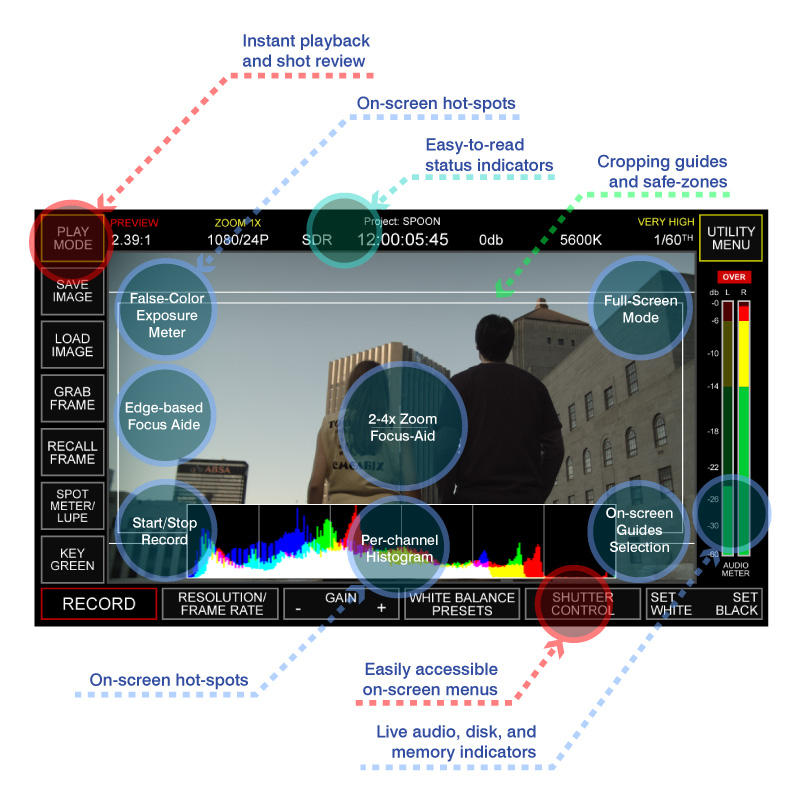
To use Speegrade, first, do a Save Image with SiliconDVR to export the DPX file you will use as the reference file.
Next, open Speedgrade, *not* the .look file (double-clicking .look files don't open Speedgrade, they register them with CineForm on a machine that doesn't have the .look installed/registered-this is so CineForm knows how to find the .look file)
Next, go into the file browser in Speedgrade and open your DPX image.
Once in the main interface of Speedgrade, go into your .look browswer at the bottom of the screen and surf to your /Data folder for SiliconDVR. You should see the .look files appear.
Before modifying one of the existing .look files, duplicate it . . .. Speedgrade modifies the file on the disk as you adjust (so there's no need to save a file after it's creation), so if you start tweaking, you'll end up modifying the .look file and having no way of going back.
Also hit the "s" key to bring up the settings. Under the .look settings make sure you are set to 64x64x64 instead of 8x8x8.
Once you have make your new .look file and it's setup the way you like, quit Speedgrade (or click off the .look file in the look browser), and re-open Gig-e app. In the SET LOOK directory, import the .look file.
For more information you should probably read the Speedgrade documentation.
Thanks,
Jason
To use Speegrade, first, do a Save Image with SiliconDVR to export the DPX file you will use as the reference file.
Next, open Speedgrade, *not* the .look file (double-clicking .look files don't open Speedgrade, they register them with CineForm on a machine that doesn't have the .look installed/registered-this is so CineForm knows how to find the .look file)
Next, go into the file browser in Speedgrade and open your DPX image.
Once in the main interface of Speedgrade, go into your .look browswer at the bottom of the screen and surf to your /Data folder for SiliconDVR. You should see the .look files appear.
Before modifying one of the existing .look files, duplicate it . . .. Speedgrade modifies the file on the disk as you adjust (so there's no need to save a file after it's creation), so if you start tweaking, you'll end up modifying the .look file and having no way of going back.
Also hit the "s" key to bring up the settings. Under the .look settings make sure you are set to 64x64x64 instead of 8x8x8.
Once you have make your new .look file and it's setup the way you like, quit Speedgrade (or click off the .look file in the look browser), and re-open Gig-e app. In the SET LOOK directory, import the .look file.
For more information you should probably read the Speedgrade documentation.
Thanks,
Jason

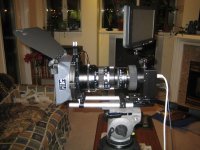
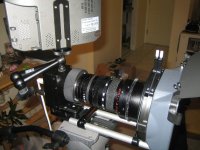
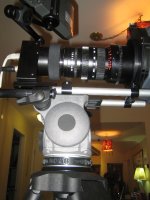
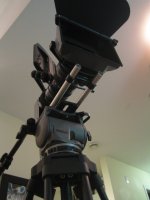
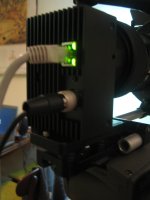

 I'm even more pleased that the lens is now stabalized enough to shoot with! The matte box doesn't quite fit my lens, so I have to track down an odd sized adapter, or rig something myself to keep the light from bouncing from behind, off a filter, and back into the lens.