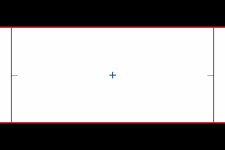
How 2.35:1 crop marks on your LCD?

Michael Solomon

Well-known member
Hey guys,

I really want to shoot my next project in 2.35:1 aspect ratio. But with Magic Lantern not having a stable release for 2.0.8 and me not wanting to go through the hassle of downgrading my cameras firmware (even possible?) to 2.0.4 and dealing potential issues..... I'm looking for other solutions.

I know how to get reliable crop marks in premiere to crop downt he 16:9 footage. The problem is I need crop marks on my LCD to help with framing.

Is there any reliable way to set the marks precisely on the LCD that will translate directly to when I'm cropping in post?
 
With a Zacuto EVF, you could crop everything you don't need off and scale 2:35:1 to fit on your screen!

Other than that, just use tape!
 
I know you would use tape =P

I'm asking how do you figure out where to exactly place the tape and know you have a correct 2.35:1 crop? Do you eyeball it? break out a ruler and do the measurements by hand? etc. etc.

I don't have an EVF, wish I did =)
 
I was thinking of ordering some static cling stickers for 3" LCDs with 2.39:1 crop marks. Need two models for 4:3 LCDs and 3:2 ones. They would probably be pretty cheap if I got them in bulk. Maybe also do 1.85:1 and 2:1. Any interest in that?
 
Definitely. Where would you even order those?

In the mean time though, are there any other solutions? I thought I would be clever and put a picture on my SD card with the crop marks, then I realized that when you view a picture on the camera it doesn't actually fill the whole screen which ruined that idea.
 
Nobody else has any other ideas? =(
Well, tape is the best and cost-effective solution.
1- You could also use some LCD protector screen and "mark" it with a sharpie. That would be another option.
2- You can always use the grid that's in the menu. Never as accurate, but that would give you a rough idea. According to the grid #2 in my T2i (4x6) it would give a good idea to frame it, but it would be a bit distracting.
3- As you can always "adjust" the footage in post, I wouldn't bother much about shooting it "directly-accurate" when recording it, my point.
 
I know I can use tape and I know it's adjustable in post. I'm looking for a reliable way to ascertain where exactly to mark my lcd/screen/tape etc. to where it's a perfect 2.33:1 ratio.

I want the framing to be spot on, not hit or miss even by a margin in post (I'm a perfectionist)
 
I'm looking for a reliable way to ascertain where exactly to mark my lcd/screen/tape etc. to where it's a perfect 2.33:1 ratio.
I want the framing to be spot on, not hit or miss even by a margin in post (I'm a perfectionist)
Quite easy then, if you just want to mark it with the exact dimensions: download the picture attached (720x480 with the 2.35:1 mark) and paste it on your SD card. Then just preview it like any other picture and you'll have your guide, just put some LCD screen protector and mark it with a sharpie...or use whatever method you prefer.

2_35_Guide.jpg
 
Checked again, while in preview mode on the canon 5D it introduces a title bar at the top of the preview that can't be disabled. This makes the image skewed and thus not accurate
 
I've downgraded to 2.0.4 it's really effortless just like when you upgrade. same steps.
Checked again, while in preview mode on the canon 5D it introduces a title bar at the top of the preview that can't be disabled. This makes the image skewed and thus not accurate
I couldn't tell, but as Fellipe said, it workd and seems to work fine, so you could always try it, see how it goes and if you don't like that version upgrade back to the 2.0.8 again?
Does that title bar appears also on an external monitor?
 
Just wanted to share a quick update. I ended up doing it myself by using a small ruler and just using algebra to calculate the placement of the tape on the LCD.

Interesting note: if you're looking for a quick guideline, you can use the "zoom box" on the live view. The top/bottom of the box respectively approximately equates tot he 2.35:1 markings
 
Just wanted to share a quick update. I ended up doing it myself by using a small ruler and just using algebra to calculate the placement of the tape on the LCD.

Interesting note: if you're looking for a quick guideline, you can use the "zoom box" on the live view. The top/bottom of the box respectively approximately equates tot he 2.35:1 markings

I might try this. Thanks.
 
This is what a friend told me a couple months back. I've not actually shot anything using the guide marks, but I did figure about half an inch from the top and bottom on a 3 inch LCD screen. Anyway, below is his explanation:

There are a couple ways you can do it. It's really just basic math. The first is to measure the horizontal and vertical length of your screen. Take the horizontal distance and divide that by 2.35. That will give you the vertical distance. For example, if the horizontal distance is 4 inches, the vertical distance will be 1.7 inches. Next, let's say the vertical length of your screen is 3 inches, subtract 1.7 from that, which is 1.3 inches (the black area of the screen). Divide that by 2, which gives you .65 inches. Measure .65 from the top and bottom of your screen, and that's where you'll make your marks. Make sense? I hope I explained that well.

The second way is to take a clip you shot with your camera and bring it into FCP. Apply a 2.35 matte, then render out a 16:9 h.264 and put it on your cameras card. Play it back on your camera, and you can mark your screen from there. This is what I did with my XL2 by printing back to a miniDV tape. However, I don't know if the camera will play nice with a clip rendered from a different source without the appropriate metadata.​
 
Here's how I do it: I get the static cling LCD protectors, and I clean my computer monitor with windex.

I make a photoshop file that fills a chunk of the screen, and then float a selection at the aspect ratio I want and select it - I then have "marching ants" at, say, 2.4:1 ratio.

I stick the cling to the screen, and hit "transform" (command-T). I move and scale the selection under the cling until it's correct. Then I'll mark the 4 corners of the aspect ratio with a fine sharpie (on the cling). I pull the cling off and return it to its wax-paper backing, and use a sharpie and a straightedge to mark the lines.

I did this about a year ago and it's still on the camera; I just ignore it for 16x9. You can also do this for external screens if they don't have the right ratio (for DSLRs they often don't).

BONUS TIP - shooting green screen footage to match an existing plate? Make line-art versions of the perspective of the scene on static cling and use these to make sure your camera is setup and aligned properly.
 
Back
Top