Get the (white) balance right

Couldn't help but quote a Depeche Mode song. I'm struggling with white balance. This is something I've done easily with photography for years, so it's not an unfamiliar concept. With the AF100 though, using the custom WB with an 18% gray card always leaves me with a very ugly skin color, and ugly color in general. With my DSLRs I can use the gray card under the same lighting and everything looks fantastic. So - what gives? Is the custom white balance in the AF100 lacking? It's not rocket science - gray card goes at the same spot the talent will be recorded at, push the WB/ABB button and make sure one of the WB switches is assigned to custom WB. Since the custom WB results aren't reliable, it's forcing me to have to heavily tweak something as fundamental as color temp in post every single time I shoot. It's really becoming a chore and I'm not sure what I'm doing incorrectly.

The screen grabs are non-CC straight from the cam, using the cine-V scene, and not using any in-camera processing (like DRS, or skin tone DTL, etc.)


screen1.jpg

Screen2.jpg

They look freakin' horrible. :(
 
Adam,
A couple things... Do you normally do a black balance when you power your camera? The manual recommends this for many situations. It's a good idea to get in the habit if you don't.

The skin tones in the screen shots I'm seeing aren't 'horrible' , they may be a little warm in the shadows, but this is a subjective evaluation. When you use a gray card to white balance, are you exposing it a little hot (as near-white)? I believe the sensor does a better job with more exposure here. Also, are you filling the frame as much as possible with the card? If you threw in a gray card next to your subject's face in this situation, the card would be too small in the frame to do an effective white balance.

Do you use a professional broadcast monitor to evaluate color at the time of shooting? (I find the on-board LCD to be saturated and having a bias toward green.) If so, try using the variable color balance, where you can tweak your color in 100 deg Kelvin increments. You must use a properly calibrated professional monitor or you will be disappointed in post.

Apologies in advance if all this is painfully obvious. One other thing... it's always been difficult for me to evaluate skin tones properly against a green screen. Your eyes get tricked into cranking magenta to compensate for the green content. It's better to evaluate the skin tones in context of your final composite.
 
Have you tried a white card and compared results? The AF100 always seems to be a little warmer to me than say, a Sony camera so I balance with white and warm later in post if I want to but usually "warm" is not a problem with the AF100. In fact, warm seems to be how it feels generally.

It seems that you might be a little under exposed here. Could you share a screen grab of the WFM? I would suggest trying different gammas including Cine-D and HDNorm, depending on the nature of your deliverable. Also be careful of green reflections, they can impair the color quality of skin in this setting. I did a day shoot in an oak bar and the darn reflections of color were really apparent, casting a yellow green on anyone near them.

What, specifically, do you find horrible about the skin tones? In the first screen grab here I have a daylight interior in which the skin tones look pretty good to me. http://www.dvxuser.com/V6/showthread.php?296305-Web-Series-AF100. So, I've had good results with skin tone when set up nicely.

I have a green screen car thing coming up on Jan. 11 and will be happy to share my results if that is helpful to you.
 
You appear to have a ton of chroma green spill off your set for a start. Box the lens in a bit with cutters or matte boxes to prevent schmutter on the lens which can cast on the sensor. I would suggest the bg on first grab is way over exposed on a wfm compared to skin tone. Drop it 1- 2 stops.

Chroma spill may have influenced your reading of your card. Was the card full frame in the camera?

From the lighting , it is difficult to tell if they are balanced tungsten lights or some random DIY lights frome the home store. ( What are they)

Tip: Some back (rim lighting) will help your key.

Try doing a white balance without the key BG. Put a color chart in frame is a always good idea.
 
Thank you for the suggestions, everyone.

To answer some questions:

- The key and fill use 85 watt CFL daylight balanced studio bulbs. Key has these x3 and fill uses x2. http://www.amazon.com/gp/product/B004L87ZKK/ref=wms_ohs_product
- The background lights are just some cheap-o florescent lights from home depot (literally shop lights that I mounted to the ceiling and have angled toward the backdrop.)
- I fill the frame with the card before I WB. (As I mentioned I do photography as well, and the same rules apply for lighting.) I hold the button long enough to ABB whenever I WB.
- I don't own a pro monitor unfortunately, so I have to rely on WB being as good as I can get it using the cam and tweak in post as necessary.

So with the advice given here, I made some changes:

- I moved the talent away from the backdrop as much as possible (my studio is really really tiny... not much leeway here - it's a converted 2 car garage.)
- I added a rim light (1000 watt tungsten in a soft box - it's all I have available for now).

I also did my best to get the backdrop wrinkle-free, and also angled it a bit to help the lighting be more consistent. One thing I found out using a very unscientific method was to stop down until the 70% zebra was barely at the upper edge of the frame, then opened up until it was just hitting the bottom. I've got about 2 stops worth of brightness between the top and the bottom (f/7.1-f/13 from top to bottom). Since I have literally no room to work with, I'm not sure how I can get the lighting on the backdrop to have less range. Maybe add a couple of lights on the floor?

Anyway, after these improvements, here's the result:


ScreenCap-1.jpg

ScreenCap-2.jpg

The 2nd shot is removing the green (I used Adobe Lightroom if anyone is wondering, and dragged the Green saturation all the way to 0). There's still a bit of splash, but it's nowhere NEAR as bad as before, and the spill might look worse here than it really is since I had to get a JPG screen grab and work with that.

The reason for the JPG is: I'm having separate issues getting the footage to work in my NLE so I couldn't actually get frame grabs right from Sony Vegas. It was recorded on a Hyperdeck Shuttle 10-bit uncompressed QT. The video stream isn't showing up in Windows in QT or my NLE, although I can play it back (without Audio) in VLC Media Player. :( Anyway, the video stream not showing up is a different topic.

Here's a larger cap from the earlier footage (ACHD right off the cam, synchronized with the same settings in Lightroom):

ScreenCap-3.jpg

Spill is really obvious, and the difference in skin tone is very noticeable. This was white balanced using the grey card, whereas the above screencap was WB against the white side of the card.
 
Last edited:
You are mixing ugly 5500k lamps with shop fluoros of dubious "K" and you are well over exposing your BG and your FG.

Subjects are so harshly lit and double sourced! (2 point source lights in the eye reflections)

I dont know what the "Keyer" is in Light room but its not doing a great job for you. Use a Keyer in AEFX or an NLE to see what controls you have. eg edge softening.

But you need better Key lighting technique so you can get the job done properly.

The AF100 can produce a much better image and keys such as these.

Wendys-Spicy-75.png


JnJREach_7112.png


AllergyCntre_455.png


dave-key.png
 
Last edited:
You are mixing ugly 5500k lamps with shop fluoros of dubious "K" and you are well over exposing your BG and your FG.

Subjects are so harshly lit and double sourced! (2 point source lights in the eye reflections)

I dont know what the "Keyer" is in Light room but its not doing a great job for you. Use a Keyer in AEFX or an NLE to see what controls you have. eg edge softening.

But you need better Key lighting technique so you can get the job done properly.

To clarify - I didn't key anything in Lightroom. All I did was drop the saturation of the green channel all the way to 0. I'm having problems getting uncompressed 10 bit QT files to load properly in my NLE which is what I normally generate masks and keys in. Lightroom was more for seeing how well the background light was working until I get the files working in the NLE.

When I'd set up the scene the background was hitting the 70% zebras. It doesn't look like the foreground is over-exposed to me at all. Where are you seeing it over-exposed?

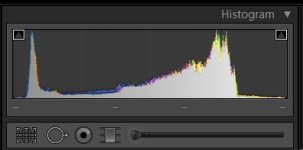
Here's the histogram of the shot with the cat in it:

Histogram.jpg

There's plenty of room and nothing is clipping.

The sources aren't points, they're the flos in soft boxes. The soft boxes are pretty close though, which might make them like like points. Can't do much about that - as I mentioned my space is tiny.

As for mixing the sources, the tungsten is just temp until I can get a another fixture, and then the hair light will be the same bulbs as the key and fill and not stand out like a sore thumb.

I don't think the background light matters as the flags only allow them to hit the background and nothing else. Even so, the background lights were only off by like 100-200k, so I don't think they'd cause a problem since they're so close in temp.
 
Can I just check something? When you mentioned using the card, I was left with the impression that the subject was holding up the card, and the background was visible to the camera? I'm not sure how this particular camera manages it's white balance but you need to use the card in the lights that illuminate the subject and have the card fill the frame - you did do this, didn't you? Having coloured objects in the frame when you WB often does wierd things like this - just checking the screen was one big blank space.
 
Way over for my preference. (2 stops +)

My Key BGs would be usually about 40% (50% maximum.)

This minimises chroma bounce and spill, and exposes the chroma with solid saturation. As you over-expose the chroma it loses it's saturation...and you want the saturation to be there for the key process.

You are mixing tungsten and daylight sources. ( Not optimal for what you are doing)

BTW - I use Waveform Monitors to set levels. Not quite sure how I would read a histogram for that purpose. I have no idea if a histogram is an IRE Scale or not ...or if it is even linear.. but I do know that it has no scale on it that I can relate to.

A waveform is helpful in other ways for setting a key. It shows the flatness of the BG illumination and the purity of the chroma saturation ( as a thin line)

@ O.P...are you happy with where you are at yet or are you still working thru white balance issues? ( It wasnt clear to me)


Sorry...meant to add.

Are you using a Digital Green screen or a Chroma Green screen?

Personally I find Digital green to "bright" for using in studio. It causes all sorts of practical issues.

I use Chroma Green Screens in studio ( about 2-3 stops less reflective) and Digital Green for exterior ( so they can remain unlit on a shady side.
 
Would someone mind explaining for WB when to use a grey card versus a white card? I have one that is grey on one side and white on the other. All of my WBs have been done using the white side.
 
Hmmm, OK. So I should back off on the background lighting. Only way for me to do that would be to increase the foreground lighting since the BG lights are constant. I could potentially rig something to stop them down a bit though.

The tungsten and daylight is just temporary until I can get another fixture. That was just for me to get an idea of how much a rim light would aid in chroma splash.

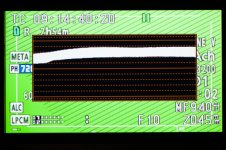
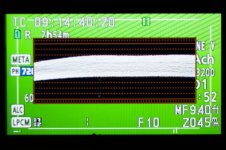
Here's a pic of the WFM. This is with the BG, key and fill lights all on:

WFM-1.jpg


This is with only the BG lights on:

WFM-2.jpg


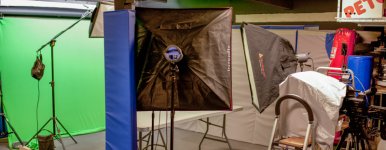
My tiny cramped space. The BG lights are a little forward of the rim light closer to the BG. The key is on the left, fill on the right. It's about 9' from the AF100 to the far edge of the table. About 15' from the AF100 to the background. Not much leeway here to do anything with.

Studio-1.jpg


@ O.P...are you happy with where you are at yet or are you still working thru white balance issues? ( It wasnt clear to me)

Are you using a Digital Green screen or a Chroma Green screen?

Personally I find Digital green to "bright" for using in studio. It causes all sorts of practical issues.

I use Chroma Green Screens in studio ( about 2-3 stops less reflective) and Digital Green for exterior ( so they can remain unlit on a shady side.
The white balance is looking much better since I've moved further from the background and used the white side of the card.

I'm not sure which type of screen I'm using. I bought this thing years ago and there's no info on the screen to indicate which it is.
 
To clarify - I didn't key anything in Lightroom. All I did was drop the saturation of the green channel all the way to 0.
Just eyeballing your results, I don't see how you could have preserved the original skin tones without keying out the green background before dropping its saturation to zero.

I agree with other posters' advice: it's asking for trouble to combine tungsten with 5500K fluorescent light sources. If you don't like seeing yellowish skin tones on your talent, tungsten with any kind of daylight balance is really something to avoid. I'd also recommend comparing the spectral balance of your high-power fluorescents to a high-CFI reference source. In my experience, fluorescents designed for high output often have noticeable color casts, regardless of being marketed as "daylight" or "full spectrum".
 
That is a Digital Green BG and it has very high reflectance compared to chroma green ( as per my post).

It causes the compensating issue ...that you need to bring up the FG / subject lights ( heat!)...or take down the lights on the BG. ( 2+ stops).

You could apply ND (.6) gel and more diffusion on your BG lights for an easy fix.

Try one Key Soft Box (little more frontal and a shade higher) and a passive fill.
 
From the WFM screen grab, the BKG is too hot and has quite a bit of gradation top to bottom ( thickness of the WFm trace) plus a pretty good drop on the left side. The easiest way to get the background right is with an assistant moving lights while you watch the WFM change when the light is moved. Working this way, one can pretty much optimize the green screen in a few minutes just by panning and moving lights as needed. Its a truly interactive way of working. I've lit 8x8 green screens in my dining room with some LED lights for insert shots in very short order.
I use digital green screens unlike shooter because I usually work in spaces that allow me enough space to work and can get the architecture of the screen and lighting right without over lighting the background.
 
All my work is in full size studios eg 20m x 40m.. with full Gaffer / Grip trucks ... so space to work is not the issue I have with Digital Green Screens.

The problem is the amount of reflectance.

To expose them as I wish for keying ...requires adding more light ( bigger units) for subject lighting ( key , fill , rim) and so more heat, more cost, more time.

Plus more bounce and spill to control.

I also try to work on my lenses in the f5.6 (+/-) area generally so cant see the point of having to add ND filters into the equation as well.

My personal Chroma Green Screen is 20' x 20' which generally we frame up as 20' x 12'. We can light this perfectly evenly with a pair of four foot Kinos loaded with green tubes.

THe WFM trace is pencil thin and absolute horizontal ...and the exposure is f5.6 320 ISO
 
Yup, I have the same eefx matte foam backed green screen cloth and key it with 2 4' 4x4 kinos with green bulbs.

My waveform looks like this:

attachment.php
 
Back
Top