FCP Compressor Artifacts

DNathan

Well-known member
Please help! For years I've been battling flashes of these artifacts:
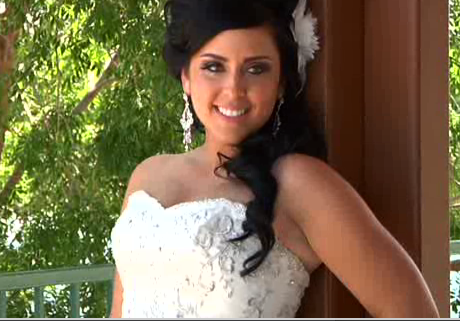
artifacts.png


My .mov export from FCS2 is perfect. After I use Compressor, the .m2v file contains the artifacts above. I'm suspicious that the One pass CBR is the problem. Also Compressor has the dimensions at 720x480 (greyed out) while the FCP settings are 1440x1080. The only other thing I can think of is overheating. Thoughts?

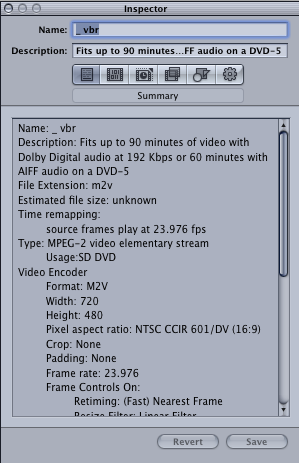
Compressor Settings:

Name: Favorite
Description: Fits up to 90 minutes of video with Dolby Digital audio at 192 Kbps or 60 minutes with AIFF audio on a DVD-5
File Extension: m2v
Estimated file size: 2.55 GB/hour of source
Type: MPEG-2 video elementary stream
Usage:SD DVD
Video Encoder
Format: M2V
Width and Height: Automatic
Selected: 720 x 480
Pixel aspect ratio: NTSC CCIR 601/DV (16:9)
Crop: None
Padding: None
Frame rate: (100% of source)
Frame Controls Automatically selected:
Retiming: (Fast) Nearest Frame
Resize Filter: Linear Filter
Deinterlace Filter: Fast (Line Averaging)
Adaptive Details: On
Antialias: 0
Detail Level: 0
Field Output: Same as Source
Start timecode from source
Aspect ratio: Automatic
Selected 16:9
Field dominance: Progressive
Average data rate: 5.8 (Mbps)
Best motion estimation
Closed GOP Size: 1/2 second, Structure: IBBP
DVD Studio Pro meta-data enabled
​

So acting on my suspicion I changed from One Pass CBR to One Pass VBR Best, but got the same thing:

artifacts2.png
 
Last edited:
I can assure you, overheating has nothing to do with this (seldom does it ever have to do with anything other than absolute hardware failure).

When you say "flashes" do you mean that these artifacts come about when flash fires on screen? If so, MPEG2 is particularly susceptible to these types of artifacts, and definitely so in 1-pass mode CBR, as it's not really able to predict a complex scene, and encode it appropriately.

Basically what happens is the encoder uses CBR mode as you've specified, so it applies that bitrate (And an equal number of bits) to each frame - in reality it does vary a little bit but that's besides the point. When the encoder comes to a frame (or series of frames) that are too complex, too fast, or too different from the last frame, it may break up into artifacting as shown, as it simply lacks the necessary bits.

VBR modes are much better for this, even in 1-pass mode. As for your resolution, DVD is SD only, so you're limited to 720x480 regardless of your source format (720x576 in PAL land). I'm not too aware with Compressor VBR presets, but what you tried may not be enough. Increase the average bitrate to about 7Mbits (you can do this in Compressor), and set the max at 8.5 - Don't go higher or you might risk going out of DVD spec. The 5.8 you seem to have is far too low, most commercial discs hover between 6-7.... and of course have been encoded with much better hardware or software.
 
Thank you Douglas. Wow. You made my month, and possibly my year.

My other options beside MPEG-2 is MPEG-4, Quicktime Movie and H.264 for DVD Studio Pro. Which would you suggest?

I'll try 'Two Pass VBR Best', and have set it to 7.0 & 8.5. (My other options are One Pass VBR Best and Two Pass VBR.

Are you looking for work? How is this possible? You're a genious. Ah, I get it, nobody can afford you. ;o)
 
Ah, I get it, nobody can afford you. ;o)
If only that was the case...

Alright here's the thing - since I assume you're making a DVD out of this, you NEED to use MPEG-2. Now, if you encode it to H.264, this is fine for the web, but DVD Studio Pro will want to transcode it to MPEG-2 anyway, so that won't help you really.

Get back to me on how the increased bitrate helps.
 
I just ran it and it looks beautiful. My wife is ecstatic!

BTW, I'm using Encore CS3 for the burn so that I can offer Blu-Ray as well.
 
I'm running into another problem though. With the new settings it is not transcoding my 24p correctly. The .mov will be perfect, but after the transcode the video shrinks and leaves a long black section for the last third of the video. I know it's compressor because Encore can transcode it correctly. Have you heard of such a thing? Does is have to do with 24p being compressed like it's 30?
 
Hmm... framerate sounds like an odd cause to that sort of problem. Usually when 24p is incorrectly encoded, you see visual errors with interlacing, but a total blacking out of footage usually means something else.

It's difficult to assess the problem from your description, could you perhaps post a picture of your compressor settings? Also, as a quick solution: personally I have not actually tested quality between Encore and Compressor, but for my own DVDs I frequently do use Encore and I'm usually pleased with the result, so for the same bitrate you could just try going with Encore.
 
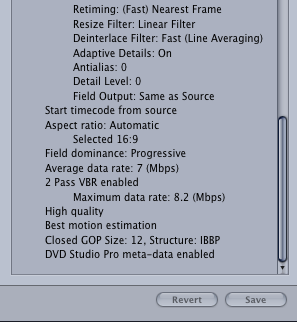
comp1.png

comp2.png


I'm using Encore CS3. It could be that I just need to upgrade. It would save time to ditch Compressor.

Thanks for your response.
 
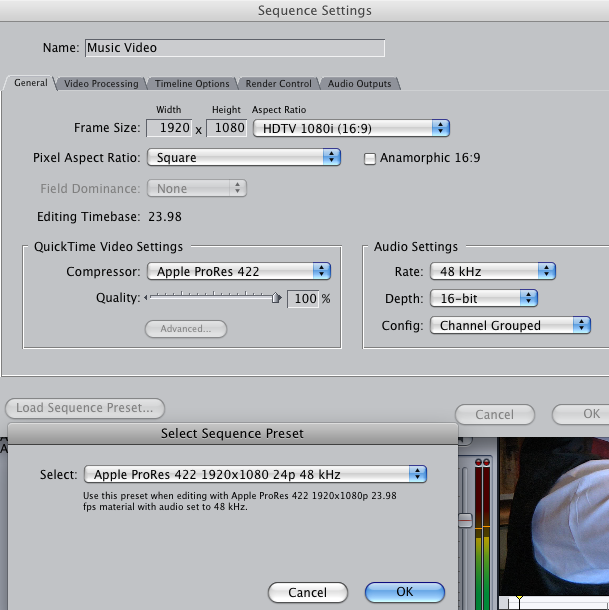
The footage is definitely sped up and finishes before the black out. The sped-up section plus the blackout equals the length that the clip should be. Here are the FCP export settings:

BTW, Encore is bombing every time it tries a transcode.

comp3.png
 
Last edited:
Ok, been a while since I've exported in FCP (I'm usually on Premiere these days), but normally speaking, when something is designated as 1080i (as in it's interlaced), it would be 29.97fps, even if it's edited in 24p, due to telecine pulldown. As far as I know, both Encore and DVD Studio Pro honor the pulldown flag in many streams, so it could just be Apple's preference to list it as 23.976fps regardless.

However, you have other issues going on here. You're deinterlacing in Compressor, which is inappropriate anyway... for two different reasons depending on if your FCP output is correct. You should never deinterlace a video that is destined for DVD or Blu-ray, nor should you even have to in this case. Second, it seems time remapping is on? It shows the same framerate as your source, so it possibly is irrelevant - unfortunately, being a Windows user I cannot determine this myself, so you'll have to wait for a Mac user to step in.
 
I'm a PC user too, but ...

what format was your original source footage? what did you shoot with?

was it HDV 60i (your original post said 1440x1080 which suggest HDV) ? , if so you will have problems converting to 23.976p - you should be using 60i for everything

if it was telecined (24p in 60i) , then you can inverse telecine to recover the 24p. You would then keep everything 24p, even MPEG2 encoding. Only at the final stage of authoring would you add pulldown flags (soft telecine). This way you keep progressive encoding quality, without encoding as interlaced
 
FCP:
When I load the Sequence Preset 'Apple ProRes 422 1920x1080 24p 48 kHz' it automatically changes my Aspect Ratio (top) to HDTV 1080i (16:9). I can change it each time to Custom (16:9), but I didn't think it would mess with its progressive status.

Compressor:
I just now turned 'frame controls' off. That's the only area that seems to talk about de-interlacing.

Test:
I realized that Encore could be the problem and opened the .m2v outside of Encore. It worked fine. But when I drag it into Encore and put it in a timeline it does the speed-up/blackout. Knowing already that Encore is the most unstable, bug-ridden program that I've ever used, that explains a little. Thoughts?
 
I just spent several hours removing and reinstalling CS3 Production Premium and got the same result in Encore. It totally works outside of Encore. A grayed out setting when I open Encore says 29fps, and I can find nowhere in Encore where I can change that setting. Thoughts?
 
I just spent several hours removing and reinstalling CS3 Production Premium and got the same result in Encore. It totally works outside of Encore. A grayed out setting when I open Encore says 29fps, and I can find nowhere in Encore where I can change that setting. Thoughts?

This is a tough call without really seeing your workflow... The only thing I can suggest right now is exporting a small clip (30sec-60sec), compressing it to MPEG-2, using the settings you've been using, and then uploading it to sendspace.com or something; I'd like to take a look and see if there's something up with the MPEG stream.

In all honesty though, it's unusual for the "blacking out" to happen at the MPEG-2 stage, since it's working out of Encore, as you've said. Upload the sample anyway and I'll take a look.
 
Ok, I'm still downloading the MOV export, but looking at the M2V quickly, I see this:

blending.png


Did you slow down the motion at all in this clip (in your original edit)? If not, this is likely the result of deinterlacing or time remapping in Compressor as I noted earlier. I'll be testing this in Encore next.

EDIT: Tested in Encore CS4, works fine with this M2V.

EDIT2: Looking at the original version as well... Looks fine, but you're definitely using incorrect interlacing settings. My suggestion is to go into Compressor and just disable any form of deinterlacing, along with time remapping.
 
Last edited:
I didn't slow down the motion. It's filmed at 1080/60i.

I just ordered Premier Pro CS5. I think CS3 is obsolete. It's tempting to convert to Premier from FCP so that I don't need to keep updating both, and because Apple will never support Blu-Ray. From what I've heard, though, Premier does a lot less than FCP.

Encore is taking literally 5-10x as long to transcode. I'm not sure why, especially when it is doing the same thing as Compressor.

While I wait I'll recompress everything, making sure it's not de-interlacing. I'm assuming that turning Frame Controls off is the way to do this. BTW, since you use Premier, why do you use Compressor?
 
I don't, I have familiarity with Compressor though :)

Also I'll take your word for 1080/60i, but the Quicktime inspector says otherwise in regards to the framerate.
 
Back
Top