Exporting Settings / Washed out colors

semajha

Well-known member
Yesterday after exporting a clip, I noticed that the colors were brighter or washed out looking when compared to the clips inside FCP. Do I have my settings wrong or something? What's odd is, I've never noticed this problem before.

Exported using Quicktime Converter, Bitrate set to 9000, File Format MP4. and video format H.264
 
thanks but how do i get into the QT preferences? Is this QT 10 you're talking about or 7? Quicktime X doesn't haven't a preference thing that I can access.
 
Quicktime 7. ON the top menu bar you click on QUICKTIME and choose PREFERENCES.

QTX is very limited in what it can do.
 
Thanks Shane! I'm gonna give this a try in a little bit.. hopefully the colors will stay the same when uploaded on vimeo too.
 
What's your output destination? I suggest you check the quality of the video in it's final output format. For example, if the video is destined for DVD then burn it and check it on a TV. If it's for YouTube/Vimeo/etc. upload it to the site and check it in multiple web browsers. Etc. Then adjust the colors in FCP.
 
I'm not sure if it even gives me an option for "output destination" I'm using Quicktime converter to export my video.

My settings are:
H.624
Bitrate at 5000
Optimized for download
Compressor quality set to high
Single Pass

I'm guessing it's the latest pro kit update because I didn't seem to have this problem before... Someone please help, this is really frustrating =(
 
By output destination I'm talking about how your video will be used, it's not a setting. :) Like, will it get burned to DVD? Is it going to go on a website as a Quicktime file (if so make sure to check it in different browsers and operating systems)? Will you upload it to YouTube? Etc. How your video ends up looking at the end of all these conversations is what matters, not the intermediate stages.
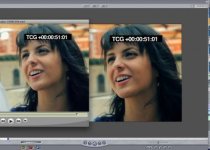
Quicktime has all sorts of gamma and color shifts that take place depending on what format you use, what you convert to, what your settings are, your display gamma when viewing, etc. Apple isn't helping (other than maybe finally going to 2.2 display gamma in Snow Leopard). It's very hard to make sure that your final video ends up looking the way you see it on your computer, especially if it's going on the web.
 
Oh sorry, yes these videos will primarily be used on the web. I've uploaded a few videos on vimeo last night and they seem to have the same problem. I understand the your video will never look 100% of what it looks like on the fcp canvas but this problem doesn't seem normal.... I did a little more research on google and found out that this issue is bigger than I thought it was.. Apparently, lots of people having gamma shift problems when exporting out in h.624 and no one has yet to find a clear solution.
 
Oh sorry, yes these videos will primarily be used on the web. I've uploaded a few videos on vimeo last night and they seem to have the same problem. I understand the your video will never look 100% of what it looks like on the fcp canvas but this problem doesn't seem normal.... I did a little more research on google and found out that this issue is bigger than I thought it was.. Apparently, lots of people having gamma shift problems when exporting out in h.624 and no one has yet to find a clear solution.

I just posted a brand new thread on this issue, same exact problem...check mine out
 
Here is another example, SAME THING IS HAPPENING TO ME!!! FOOTAGE WASHED OUT!

attachment.php
 

Attachments

  • Picture 3.jpg
    Picture 3.jpg
    17.6 KB · Views: 0
Last edited:
If your exporting H.264, I noticed that .mov files tend to change the way the video looks slightly. Just above the Audio/Video Settings in Compressor (I believe its the second tab), is a little box that has .mov in it. Change it to .MP4 to place the H.264 video in an MP4 wrapper. That usually fixes these kind of problems for me.
 
If your exporting H.264, I noticed that .mov files tend to change the way the video looks slightly. Just above the Audio/Video Settings in Compressor (I believe its the second tab), is a little box that has .mov in it. Change it to .MP4 to place the H.264 video in an MP4 wrapper. That usually fixes these kind of problems for me.

wait im confused...i don't export H.264 footage, im editing prores422 footage in my timeline. When Im done editing my footage I export the prores422 footage as quicktime movie/current settings. The when I open the quicktime movie I go to file>export then export from quicktime to an MP4. Can you tell me in detail what you are talking about?
 
.MOV tends to move information around, which can affect things like saturation. I read that it has something to do with an idea that FCP reads black as 0, while Quicktime reads black in .MOV files as 16. I actually have no idea. Send the footage to compressor, and instead of putting the file into a .MOV wrapper, put it in a .MP4 wrapper. Just give it a try.
 
.MOV tends to move information around, which can affect things like saturation. I read that it has something to do with an idea that FCP reads black as 0, while Quicktime reads black in .MOV files as 16. I actually have no idea. Send the footage to compressor, and instead of putting the file into a .MOV wrapper, put it in a .MP4 wrapper. Just give it a try.

the reason I don't like doing that is because the quality is not as good, I can't export from compressor as an .MP4 and set it to 9000kbps it only allows me 2048kbps, by exporting from quicktime it gives me more options, I can set me kbps very high for the best quality
 
the reason I don't like doing that is because the quality is not as good, I can't export from compressor as an .MP4 and set it to 9000kbps it only allows me 2048kbps, by exporting from quicktime it gives me more options, I can set me kbps very high for the best quality

Drag the H.264 preset there. Then change make your settings the way you like them (bitrate, etc.) and under the video settings tab in the Inspector is a little box that has the video extension: ".mov". Change that to: ".mp4" and it puts the H.264 video in an MP4 wrapper.
 
Drag the H.264 preset there. Then change make your settings the way you like them (bitrate, etc.) and under the video settings tab in the Inspector is a little box that has the video extension: ".mov". Change that to: ".mp4" and it puts the H.264 video in an MP4 wrapper.

Damnit! I did that, set all the setting correctly then and then I pressed submit and it failed before it could even start rendering...why is that? ahhhh this is giving me a headache
 
Back
Top