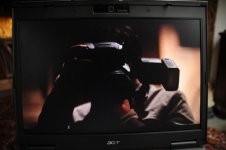
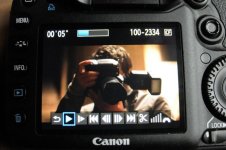
Contrast different on camera screen and computer monitor

My 7d is working fine, and images look great on the cameras' screen, but once I play them back either as native files with VLC or import them into Premiere the contrast has changed hugely and has lost loads of detail in the blacks.

Changing the contrast settings in camera on the picture profiles changes the contrast on the cameras screen and also when played back on my computer, but they still look incredibly contrasty even with the contrast turned fully down in camera.

This isn't a problem on my HPX 171, so it's not my monitor.

Anyone know whats going on?
 
It sounds like a gamma profile issue on your computer. The easiest fix may be to simply adjust the gamma in Premiere.
 
Whats confusing me most is that this issue appears regardless of how I play back the video files.

VLC, Quicktime and Premiere CS4 all show the video with massively crushed blacks.

I will post up some examples later.

Thanks
 
Poor way of showing the effect, but it is still pretty clear what I mean.

There is detail and colour in his hands when viewed on camera, but played back on my computer this is gone almost completely.
 

Attachments

  • tn_DSC_0177.JPG
    tn_DSC_0177.JPG
    23.2 KB · Views: 0
  • tn_DSC_0173.JPG
    tn_DSC_0173.JPG
    39 KB · Views: 0
Well one that's for sure is if you playback it in the camera and you have coverage of shadow areas and highlights you should be safe. Then you atleast don't loose anything which is the case with blown highlights.

I wouldn't trust the LCD because it always look different than in edit. But this is also true for many real videocameras. Just the same as how monitors differ in general.

Quicktime and H264 have a tendency to have screwed levels in playback so I would convert the files into something more robust. Even if you are editing in Premiere I guess you are using the native files? Find a workflow and make it a habit to convert.
 
I have the same problem in fcp as well. Even the raw h264 files have the same issue. Would love to know what is going on.
 
Here is the problem. Gamma represents basically midtone contrast, and it varies per monitor and system. The native gamma curve for the 7d LCD monitor is probably like 1.4 or something low. It's a really great little screen. Apple monitors typically default to 1.6-1.8. PC is way freaking high @ 2.2! This means a PC monitor default gamma 2.2 will crush everything to black or white. The higher the gamma # the more white and blacks are crushed. Your gamma curve setting can be adjusted downwards to match the LCD output. Or you can lower the gamma in color correction to get it looking good on your 2.2 gamma monitor. (prob best to do both)
 
Also, You can use photoshop gamma correction tool to adjust your gamma. (Mac has a tool that does this it comes with) You also may be limited by your monitor. Some have lower contrast ratios than others.
 
Yeah, you will need something to convert the files, something that shows the right amount of contrast. Cineform's products and Apple Color do that.

Some good reading on the contrast problem below. Page five on the last link is good if you want a zero budget way to work around this problem. That's what I use (.mov -> avisynth script -> lagarith with virtual dub, where the scripts use ffdshow to get the contrast right) and I am happy with it.

http://cineform.blogspot.com/2009/01/full-dynamic-range-video-from-canon-5d.html

http://cineform.blogspot.com/2009/01/correction-canon-5d-is-fine-here-is.html

http://www.cinema5d.com/viewtopic.php?f=14&t=335&st=0&sk=t&sd=a&sid=34835cd5ba9ea799f360e4b470ded0af
 
It's a really great little screen. Apple monitors typically default to 1.6-1.8. PC is way freaking high @ 2.2!

Eh...you make it sound like the pc's are doing something wrong. That's not how it goes. And Snow Leopard has now switched to 2.2 gamma so good luck to you all quicktime users. VLC player shows the gamma's all wrong too. I don't know what's wrong with the OP's Premiere, my cs4.2 displays them properly. Try media player classic (though it may not play them back smoothly)
 
its issue with codec,get quicktime 7.6 no other,no quicktime x cause it has this issue.
If your editor is using his own codecs t odecode files like that then open them in something else and convert to another codec then go back to your main editor with them.
 
its issue with codec,get quicktime 7.6 no other,no quicktime x cause it has this issue.
If your editor is using his own codecs t odecode files like that then open them in something else and convert to another codec then go back to your main editor with them.
It's not a QuickTime issue. The OP said that the issue appeared with the VLC player as well, and VLC does not use QuickTime ever for decoding anything. Also, he is on a PC, so QuickTime X would not even be available to him.

I'm still thinking that it has to do with the display gamma profile on his computer.
 
The Canon QT files use the full 0-255 computer color space. Video editing software assumes that you shot in 16-235 color space, and so it clips the bottom and top end.

On the PC, the only workaround that I have found is to transfer the QT to an MP4 using Media Coder, and then import it to Vegas. Vegas has a "Computer-RGB to Studio-RGB" filter that will correctly squeeze the 0-255 into the 16-235 color space, keeping all of your information.

It's been a problem since the 5D apparently:

http://www.dvinfo.net/forum/canon-eos-5d-mk-ii-hd/140690-5d-mk-ii-crush-black-issue.html

http://www.dvinfo.net/forum/canon-eos-5d-mk-ii-hd/140474-re-wrap-mov-mp4-seems-do-something.html

Here is the mediacoder work flow in detail:

http://www.cinema5d.com/viewtopic.p...sid=401e60e58cc81ab49403b4bdfecee072&start=50


I spoke with an Adobe Rep at the HD Expo in Burbank, they are looking into fixing Premiere to load the MOV's correctly straight from the camera. They don't have a solution that I know of at the moment.

It's really a PITA for low light shooting.
 
I spoke with an Adobe Rep at the HD Expo in Burbank, they are looking into fixing Premiere to load the MOV's correctly straight from the camera. They don't have a solution that I know of at the moment.

It's really a PITA for low light shooting.

That doesn't make sense because it works great for me (correct gamma) in Premiere cs4.2
 
What I have been having the impression lately is that when I playback on set some shots appear sharper or in focus but when I look at the same shots back at office on my Mac they look softer or out of focus. I'm starting to wonder if its just my impression or something going on.
 
It's not a QuickTime issue. The OP said that the issue appeared with the VLC player as well, and VLC does not use QuickTime ever for decoding anything. Also, he is on a PC, so QuickTime X would not even be available to him.

I'm still thinking that it has to do with the display gamma profile on his computer.

This happen to me when I play the clips on my PC machine. If I play in QT the it looks very flat as if the blacks were raised. If I play it in VLC the blacks are very crushed. But it only happens on my PC. When I play it in the Mac, QT or VLC show the same and what seems to be the intended contrast.
 
This happen to me when I play the clips on my PC machine. If I play in QT the it looks very flat as if the blacks were raised. If I play it in VLC the blacks are very crushed. But it only happens on my PC. When I play it in the Mac, QT or VLC show the same and what seems to be the intended contrast.
This has always been my experience on my PC also.
 
Back
Top