ColorChecker in Resolve

Joshua Milligan

Well-known member
I'm wanting to start using my ColorCheckers more in my work (I have a CC Video, CC Passport Video and CC Passport Photo), but am running into an issue in Resolve where the results are, well, crap.

I've watched videos online that demonstrate how great a ColorChecker workflow can be in Resolve and even in Premiere (Premiere uses the MBR Color Corrector 3 plugin) and since I always carry ColorCheckers with me for white balancing, I thought that I'd like to try that workflow out. But, for whatever reason the colors I get are terrible.

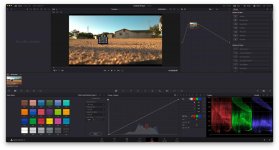
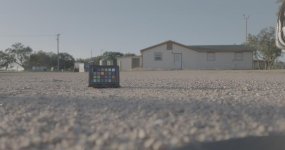
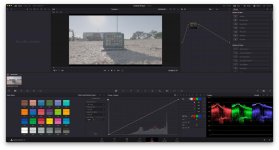
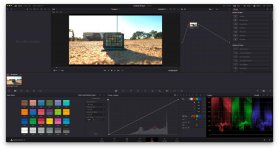
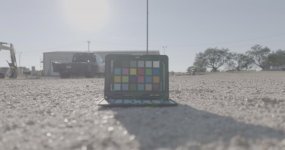
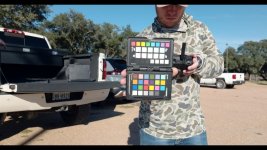
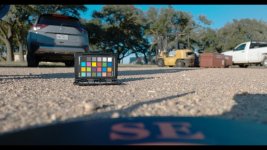
Take this example below. This is from my Mavic 3 Cine using my CC Passport Photo. I didn't have my larger CC Video with me at the time and this is as close as I could get my M3C to focus on the CC. This example was from an all aerial shoot where I ran through four batteries on my Mavic 3 Cine over the course of a few hours and right before every launch I placed my CC Passport Photo in the frame and recorded a quick shot of it for use in Resolve. All of these shots were in log.

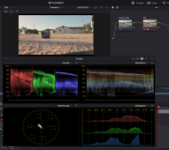
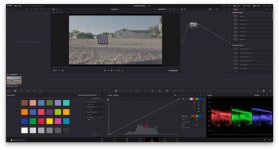
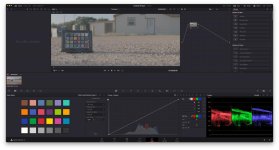
As you can see, when I lay the CC graph over the Passport and apply the DJI D-log to Rec.709 match, the results are not good. I do know that I have selected in the settings "X-Rite ColorChecker Classic" which is not the Passport version I'm using, but a quick search shows that the CC Passport and CC Classic are very similar in the color layout and should result in similar images since the main difference is just the size. CC Passport isn't an option in Resolve, but since it's basically a smaller version of the Classic, I don't feel like it should matter all that much, or at least not enough to create this kind of mess.

Can someone help me understand what I'm doing wrong here? I know I could just go in and grade everything by hand which is what I normally do, but I really wanted to successfully try the ColorChecker workflow out and so far I can't seem to get it right. I'd love some help on this and have attached a couple .tif screengrabs below of the original log shots in case someone wants to try it out in Resolve on their end. Thanks in advance for any help!

By the way, DVXuser won't let me upload the full-size images, so here's a Dropbox link to the full size versions including the .tif files: https://www.dropbox.com/sh/shp3cc04q...vuPThvmXa?dl=0
Click image for larger version  Name:	Example-1.jpg Views:	0 Size:	54.0 KB ID:	5683100
Click image for larger version  Name:	Example-2.jpg Views:	0 Size:	57.3 KB ID:	5683101
Click image for larger version  Name:	Example-3.jpg Views:	0 Size:	60.2 KB ID:	5683102
Click image for larger version  Name:	Screen-Grab.jpg Views:	0 Size:	42.9 KB ID:	5683103 Click image for larger version  Name:	Example-4.jpg Views:	0 Size:	55.8 KB ID:	5683104 Click image for larger version  Name:	Example-5.jpg Views:	0 Size:	60.3 KB ID:	5683105 Click image for larger version  Name:	Screengrab-2.jpg Views:	0 Size:	40.0 KB ID:	5683106
 
Last edited:
I haven't gotten around to testing Resolve with a Macbeth chart yet, but it look like you need to rotate your footage 180° to get the chart in the correct orientation for Resolve to read it, plus you might not get the best results with the auto scan feature, so you might try isolating the patches that correspond to the Vectorscope with a window, and use Hue vs. Hue and Hue vs. Sat to set the colors at the correct values.
 
Yes it strikes me as

-the card is the wrong way?
- the backlight is bad .. you want the white chip being hit by the sun
-a massive contrast reduction might get it to be ok
 
I had the same thought and actually rotated the images and tried them that way and the results were exactly the same. It looks like Resolve automatically detects which orientation to use, so that isn’t it unfortunately.
 
I've never had much luck either. I did post about it at some point on the resolve forum and got a relay suggesting it is not worth the effort but from memory I was trying to shoot in HLG at the time. I should pull it out and try again in Log.
 
I can't see what's going on in program. Are you applying a LUT before you match the color checker?
 
I can't see what's going on in program. Are you applying a LUT before you match the color checker?

So the way it’s supposed to work is you shoot a color chart before you shoot a scene so that in post in Resolve (or another NLE) you can overlay a color chart graph over the chart you shot in the field. From there you select the recording format and output format and hit ‘match’. The footage should instantly provide perfectly accurate colors with a solid white and black point. This would be the first step in your color process before adding or doing anything else.

That’s exactly what I did here, so there’s no LUTs or anything added, but as you can see the results are awful.

Here’s a video that demonstrates how this works (or is supposed to work): https://youtu.be/2W2sRPqZRCs
 
Your chart's white patch is in shadow, so Resolve is putting the white point way too high. Try manually adjusting the white point and see if the colors look better.
 
Here's an excerpt from a Pro Video Coalition article on using a DSC Labs OneShot chart:

"The Rec 709 spec defines the brightness levels where the white and black chips should fall on a waveform monitor, but Rec 709 was only ever designed to hold six stops of dynamic range. In theory the white chip (90% reflectance) should be placed at 100 IRE, but as that chip is only 2.5 stops brighter than 18% gray you’ll end up throwing away most of your overexposure headroom if you’re using any modern camera. If your camera has 4.5 stops of overexposure headroom, for example, putting that white chip at 100 IRE potentially throws away 2-2.5 stops of highlight detail!

The black chip is similar. Most HD cameras can see five or six stops of shadow detail easily but the Rec 709 spec only calls for about three stops of underexposure detail before hitting black. My preference is to use middle gray to set overall exposure, as our eyes are most sensitive to mid-tone contrast anyway, and the highlights and shadows can be set by eye later. The chart is technically correct, but nearly every modern camera exceeds the Rec 709 contrast specification".
 
I'm wanting to start using my ColorCheckers more in my work (I have a CC Video, CC Passport Video and CC Passport Photo), but am running into an issue in Resolve where the results are, well, crap.

Can someone help me understand what I'm doing wrong here? I know I could just go in and grade everything by hand which is what I normally do, but I really wanted to successfully try the ColorChecker workflow out and so far I can't seem to get it right. I'd love some help on this and have attached a couple .tif screengrabs below of the original log shots in case someone wants to try it out in Resolve on their end. Thanks in advance for any help!

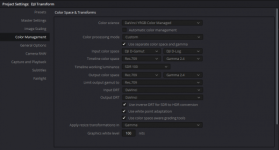
All I can say is I have had similar experiences trying to use color checkers, a variety of them when trying to use them with DJI Log. I find by far the best result is to set up a project for the DJI footage using the following Project Settings. Once I have the footage into the project I usually find all I have to do is a white balance and a bit of LGG and curves to correct any exposure anomalies. If the DJI footage is going to be part of another project, which it usually is, I then export a 3D LUT from the DJI Project to use in the main edit project.

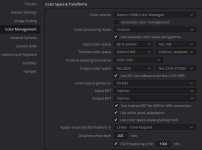
If using a color checker chart of any kind with the DJI Log footage I find it best to NOT select DJI in the "Source Gamma" box. Instead, what I find works best is to select AUTO then your 709, 709. For me, this has delivered far better results. I think there is something amiss with the DJI / Color Checker interpretation.

Below are are the settings I used on your chart on the ground image.

Chris Young

Transform Settings.png

Transform+WB GUI 02.png
Transform image.png
 
I too have moved to a "DaVinci YRGB Colour Managed" workflow and find it quick and accurate for a range of sources (Primary a FX6 and DJI Air2s) to produce both an HDR and SDR grade. I use similar settings to what Chris shows for SDR and the following for HDR. One thing that is different is that the DJI Air2s does NOT shoot in DJI D-Log, but regular 709 with DJI D-Gamut.
 

Attachments

  • DR-DJI.jpg
    DR-DJI.jpg
    63.9 KB · Views: 0
Thank you cyvideo and jmone! That helped a ton. For whatever reason Auto doesn't seem to give me good results except for on the one clip you gave an example of, so I'm still having to select DJI Log in the Source Gamma box. But the rest of the information you provided about the options you used in the Color Management tab really helped.

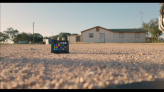
As you can see from the examples below, it helped me get much better results than I was getting. I was able to take these shots and use the ColorChecker tool plus some curve adjustments to get a basic grade in Resolve. I then exported these grades as 3D LUTs from Resolve and inputed the 3D LUTs in Premiere over the same clips and the results looked identical to what I got in Resolve. This is great because I primarily work in Premiere, as does the contract editor I hire for a lot of projects, and with this process I can use the ColorChecker charts in the field, use the ColorChecker tool in Resolve to get a basic starting point, grade the images to taste afterward and then export the grade as 3D LUT that I can then forward to my editor to apply to the project in Premiere. This will be a great way to help me guide him to getting the grades I want for particular projects which normally requires a lot of back and forth between us. This should stop a lot of that.

I'm also excited about this because there's really not a good LUT out yet for the DJI Mavic 3 Cine which I recently got and love. The Mavic 3's log footage is extremely flat, much more so than say my FX6 in Slog3, so getting a nice grade from it is challenging without a proper technical LUT to help bring the footage to life. You can certainly do it by hand, but it's tough, at least for me, since it's so incredibly flat. The upside is there's a lot of dynamic range there. With this ColorChecker / Resolve workflow I am now getting much better results grading the M3C and in a much quicker timeframe which is what I was after.

Thanks again and I hope you guys had a great Christmas.
 

Attachments

  • Untitled3_1.4.3.jpg
    Untitled3_1.4.3.jpg
    79.6 KB · Views: 0
  • Untitled_1.2.1.jpg
    Untitled_1.2.1.jpg
    74.2 KB · Views: 0
Looks Good! For me LUTs are "old school" for the technical grade (but not creative) in Resolve instead of using "DaVinci Colour Managed" colour space. The key is the "Input Transform" for each of the sources that puts the footage into the DaVinci WG/Intermediate that is much wider than any consumption colour space that you then render to. You really want to watch this clip interviewing Daria Fissoun who literally wrote the book for Black Magic on colour mgt. https://www.youtube.com/watch?v=gbrJGA5c8GQ&ab_channel=CaseyFaris
 
Yes, saw that earlier in the year. It sort of confirmed a lot of conclusions I had reached through my bumbling and fumbling with Resolve "correction" from both the technical and artistic POV. Always on the lookout for those sorts of videos. On the whole, Faris is a good source of Resolve knowledge. Have a better 2022 everyone.

Chris Young
 
Back
Top