This work has been superseded by Logarist
The following old information is retained just for reference.
I have developed LUTs to transform Cinelike D footage and V-Log L footage into a fully logarithmic working color space optimized for color correction. In this color space, you can perform exposure compensation and white balance correction just as easily and accurately as you can with raw images. In fact, the color space is very similar to the one that Adobe Lightroom uses internally. The color space is implemented as Adobe Cube and DaVinci Cube LUT files, so you should be able to use it in many popular video applications.
These are technical LUTs for color space conversion, not generic .cube "look" LUTs. Not all applications can read these LUT formats. The LUT package includes test files and instructions to confirm that your video application maps video levels and loads the LUTs correctly.
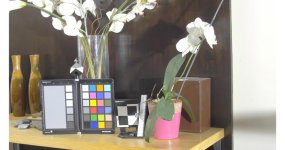
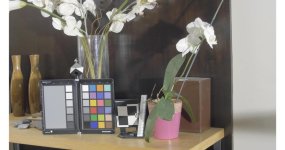
I've made a great effort to interpret the Cinelike D color space properly, effectively inverting the GH4's internal color processing pipeline. Interpreted this way, Cinelike D's color accuracy appears to rival V-Log L. But please try it for yourself and let me know what you think. Cinelike D is not subject to severe 8-bit chroma banding like V-Log L is. Cinelike D is also easier to shoot with, because the camera's monitor shows a more natural image that you can use to judge exposure and white balance. See here how I'm able to achieve uniformity of color across a wide range of exposures in Cinelike D:
Starting in version 0.12 of my LUT package, the V-Log L transform is calibrated for the colors of the GH4's V-Log L output. With gamut calibration, color accuracy is now better than with the Panasonic V-Log/V-Gamut transform that I had used in previous versions. V-Log L can be matched fairly closely to Cinelike D using the respective camera-to-log LUTs.
The log space has approximately 14.5 stops of dynamic range between 0.0 and 1.0, with middle grey placed at 0.5. Exposure compensation is performed as equal offset operations on the R, G, and B channels, and white balance correction as differing offset operations on the individual R, G, and B channels. The color space is designed to minimize hue shifts when performing contrast adjustment. Contrast adjustment is made by altering the slope with a pivot at or around 0.5. You can also use curves in this color space, though precise control may be difficult because of the large dynamic range and perceptual non-uniformity of brightness in the space. Because the space is logarithmic, highlights are increasingly squished together towards 1.0, and shadows are increasingly spread out towards 0.0.
For working with curves, I've designed a second color space with the same gamut as the log space, but with a gamma encoding. Between 0.0 and 0.5 this space uses the Rec.709 gamma curve, scaled to 1/2 its normal value. The curve is extended from 0.5 to 1.0, to encode an extended range of highlights. So 0.5 in the gamma space is 100% Rec.709 (the white point; clipping), and 1.0 in the gamma space is 200% Rec.709. When using curves, you must keep this in mind and do most of your correction in the lower left quadrant of the curve, and work in the right half only when you want to bring highlights down into the Rec.709 range. Use of the gamma space is completely optional: you may choose to do all of your correction in the log space.
A set of LUTs transforms from the log or gamma space into Rec.709, for display and rendering.
Rec.709 LUTs:
Most users will want the Rec.709 LUTs *with* a highlight roll-off. The versions without a highlight roll-off are a strict interpretation of Rec.709, suitable only for controlled lighting without bright highlights, e.g., a studio environment, or for users who wish to add their own highlight compression using a curves filter. My highlight roll-off compresses highlight luminance, reducing contrast in the highlights while preserving hue and saturation. The Rec.709 output has reference black at 0.0 and reference white at 1.0.
There are two basic workflows using my LUTs:
camera -> log -> Rec.709
or
camera -> log -> gamma -> Rec.709
You must use two or three LUTs. Use of one LUT by itself will yield incorrect images.
GH4 Camera Settings:
General Software Instructions:
FCPX Instructions:
DaVinci Resolve Instructions:
Sony Vegas Pro 13 Instructions:
(download links removed)
IT IS VERY IMPORTANT to follow the test instructions included in the LUT package. Since these are not simple "look" LUTs, you must ensure that levels are mapped in the expected way and the LUTs' domains are interpreted properly. I have only tested them myself in Sony Vegas Pro 13 and DaVinci Resolve 11. If testing shows that your application does not interpret the LUTs' domains, you can try the v0.12 LUTs, which did not use custom domains, but do not support as many camera settings.
Change log:
This is a work in progress, so I welcome your questions and comments. My plan is to settle on the color space specifications, and then add support for more cameras, and a linear space for photometric compositing. I don't use Adobe Premiere or any other video software, so I would welcome instructions and guides for other software in this thread.
v0.1 color space specifications:
Big thanks to mash_gh4 for providing GH4 footage.
The following old information is retained just for reference.
I have developed LUTs to transform Cinelike D footage and V-Log L footage into a fully logarithmic working color space optimized for color correction. In this color space, you can perform exposure compensation and white balance correction just as easily and accurately as you can with raw images. In fact, the color space is very similar to the one that Adobe Lightroom uses internally. The color space is implemented as Adobe Cube and DaVinci Cube LUT files, so you should be able to use it in many popular video applications.
These are technical LUTs for color space conversion, not generic .cube "look" LUTs. Not all applications can read these LUT formats. The LUT package includes test files and instructions to confirm that your video application maps video levels and loads the LUTs correctly.
I've made a great effort to interpret the Cinelike D color space properly, effectively inverting the GH4's internal color processing pipeline. Interpreted this way, Cinelike D's color accuracy appears to rival V-Log L. But please try it for yourself and let me know what you think. Cinelike D is not subject to severe 8-bit chroma banding like V-Log L is. Cinelike D is also easier to shoot with, because the camera's monitor shows a more natural image that you can use to judge exposure and white balance. See here how I'm able to achieve uniformity of color across a wide range of exposures in Cinelike D:
Starting in version 0.12 of my LUT package, the V-Log L transform is calibrated for the colors of the GH4's V-Log L output. With gamut calibration, color accuracy is now better than with the Panasonic V-Log/V-Gamut transform that I had used in previous versions. V-Log L can be matched fairly closely to Cinelike D using the respective camera-to-log LUTs.
The log space has approximately 14.5 stops of dynamic range between 0.0 and 1.0, with middle grey placed at 0.5. Exposure compensation is performed as equal offset operations on the R, G, and B channels, and white balance correction as differing offset operations on the individual R, G, and B channels. The color space is designed to minimize hue shifts when performing contrast adjustment. Contrast adjustment is made by altering the slope with a pivot at or around 0.5. You can also use curves in this color space, though precise control may be difficult because of the large dynamic range and perceptual non-uniformity of brightness in the space. Because the space is logarithmic, highlights are increasingly squished together towards 1.0, and shadows are increasingly spread out towards 0.0.
For working with curves, I've designed a second color space with the same gamut as the log space, but with a gamma encoding. Between 0.0 and 0.5 this space uses the Rec.709 gamma curve, scaled to 1/2 its normal value. The curve is extended from 0.5 to 1.0, to encode an extended range of highlights. So 0.5 in the gamma space is 100% Rec.709 (the white point; clipping), and 1.0 in the gamma space is 200% Rec.709. When using curves, you must keep this in mind and do most of your correction in the lower left quadrant of the curve, and work in the right half only when you want to bring highlights down into the Rec.709 range. Use of the gamma space is completely optional: you may choose to do all of your correction in the log space.
A set of LUTs transforms from the log or gamma space into Rec.709, for display and rendering.
Rec.709 LUTs:
- input from log or gamma
- with or without a highlight roll-off
Most users will want the Rec.709 LUTs *with* a highlight roll-off. The versions without a highlight roll-off are a strict interpretation of Rec.709, suitable only for controlled lighting without bright highlights, e.g., a studio environment, or for users who wish to add their own highlight compression using a curves filter. My highlight roll-off compresses highlight luminance, reducing contrast in the highlights while preserving hue and saturation. The Rec.709 output has reference black at 0.0 and reference white at 1.0.
There are two basic workflows using my LUTs:
camera -> log -> Rec.709
or
camera -> log -> gamma -> Rec.709
You must use two or three LUTs. Use of one LUT by itself will yield incorrect images.
GH4 Camera Settings:
- Cinelike D:
- Luminance range: 0-255, 16-235, or 16-255
- Contrast: 0
- Saturation: 0
- Hue: 0
- Highlight shadow: standard
- i.Dynamic: off
- Master pedestal level: 0
- You must use the above settings, or else the video will not be transformed correctly into the log space!
- Cinelike D maps output values lower than other photo styles do, and the exposure meter reads lower. So your tendency will be to overexpose. Use zebras and watch for overexposure.
- V-Log L
- No special settings are required.
- V-Log L maps middle grey 2/3 of a stop lower than Standard does at the same ISO setting. To be consistent with Standard, ISO 400 in V-Log L should have been called ISO 250. (I measured 0.64 stops difference)
- In V-Log L, the camera's built-in exposure meter reads 2/3 of a stop higher than it does for Standard if you want middle grey mapped the same way. When the meter reads +0.0, it should say -0.7. (confirmed in firmware v2.3)
- A reliable way to set exposure in V-Log L is to first set exposure in Standard, and then switch to V-Log L with an ISO setting 2/3 of a stop higher.
General Software Instructions:
- Please see the test instructions inside the LUT package. It includes instructions and test files for determining which LUTs you should use with your video application, and tests to ensure that video levels are mapped correctly and transformed correctly by the LUT.
- Create a folder on your hard drive with the LUT package version number, and copy the LUT files to it. That way when I release a new version of the LUTs, you can still have the old version in a separate folder, so that any projects using the old LUTs can still use them.
- Starting in v0.13 of the LUTs, I use custom domains in many of the LUT files. Several of the LUTs will *not* work correctly if your application does not support the domain keywords of either the Adobe Cube or DaVinci Cube format. The included test LUTs will help you determine which LUT formats your application can read correctly.
- The LUT files themselves also contain comments indicating how the camera's black and white levels should be mapped by your video software for the LUT to interpret the levels correctly. Open the LUT files in a text editor to see the comments. You can use video scopes to confirm that the camera's black level and white level are mapped correctly. Levels must be mapped in the way that the LUT expects, or else the transformations will not be done properly and you will obtain incorrect results.
FCPX Instructions:
- The free FCPX LUT Loader supports 3D DaVinci Cube LUTs. (but not 1D LUTs and not Adobe Cube LUTs)
- Add a LUT Loader effect with a camera-to-log LUT, and another LUT Loader effect with a log-to-Rec.709 LUT.
- Re-order the effects to put the Correction 1 effect between the two LUT Loader effects.
- Click the right arrow on Correction 1 to open the color board.
- Perform exposure compensation by dragging the global exposure control up or down.
- Perform white balance correction by dragging the global color control. (I presume that this is doing offset operations on the individual R, G, and B channels, but I have yet to confirm that)
- I think the contrast control built into LUT Loader should be a good one to use in the log space, and probably on the first LUT Loader instance, but I haven't confirmed that.
- LUT Loader can't load 1D LUTs, so use the 3D version of my log-to-gamma LUT.
- Color Finale 1.0.18 and earlier may or may not support 3D Adobe Cube LUTs, depending on your locale. A future version is supposed to fix that. Color Finale cannot read 1D LUTs or DaVinci Cube LUTs. Color Finale can't do any offset control or contrast control appropriate for a log space, so you will need to use other effects for exposure compensation, white balance correction, and contrast adjustment in the log space. Its curves should work well in the gamma space.
- The motionVFX mLut plugin doesn't support Adobe Cube LUTs or DaVinci Cube LUTs.
- LUT Utility doesn't support Adobe Cube LUTs or DaVinci Cube LUTs.
DaVinci Resolve Instructions:
- Resolve needs the DaVinci Cube LUTs. It does not support Adobe Cube LUTs.
- Create a folder named with the LUT package version number, in C:\ProgramData\Blackmagic Design\DaVinci Resolve\Support\LUT
in Windows, or in /Library/Application Support/Blackmagic Design/DaVinci Resolve/LUT/ on a Mac, and copy the LUT files to the newly created folder. Keeping a separate folder with the version number will allow you to add new versions of my LUTs later while allowing projects to still reference the old LUT versions - Set the project color science to DaVinci YRGB.
- In Resolve 11, sometimes upon loading a LUT, Resolve forgets which color science it's supposed to be working in, and the colors go crazy. Switch the color science to ACES and then back to DaVinci YRGB to fix this.
- Set a camera-to-log 3D LUT on the media, or in the project settings as a 3D input LUT. Resolve does not need the [expanded] version of any input LUT.
- Set a log-to-Rec.709 LUT on a corrector node, or in the project settings as a 3D output LUT.
- Use the corrector node's offset control to perform exposure compensation and white balance correction.
- Use the corrector node's contrast control with a pivot around 0.5 to perform contrast adjustment.
- If you want to use the gamma space, you need two corrector nodes: set a log-to-gamma 3D LUT on the first node and a gamma-to-Rec.709 3D LUT on the second node. Make log-space corrections on the first node and gamma-space corrections on the second node.
Sony Vegas Pro 13 Instructions:
- Download and install the free VisionColor LUT Plugin for Sony Vegas Pro 13. The plugin can load Adobe Cube LUTs.
- In project properties, set the pixel format to 32-bit floating point full range, the gamma to video, and the View Transform to Off.
- Add a VisionColor LUT Plugin with a camera-to-log LUT to your media effects, or video event effects at the beginning of the filter chain. Vegas needs the [expanded] version of each input LUT, if available.
- At the end of the video event filter chain, or in the track or master video effects, add another LUT plugin with a log-to-Rec.709 LUT.
- After the camera-to-log LUT, use the Brightness and Contrast filter for exposure compensation and contrast adjustment. Hold down the control key and drag the slider to make fine adjustments.
- After the camera-to-log LUT, use a Channel Blend filter for white balance correction: adjust the R, G, and B channel offsets in the last column. Hold down the control key and click and drag between the arrows to make fine adjustments.
(download links removed)
IT IS VERY IMPORTANT to follow the test instructions included in the LUT package. Since these are not simple "look" LUTs, you must ensure that levels are mapped in the expected way and the LUTs' domains are interpreted properly. I have only tested them myself in Sony Vegas Pro 13 and DaVinci Resolve 11. If testing shows that your application does not interpret the LUTs' domains, you can try the v0.12 LUTs, which did not use custom domains, but do not support as many camera settings.
Change log:
- v0.1: initial release with Cinelike D 0-255, and V-Log using Panasonic's V-Log/V-Gamut transform
- v0.11: corrected a formatting problem in the .cube files
- v0.12: added color calibration for the GH4's V-Log L output
- v0.13: DaVinci Cube format added; support for Cinelike D 16-235 and 16-255 added; support for video applications that don't read the video_full_range flag added; xvYCC decoding of Cinelike D added; test images and test LUTs added
- v0.14: 3D log-to-gamma LUT added; improved test procedure.
This is a work in progress, so I welcome your questions and comments. My plan is to settle on the color space specifications, and then add support for more cameras, and a linear space for photometric compositing. I don't use Adobe Premiere or any other video software, so I would welcome instructions and guides for other software in this thread.
v0.1 color space specifications:
- Log space:
- Gamut: ProPhoto RGB
- Opto-elecronic transfer function: logarithmic, with middle grey at 0.5 and 0.069 units per stop
- Gamma space:
- Gamut: ProPhoto RGB
- Opto-eletronic transfer function: ITU-R BT.709 transfer function, divided by two. Middle grey is at 0.192
- Rec.709:
- Gamut: ITU-R BT.709
- Opto-electronic transfer function: ITU-R BT.709 transfer function, with middle grey mapped to 0.384
Big thanks to mash_gh4 for providing GH4 footage.
Last edited: