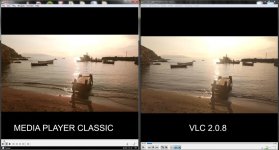
Whys does video look so different in VLC and Media Player Classic?

You're running into something that drives me batty, and causes endless complaints around the internet about one camera being "too noisy" as compared to another, etc. The fact of the matter is -- different playback software plays back and displays footage differently. Obviously the VLC in your example is lifting the blacks, causing flatter contrast. Different h.264 decoders will also show different levels of noise, and evaluating footage on a computer monitor is a just plain inconsistent process.

I don't know which one is "right", but if I was to evaluate it, I'd use the footage played back from the camera itself, to a calibrated monitor or television, to establish what is the "real" look of the footage, and then you could evaluate which playback software is delivering a more accurate representation.
 
I don't think you can change the gamma (per se) in VLC but you can change brightness contrast etc (in the filters section) but put you have to enable first. VLC has a help page (Google it).

I recommend you render out or find a test card and play it through VLC, then tweak the settings.
 
Media Player Classic is giving you the accurate output. VLC is interpreting video as 0-255 when it should be 16-235. Thus, what is black (0) is shown as grey (16), 255 is shown as 235, and everything in between is skewed. This is a well known issue with Geforce cards and VLC with a not as well known solution, which you can refer to here: http://www.dvxuser.com/V6/showthrea...edia-player-but-not-in-VLC-or-Quicktime/page2.

For the most accurate output, however, I highly recommend Media Player Classic + madVR renderer.
 
hello,

with the referred solution for vlc, you will loose gpu hardware acceleration.

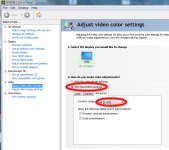
instead, go to nvidia control panel and adjust video color settings:


nvidia_cp.jpg
 
Back
Top