Transitions? Old-school A-B way in CS4?

azonicbruce

Active member
Sorry if this is too much of a newb question, but like I mentioned before, I'm used to working with Premiere 6.5 with the A/B Editing layout.

In 6.5, you had a main A/B track, and something like a simple dissolve you'd throw in the transitions track, snap each end to the ends of the clips, and you're done.

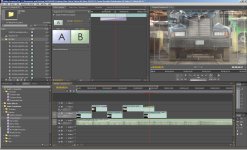
In CS4, I can't seem to figure out how to properly do this. I'll drag the dissolve transition to the end of the my clip in Video2, but it won't "snap" to the beginning of the clip from my clip in Video1. If I click on the effect and look at the Effect Controls panel, it shows the tradition A/B tracks, but shows the source as being a blank or black screen.

The transition works fine, it's just that it's hard to really snap to the beginning of the next clip, and from the effects tab it almost appears as if I'm using this the wrong way.

Can anyone shed some light on how I'm supposed to be doing this, or how I can at least easily get the transition to snap to the beginning of my clip in Video1?
 

Attachments

  • Premiere-Help-01.jpg
    Premiere-Help-01.jpg
    170 KB · Views: 0
Premiere Pro switched to single track edits. Put all the clips on the same track, then drag the transition to the edit point between them.

If you have a 30 frame dissolve, it will take 15 frames from after your out point of the first clip, and 15 frames from before your in point of the next clip. So set your in and out points accordingly.

For example, you last clip in track V1, you would have to trim some frames from the beginning to get a dissolve with the clip before it. Use the other video tracks for titles, graphics, and insert shots. Same with audio, put them all on the same track, and drag a transition to the cut line between each clip.

-Kevin
 
Last edited:
Wow, seriously? Woah. I've got alot to learn. This seems totally harder to grasp than A/B editing.

So for simple fade outs to black or white, what do you usually do? I was used to just placing a black or white video on Track 2 and using the Opacity rubber bands to make the transition. I notice that the only way you can do that in CS4 is to actually use keyframes; you didn't have to do that in 6.5. I also notice you can't seem to fade audio out by using the "rubber bands". How exactly do you do that now?

Man, I feel old...
 
It's much easier now. Simply use a "Dip to Black" dissolve filter in the Video Transition folder and put it between two tracks that are side by side.
 
Wow, seriously? Woah. I've got alot to learn. This seems totally harder to grasp than A/B editing.

So for simple fade outs to black or white, what do you usually do? I was used to just placing a black or white video on Track 2 and using the Opacity rubber bands to make the transition. I notice that the only way you can do that in CS4 is to actually use keyframes; you didn't have to do that in 6.5. I also notice you can't seem to fade audio out by using the "rubber bands". How exactly do you do that now?

Man, I feel old...

Fade in, just put a cross dissolve at the beginning of your clip, fade out, put one at the end. Audio fade in, put an audio transition (constant gain) at the beginning of your clip, fade out, put one at the end. Do what Huy said if you want to dip to black. Easy as pie.

-Kevin
 
A quick tip to make things easy...use the page up and page down button to move to the next edit point. Then press CTRL-D to apply the default video transition, which is usually cross dissolve, and press CTRL-SHIFT-D to apply the default audio transition. So for me, when editing a wedding, I can just keep pressing the page down button, then CTRL-SHIFT-D so all my audio clips have a nice transition between them. It's a lot easier than dragging a transition to the timeline for hundreds of clips.
 
Wow, great tips guys. I appreciate it. I originally tried Exponential Fade on the audio. What's the main difference between that and Constant Gain?
 
A quick tip to make things easy...use the page up and page down button to move to the next edit point. Then press CTRL-D to apply the default video transition, which is usually cross dissolve, and press CTRL-SHIFT-D to apply the default audio transition. So for me, when editing a wedding, I can just keep pressing the page down button, then CTRL-SHIFT-D so all my audio clips have a nice transition between them. It's a lot easier than dragging a transition to the timeline for hundreds of clips.


Just make sure right video or audio track in the timeline is selected (the one where your video or audio that you want to apply the transition to, is), otherwise nothing would happen when ctrl-D hit.
 
The key to remember in Premiere Pro (CS) is that basically every track is an A/B track.
It means you can apply transitions to keys (on any and all layers).

When you place a transition on any one clip, it transitions between that clip and any adjacent clip. If there is no adjacent clip, then it transitions to transparency.

So for your "old school" style transitions that don't include warping (so dissolves, wipes & keys); simply set your clips as you always did with the overlap, then drop the transition on the higher track and then drag the end of the transition across the overlap - with 'snap' (Press ) turned on, it will snap as it passes the edit point on the other track.
The transition on the upper track will reveal the lower track behind it.

Of course if you want a warping transition, like a push or a slide, then you will need to place the clips on the same track and place the transition between them.


Also; audio rubber bands are still there; but you have to select the clip first to see them. There are little < o > buttons at the track title area, pressing the diamond in the middle will set a new keyframe (It's the same diamond used throughout Adobe's products for keyframes). The arrows navigate to the previous/next keyframe.

In addition to dragging the keyframes, you can also grab a section of line between them and move them both up and down at the same time. (Handy for notching out a sound; set 2 keys before the notch, 2 after, then drag the line in the middle down and it'll bring the 2 inner keyframes down together to create a dip.

- Mikko
 
What i dont get:

if you put two clips in the same timeline and apply a transsition. You´ll get the "insufficient media" warning.
So you have to trim the two clips, do ripple delete the space between them and apply the transition. Thats not very comfortable.

Isn´t there a way to do this automatically?
 
What i dont get:

if you put two clips in the same timeline and apply a transsition. You´ll get the "insufficient media" warning.
So you have to trim the two clips, do ripple delete the space between them and apply the transition. Thats not very comfortable.

Isn´t there a way to do this automatically?

In order to do a transition you need a certain amount of handle frames on either end of the clip. The "insufficient media" warning means that you're trying to put a transition at the start or end of a clip and there's not enough footage to fade in and out between the two.
 
What i dont get:

if you put two clips in the same timeline and apply a transsition. You´ll get the "insufficient media" warning.
So you have to trim the two clips, do ripple delete the space between them and apply the transition. Thats not very comfortable.

Isn´t there a way to do this automatically?

There is a fairly easy way to do this if you know that one of the clips has enough frames to add. After adding the transition, select it and then select the Effect Controls tab. In "Alignment" there are three options: Center at Cut, Start at Cut, and End at Cut.
 
Back
Top