Noobish Adobe Premiere + FS700 Question...

isck29

Member
Okay quick question regarding workflow on on Adobe Premiere with the FS700.

After dragging the entire private folder on your bin, all the MTS numbered clips appear, which is good now here is the question. Is there a specific setting or metadata criteria box that I can enable which will separate normal clips e.g. 24fps to Super Slow mo clips. As id love to just split the entire list of clips to normal 24fps and 120fps or 240fps clips.

Apologies in advance if this doesn't make sense.

I know I could go thru each clip and put them in a different bin however when you have over 800 clips and you want to locate the 2 or 3 slow mo ones just makes it very time consuming when under a tight deadline.

Hope you guys can help.

Apart from that I love my FS700 :)

Stephan
 
The clips appear to Premiere Pro as exactly the same no matter which framerate you shot them at (they're all 24fps as far as PP is concerned). So in short there's no way to see which are which quickly.
 
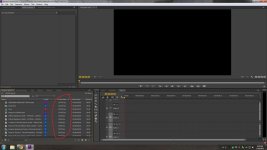
In the project panel (bottom left corner) doesn't it list all the clips? They are separated by "Name." Or, you can click "Label" (color), next is "Frame Rate."

I had a project with some various media in it, i'm seeing different frame rates listed. Actually, let me take a pic....

frame rates.jpg

I might be misunderstanding, i'm no pro. Hope it helps in some way. Oh, it's possible that frame rate is hidden by default. I think you'd just drag that window to the right to reveal more info.
 
Thanks guys for trying to help but I think there isnt a way to do this as yes the camera shoots at 240fps but I guess Premiere still interprets it as a 24fps clip as its already slowed down. However when you shoot 60fps it looks all speedy and it does give you the frame rate because its natively recorded at 60fps then needs to be slowed down in post. Thanks again for trying to help guys.
 
Thanks guys for trying to help but I think there isnt a way to do this as yes the camera shoots at 240fps but I guess Premiere still interprets it as a 24fps clip as its already slowed down. However when you shoot 60fps it looks all speedy and it does give you the frame rate because its natively recorded at 60fps then needs to be slowed down in post. Thanks again for trying to help guys.

Yar, gotcha. Since the camera puts it out at 24fps, of course it shows up in PP that way. Didn't think of that at the time.
 
Maybe you can use the Duration Column and locate the clips that are 8 seconds long (or whatever it is for 240 fps).

I personally would note them when logging the footage in PPRO or note them by TC reference when shooting them.

Mark up the script.

Does the FS700 have clip mark function also?
 
The FS700 allows you to set different frame rates for normal recording, and for super slow motion recording.

Example:

You choose 24fps for a filmic look in your normal recording. You can then choose that super slow motion clips are recorded to SD card at 60fps, or 30fps.

This would definitely show up in Premiere.

The mistake you are making is thinking that 120fps and 240fps clips are actually stored at these frame rates. They are NOT. The FS700 is slowing them down for you in camera, to a frame rate that all computer based player programs understand. All FS700 Super Slow Motion clips are stored on the internal SD card at your choice of either 24fps, 30fps, or 60fps. As I stated earlier, this frame rate is independent of the frame rate you chose for normal recording. It can be the same, or different depending on your needs.

Also, unless you cancel out early (which you can), all SSM clips are a specific duration, which depends on the frame rate that you decided to save SSM clips at. Example - 120fps clips are ~16 seconds record time stored at 60, 30 or 24 fps, therefore they will be (approx, in real life) 31, 62, or 78 seconds long.

(yes, I know the math isn't quite right, but this camera is just one big, expensive approximation... notice how there is nearly a 2 second delay on SSM recording in "start trigger" mode)

Good luck...
 
Back
Top