Noob question about AE composition and camera

CiPO

Well-known member
Hi guys
very trivial question for the AE experts.
I have done 3 different compositions (animating a still pics with various layers) and each of them has its own camera with some custom move. I can preview and render each composition separately and they all play well.
Now I want to make a final clip where I have the 3 compositions one after each other, in a ingle clip. I did create 3 different precomp and each of them contains all the elements (cam included). I now create a new comp and add the previous 3 precomp and arrange them to play one after each other in the timeline.
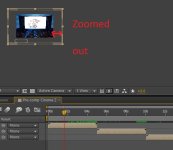
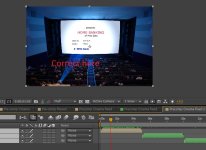
For some reason I have problem with the cam position/settings. The first precomp in the timeline is playing correctly (according to its own cam) while the 2nd and 3rd have completely wrong camera position (zoomed in a little portion of the video). I was expecting that each precomp would "bring" its own camera with it thus not requiring to add a new cam in the final (combined) composition.
All I want is to have a single clip which contains sequentially the 3 original precomp, each with its own original camera (which plays well in its comp).
Any idea what I am doing wrong ? Hope I was clear.

THX
CIPO
 
There is a little button on the AE timeline for Continuous Rasterize. Looks like a little gear. You need to check it on each pre-comp. Also make sure your master comp doesn't have a camera. I think that will do what you want.
 
Thx for the help Matt but still didn't work. I've noticed that only few elements in the original precomp have that check box you mentioned available. I tried also to set it for the pre-comp as a whole (when importing it in the final comp) but didn't help.
Furthermore I see that the main problem is related to the fact that the single precomp when imported in the new final comp lose their original "scale" value and especially their cam (and its movement). Hence in the final comp I need to scale the single precomp trying to fit the final view but they seems now "squared" rather than 16:9 as in the original. There is also no cam move anymore in them.
Again if I go the every single precomp they play well (right scale and right cam movement).
Of course I could create 3 AVI and join them alter .... but wanted to see if I can get it all at once :)
THX
 
You may need to go into each of the three comps, select all the layers and precompose. Then check the continuous rasterize switch on that pre-comp.
Then make the new comp which is the combination of the three comps. Those extra pre-comps may be necessary to get AE to rasterize and render using the right camera. That way back in the new main comp which combines them they are really just three videos on the timeline, all those 3d details are pushed down. It's fairly common for AE to need an more precompose steps than you'd think.
 
Hi Matt
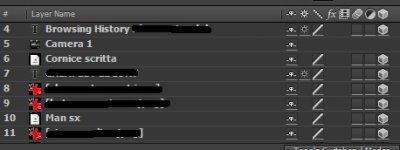
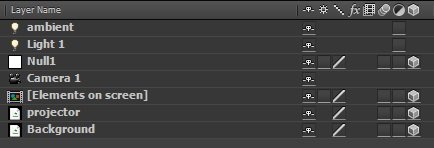
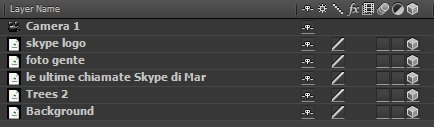
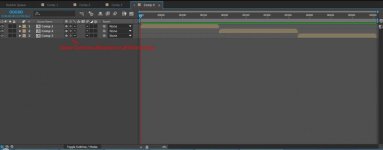
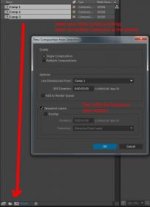
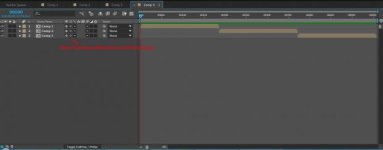
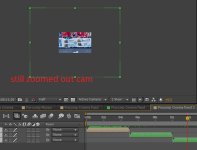
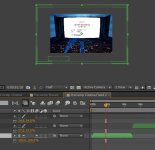
as I was saying going back into the original precomp didn't really help. As you can see in these 3 pics, in most case I can't even set that checkbox cos it is NOT available !
In the last pic I was able to check that box for few layers but now I cannot uncheck them. Overall I don't manage to check it consistently for every layer in every precomp.
I am stuck :(
THX for the help

ae3.jpgae2.jpgae1.jpg
 
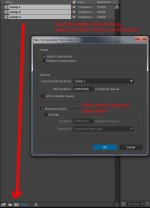
On your three comps you don't need to click continuous rasterize on any of their layers (though you might want to on the text layers and for any nested comps). The place you need to turn this on is in your master comp. So follow these steps with your comps to make one master comp from these three comps:

ae1a.jpg

ae2a.jpg
 

Attachments

  • ae1a.jpg
    ae1a.jpg
    7.3 KB · Views: 0
  • ae2a.jpg
    ae2a.jpg
    12.5 KB · Views: 0
You know I may have this backwards, I think you only need to continuously rasterize if you have a camera on that top comp (which is what I was doing last week which made me think I knew what your problem was). But that doesn't seem to be how it's working just now on a little test I put together. If you just want the comps to play as they are I think you should just be able to nest them. And if that doesn't work right, take each of the three comps and select all the layers inside them and do a pre-compose. So you end up with
Main Comp
​
Pre-Comp 1​
Comp 1
​
Pre-Comp 2​
Comp 2
​
Pre-Comp 3​
Comp 3
​


You may need to rasterize the Comp 1, Comp 2, and Comp 3 layers to make this work. Also Element 3D since it's really a 2D layer throws monkey wrenches into things and it often is the layer that needs rasterizing rather than the standard AE text/image layers.
 
On your three comps you don't need to click continuous rasterize on any of their layers (though you might want to on the text layers and for any nested comps). The place you need to turn this on is in your master comp. So follow these steps with your comps to make one master comp from these three comps:

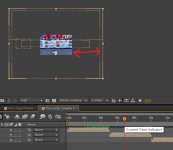
Thx for the effort Matt, still the same problem. The cams in the final comp don't seem to retain their own values. They are all too zoom out in the final comp.
Every rpecomp has its own cam and it plays correctly but when moved into a single final comp then something is wrong with the cam position values.

ae6.jpgae5.jpgae4.jpg
 
Will check that script. BTW, I don't have any Element3D in my precomp.
They are just imported JPGs, some masking, texts and cam movements. I am basically animating a still pic in all 3 precomp.
There was some mess cos I was importing Photoshop PSD files from a friend who is a designer but that's all.
Nothing complicated !

Tried the script but now I got ok just the first precomp, 2nd and 3rd have still wrong cam zoom value.
I started to understand (after watching Andrew K video) that I am loosing the cam when doing this. I will try to play around and manually copying it. BUt I am not sure cos in the master final comp I can't have 3 cams .... I need to retain the original same from every of the 3 precomps.
THX

ae7.jpg

ae8.jpg
 
Last edited:
It kind of looks like the three comps aren't the same size. What are the comp settings on each of the comps you are trying to combine? If they aren't the same size you could get what I'm seeing in those images. In which case it isn't a camera problem but a scale problem, which you can fix by rescaling. Though you might have to make sure you check that silly gear on all your text layers (otherwise the text on a rescaled comp may be rendered at the wrong size and have jaggies).
 
Found the issue !!! Very stupid of me.
The problem was that the 3 precomp had different sizes !!! I thought they were all the same but clearly when importing from my friend's PSD I didn't check it properly.
Now in the final comp, I just scaled down the 2 wrong ones and got it all right :)
THX again for the help !!!
 
Now If I check that box you mentioned then I get again the scale "problem". See here with it. It gets again zoomed out.
THX
ae10.jpgae9.jpg
 
Yes, it collapses transformations, so the scale you set in the main comp gets overridden by the sub-comps with it enabled. But it's the only way you can share a 3d scene with a camera in another comp, which is what I thought your problem was. It also can help by forcing vector layers (like text and Illustrator) to always recompute for the new comp's size/scale.
 
I generally render out each comp in situations like this, and assemble them in FCP (or whatever NLE).

That way, a change to one section doesn't mean re-rendering everything. Seems like a lot of people use after effects as a sort of NLE when that is one of its weak points (hard to playback things in real time, etc).
 
Yeah, I start to get it. Learning all the time.
Will see with next scene, at least now I know to pay attention to the comp size ;)
thx again
 
I generally render out each comp in situations like this, and assemble them in FCP (or whatever NLE).
That way, a change to one section doesn't mean re-rendering everything. Seems like a lot of people use after effects as a sort of NLE when that is one of its weak points (hard to playback things in real time, etc).

Yeah, was just afraid of double rendering (once in AE and then in the NLE). Wouldn't like to go via uncompressed frames.
THX
 
Back
Top