"Magically" Recovering Highlights in D5200 Footage?

BobbyMurcerFan

Well-known member
Okay, this is the oddest thing I've ever seen. It seems that D5200 footage that looks clipped at 255 actually has real detail in the clipped channels that can be recovered. This makes absolutely no sense. There can be no values above 255. But that's what I'm seeing.

Here is a link from the Avid forum that explains what I'm noticing more thoroughly and has supporting screen grabs.

http://community.avid.com/forums/p/117560/678216.aspx#678216

Any thoughts on what's going on is much appreciated. This is crazy. Thanks!
 
Last edited:
Maybe certain programs interpret the footage differently? I know if you directly drag GoPro 3 Black Protune footage into After Effects, the highlights and shadows will be clipped. Run it through 5DtoRGB first, and the dynamic range is maintained.
 
There's no magic, Avid is just interpreting the full-range video as if it was limited to a studio-swing 16-235 range. When you lower the gain, it scales the video's 236+ luma values down below 235, and they appear on the right edge of the histogram. The histogram in the third post of that thread shows what happens when Avid remaps the full-range video to fit within its studio-swing working color space. The vertical spikes occur because it maps adjacent full-range values into the same studio-swing value. Misinterpreting the footage this way can cause banding, so it's probably best to reduce the gain instead, after importing the full-swing footage into Avid.
 
I very much appreciate all of the excellent testing, help and info you provide all of us here :). I do have to say that I think the Avid forum responses are correct in terms of where this additional range is coming from. B/c in Media Composer you can choose whether or not to remap, and I told it not to. I do believe that the camera is recording YUV color values that when translated to RGB exceed the full swing gamut, i.e. > 255. Thank you for the explanation of the spikes when I ask Avid to remap, and I agree using gain and gamma looks like a better way to go.
 
Last edited:
Maybe certain programs interpret the footage differently? I know if you directly drag GoPro 3 Black Protune footage into After Effects, the highlights and shadows will be clipped. Run it through 5DtoRGB first, and the dynamic range is maintained.

If you want to provide me a sample of GoPro 3 Black Protune footage I can see if I can get into AE w/o clipping. Ususally there is a way w/o transcoding. ;)
 
This seems to be exactly what I see on my NEX-5N: files are 255 but they are loaded as 235, which causes a horrible highlight clip (HORRIBLE: colored and digital and just as ugly as it could be). So, first thing to do when you load these files into the editor, is to put the white level down to 235, which restores all those clipped highlights and lets you only with the in-camera clipping (which is not ugly).

An additional problem with the 5N is that the LCD in the camera won't show you where the true clipping point is: it works just as the badly-configured editor, it thinks anything above 235 is being clipped, but it is not. So the best way to expose with the 5N is by using the histogram... which is not to be found on the D5200!
http://www.dvxuser.com/V6/showthread.php?293208-Exposing-with-the-NEX-5N-don-t-trust-the-LCD

Edit: I'm not seeing the 5N issue on the D5200 clips I've got, but this depends on which editor you're using.
 
This seems to be exactly what I see on my NEX-5N: files are 255 but they are loaded as 235, which causes a horrible highlight clip (HORRIBLE: colored and digital and just as ugly as it could be). So, first thing to do when you load these files into the editor, is to put the white level down to 235, which restores all those clipped highlights and lets you only with the in-camera clipping (which is not ugly).

A few other options that support batch processing of footage:

* Use 5DtoRGB or GoPro Cineform to transcode your MOV footage into 4:2:2 10-bit files. These are both free and can be set up to convert Nikon full-range videos into studio-swing 16-235 color space. Those files can then be used compatibly in broadcast video editors like FCP7 and Media Composer.

* Import Nikon MOV files directly into a video editor that can be configured to work natively in 32-bit full-swing color space, such as After Effects or Vegas. This is the better option for those who have no need to produce video for television broadcast.
 
Lpowell,

Actually, Media Composer has always been able to work with full range YUV footage without issue. And because MC defaults to natively working in YUV, you don't get any rounding errors or clipping of YUV to RGB normalized values below 0 or above 1.

I have to say that there really appears to be something odd going on with the D5200 footage.

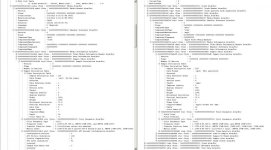
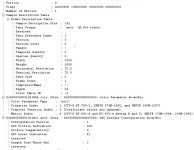
For one thing, its QT color atom flags are a mess. There is a missing flag, there is a 709 flag and there is a 601 flag. Not only do 709 and 601 have different coefficients, but only 709 can go to full range, 601 cannot. Not only could this affect decoding, but it begs the ?, "What is Nikon using when recording?"

Look 3/4's the way down the attached file; you will see Color Parameter Atom/Box values for a native D5200 clip on the right and a D5200 clip transcoded to ProRes on the left. (Sorry that the image is imbedding, LOL!)
 

Attachments

  • QTAtoms_h264AndProres.jpg
    QTAtoms_h264AndProres.jpg
    93.3 KB · Views: 0
Last edited:
Actually, Media Composer has always been able to work with full range YUV footage without issue. And because MC defaults to natively working in YUV, you don't get any rounding errors or clipping of YUV to RGB normalized values below 0 or above 1.
Yes, Media Composer can accommodate full-range video in two ways:

* Remap it into broadcast studio-swing color space, which as we've seen can produce histogram spikes.
* Import it without remapping, but treat full-range levels above 8-bit 235 as superwhite by default.

However, in both cases Media Composer is still working in its internal studio-swing color space, which is designed for television broadcast production. That's why it can be a more efficient workflow to transcode Nikon full-swing footage into studio-swing before importing it. For those who want to work with the camera's original footage, a more convenient option is to import Nikon MOV files directly into a video editor that can be configured to work natively in Rec. 709 full-swing color space.

The metadata tags that indicate Rec. 709 full-swing are in the Video Usability Information (VUI) Annex E section of the H.264 standard. Both video_signal_type_present_flag and video_full_range_flag must be set for the video editor to recognize the stream as full-range. Detailed specs can be found here:

http://www.iitk.ac.in/mwn/vaibhav/Vaibhav%20Sharma_files/h.264_standard_document.pdf
 
Thank you so much for the H.264 document! The question now is, "How do I figure out what those flags are set to?"

As for Avid, I have to say that I see no indication of it internally working at studio levels. The source and record monitors both display 0 to 255, as do the internal scopes. Avid doesn't remap, which is why 16 will always look as very dark grey (not black) when monitoring Avid footage on a computer monitor. To see how things would look remapped to studio levels, you have use a broadcast monitor or Full Screen Playback and choose "Expand Luminance For Computer Displays."

And if you look at the Avid forum thread that I linked to, you'll see that I'm referring to highlight values beyond 255 being recovered in Media Composer.
 
Last edited:
As for Avid, I have to say that I see no indication of it internally working at studio levels. The source and record monitors both display 0 to 255, as do the internal scopes. Avid doesn't remap, which is why 16 will always look as very dark grey (not black) when monitoring Avid footage on a computer monitor.
Yes, and this has long been problematic for editors using Media Composer with uncalibrated LCD monitors. Media Composer was originally designed with the expectation that an analog NTSC monitor would be used to evaluate color balance. Accordingly, Avid doesn't remap your imported video (unless you ask it to); it simply assumes that black is at 8-bit 16 and white is at 235. When video graded within these "broadcast-legal" levels is output to an NTSC monitor, the contrast looks the way it was intended. But when you output it directly to a full-swing computer monitor, the darkest and lightest studio-swing shades don't reach all the way to 8-bit 0 and 255, and it looks dull. Here's a link to an Avid Community discussion thread that shows how far back this issue goes:

http://community.avid.com/forums/t/32334.aspx

Unlike Adobe After Effects in 32-bit color-managed mode, Media Composer doesn't attempt to reconcile color space mismatches in video footage or input/output devices. it simply assumes that all components used in your workflow are designed to work at broadcast studio swing video levels. But with full-range digital computer monitors and DSLR video files, this assumption has steadily unraveled to the point where NTSC monitors and their built-in standards are rarely observed outside the television broadcast industry.

To be fair, it's not only Media Composer that works this way - both Apple FCP7 and Adobe Premiere Pro were designed to work without color management. Adobe expects people who need to deal with these issues will use calibrated ICC color management in After Effects and/or Photoshop to resolve any discrepancies of this nature.

Adobe After Effects also provides an easy way to determine how the Rec. 709 full-range flag is set in your video files. After setting up an AE project in 32-bit Rec. 709 color-managed mode, import a video and check its Interpret Footage dialog box. AE will report the file's embedded color space and state whether it has remapped the colors to match the current working color space.
 
Last edited:
Some of you will remember this was also an issue during the early months of the 5d2 as well. The trick then was to take things into Color, pull everything into a 'safe' range, and then do your output to Prores or the like.

I too noticed this about some of the 5200 footage previously released, the lecture shots in particular. Pull down the highlights and the blows foreheads magically appear. Not magic, but always feels like it!

This is the vid that has really won me over:

https://vimeo.com/61413236

Just looks much, much better (the downloadable version) than the GH3 to me. I think I'm allergic to moire at this point!
 
Back
Top