I give up on dvx100b and cs4 !!

ihatedv

Well-known member
Well not really, but I needed an eye-catcher! I knew the learning curve would be steep switching cams and learning to edit at the same time. I don't think I'm a total idiot, I mean I know how to fly jets and all. So here is my story.

A 25 minute clip takes 8.5 hours to render and my footage looks like total crap. I never thought it would take that long to render. The computer that I just purchased should take less time, no? This is part of the reason why I think something is not correct with my work-flow.

I shot F6 (stock no changes) and edit on CS4 using the 24p widescreen preset. Than I cut the footage, and when I output it looks like garbage. Noise in the picture, grain. (light was good, I was outside)

Any ideas what I could be possibly be doing wrong?
Generally speaking, how many kbps should I encode audio for the web? And for DVD?

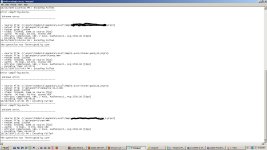
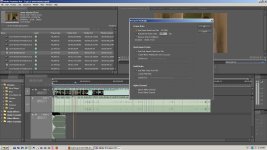
I've included a screen shot, hopefully it helps. Please guy/gals hopefully you can shed some light on something.

I'm also trying to do a pre-render in AF. Not sure what a pre-render is but I'm willing to try anything. I also heard that its better to render/export from AF, not sure why but I'm giving it a shot.
 

Attachments
  • 1.jpg
    1.jpg
    148.9 KB · Views: 0
  • 2.jpg
    2.jpg
    103.2 KB · Views: 0
Last edited:
WMV is slow to encode and not multicore optimized

1.5Mbps is probably too low for WMV and your DVX100b source footage, but it depends on the complexity of the content (ie motion and scene changes will require more bitrate). Try using a higher bitrate if you intend to use WMV9

h.264 is much better for web, better quality/compression, and faster to encode, scales better with more cores

If you use a 3rd party site like vimeo, youtube, they will re-encode it anyways, causing farther quality loss (so if you upload crap, it will become worse crap)

The deinterlacer in Adobe sucks big time

For DVD you have limited choice . You usually use MPEG2 and AC3 audio (or MP2), but your bitrate is limited by the fixed capacity of the disc. You can use a bitrate calculator to figure what you would use, there are many if you search google. You wouldn't deinterlace your DV footage
for DVD.

There are some hidden settings like "maximum render quality" (MRQ) on the fly out menu in Adobe Media Encoder that many people forget. But this slows down encoding immensely
 
1.5Mbps is probably too low for WMV and your DVX100b source footage, but it depends on the complexity of the content (ie motion and scene changes will require more bitrate). Try using a higher bitrate if you intend to use WMV9

I can't seem to find out how to get a higher bit rate? I'm using 'NTSC to High Quality' this is the last option that I have beside the PAL and HDTV stuff.

I do plan to encode using H.264,(I need to deliver in multiple formats) the only thing about H.264 I can't seem to get 16:9 ?


EDIT:
A question about exporting using the H.264 codec. My footage was shot in 24pa, I now have the option of exporting with a frame rate of 23.976, 24, 29.97 and 30 (just to name a few.) What frame rate should I be exporting to? Please don't give me an answer like (whatever frame rate you want.) I just need a simple answer. I'm not all into that film look, I just want a solution that will work!
 
Last edited:
I can't seem to find out how to get a higher bit rate?

Use the scroll bar when you edit the preset. Twirl down the advanced settings and you should see options for bitrate

A question about exporting using the H.264 codec. My footage was shot in 24pa, I now have the option of exporting with a frame rate of 23.976, 24, 29.97 and 30 (just to name a few.) What frame rate should I be exporting to? Please don't give me an answer like (whatever frame rate you want.) I just need a simple answer. I'm not all into that film look, I just want a solution that will work!

If the pulldown was removed correctly (you shot 24p and it was wrapped in 60i container correct?) , then you should have 23.976 footage. There should be an option "same as source" as well

For web delivery, most people resize to 1:1 pixels and a ~16:9 frame size. e.g. 720x400 or 512x288 etc... . This is because anamorphic content doesn't work so well with flash or embedded players
 
Last edited:
1. Use the scroll bar when you edit the preset. Twirl down the advanced settings and you should see options for bitrate


2. If the pulldown was removed correctly (you shot 24p and it was wrapped in 60i container correct?) , then you should have 23.976 footage. There should be an option "same as source" as well

3. For web delivery, most people resize to 1:1 pixels and a ~16:9 frame size. e.g. 720x400 or 512x288 etc... . This is because anamorphic content doesn't work so well with flash or embedded players

1. Found it !

2. Not sure what you are talking about. I shot 24pa and opened a new project using the CS4 preset for 24pa (can you elaborate on this please). I don't have the option 'SAME AS SOURCE' with the H.264 codec that's why I was asking.

3. Ok I actually found the option where I can select a pixel aspect ratio.
 
I don't have your camera, but I think it shoots 24p in 60i stream, but premiere might remove the pulldown automatically (recovering the progressive 24p footage - really its 23.976 - the 24p is lazy way of writing it)

24pN would be native 24p footage and you wouldn't need to remove pulldown

I think 24pa is advanced pulldown, and there is a special cadence to remove it, but I think Premiere will do this automatically (since there is a preset for it). If you right click the clips in the bin and look at the info, what does it say?

Anyways, the frame rate should be 23.976

Cheers
 
I have a DVX100B and I sot in 24pa advanced.

Here is the info when I right click:

File Path: J:\pp\avon-stones 04
Type: AVI Movie
File Size: 102.0 MB
Image Size: 720 x 480
Pixel Depth: 32
Frame Rate: 29.97 (24p)
Source Audio Format: 48000 Hz - 16 bit - Stereo
Project Audio Format: 48000 Hz - 32 bit floating point - Stereo
Total Duration: 00:00:28:04
Average Data Rate: 3.6 MB / second
Pixel Aspect Ratio: 1.2121

AVI File details:
Timecode:
Reel name: avon-stones
User Timecode: 00;00;28;05
Reel name: avon-stones
Contains 1 video track(s) and 1 audio track(s).
Interleave: 1 : 28.17

Video track 1:
Size is 96.70M bytes (average frame = 123.44K bytes)
There are 845 keyframes.
Frame rate is 29.97 fps
Frame size is 720 x 480
Depth is 24 bits.

Audio track 1:
Size is 5.16M bytes
Rate is 48000 samples/sec
Sample size is 16 bits


THANKS FOR YOUR HELP
 
Sorry , I should have been more clear, right click and interpret footage (as if you were conforming the file). There should be a box remove 24p pulldown

Anyways, I should defer to someone who has your same camera model to be sure, but if you were shooting 24pa and there is a preset for that, I suspect it would automatically remove pulldown

If it didn't remove pulldown properly you would see combing and artifacts as you scrubbed though the footage
 
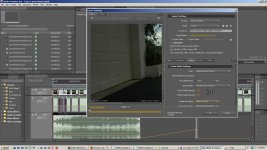
I believe PPRO automatically removes the pulldown. Here is a screenshot when I use the interpret footage option.
 

Attachments

  • 3.jpg
    3.jpg
    131.1 KB · Views: 0
It looks like it works ok. But the real test is scrubbing through or playing the footage - is it clean or artifacts? If it's clean, you are set
 
I guess I'm making progress. From your advice with the new setting I'm using my render time went from 8.5 hours to 1. hours.

The video quality is a 'little' better, but not where it should be.


Thanks a lot!
 
The video quality is a 'little' better, but not where it should be.

Can you describe what is "wrong" with the quality? or maybe post a screenshot or clip to illustrate?

What bitrates are you using? Maybe try something much higher like 5-8Mbps or h.264
 
As we speak I am rendering a H.264 clip @ 3.39 Mbps bit-rate so I'll see how that one goes.

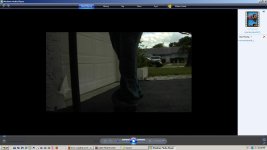
Here is the last render I did with your suggestion of increasing the bitrate. The screen capture is .wma @ 7041 kbps.

About the quality, well you tell me what you think.
 

Attachments

  • 4.jpg
    4.jpg
    70 KB · Views: 0
@PDR BRAVO BRAVO. I just rendered the H.264 clip and all is well. You saved me a huge headache and I thank you much!
 
The fly out menu in AME when you adjust the profile. It's beside the "others" tab. It looks like a triangle with 4 lines beside it. Left click it and a submenu will appear. Checkmark to activate it

2hyz1py.jpg


This won't affect the issues you are seeing in your other thread (with the combing)
 
The fly out menu in AME when you adjust the profile. It's beside the "others" tab. It looks like a triangle with 4 lines beside it. Left click it and a submenu will appear. Checkmark to activate it

2hyz1py.jpg


This won't affect the issues you are seeing in your other thread (with the combing)

PDR,
I can not find the MRQ either. I use encore CS3.

Any ideas?

Thanks
 
PDR,
I can not find the MRQ either. I use encore CS3.

Any ideas?

Thanks


It's not in CS3 - it was put in CS4, and I don't think it's included in Encore - just Adobe Media Encoder and Premiere Pro (but I could be wrong about that). Also, it's there for HD->SD conversion...using it on SD footage won't do much for you except give you LONG encode times.
 
Back
Top