How to vignette in premiere? to all white bg that has been cropped

PegLeg Media

Well-known member
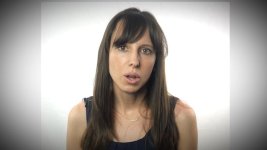
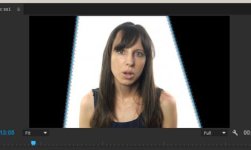
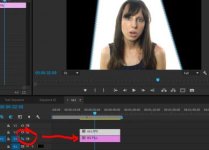
So i am filming a series of video blogs for a company and trying to edit this in premiere without having to go into after effects. I filmed in front of a white backdrop and had to crop the lights from the left and right. I added a white layer under my footage and color corrected it to look like someone in front of an all white background. My problem is now adding a vignette. I made one in photoshop and when i put it over the footage you can see the lines where I cropped the video. I have tried adding a vignette in premiere and it does the same thing. I assumed nesting the person and the white background would work as a pre-comp and i could then add the vignette but that didnt work either. So is there a way to do this without going into after effects and without exporting and then editing already exported footage?

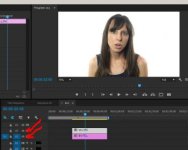
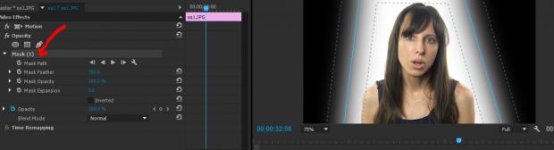
here are the ss
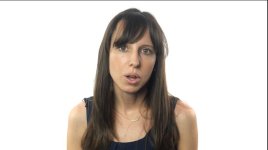
ss1.JPGss2.JPG
 
edit : Not sure why nesting does not work.

Try nesting again and create your vignette in Premiere> Opacity>Mask

Another thought...

Don't Crop the Image...use a garbage matte instead.

Maybe even a Mask from Opacity again. Still need to fill the bg your white matte though.
 
Last edited:
thanks ill try using the garbage matte, i couldnt think of another way to mask the person at the moment and assumed the crop effect wasn't the best solution anyway
t'
 
two things: ensure you really got the background and white bg to superwhite, it could be that the vingette is just bringing out what's really there. check the waveform.

second, don't add the effect to the nested sequence, make an adjustment layer and add it to that, likely it will do the same, but As always there are a number of ways to do things, and trying various combinations may get you the desired result.
 
two things: ensure you really got the background and white bg to superwhite, it could be that the vingette is just bringing out what's really there. check the waveform.

second, don't add the effect to the nested sequence, make an adjustment layer and add it to that, likely it will do the same, but As always there are a number of ways to do things, and trying various combinations may get you the desired result.

I tried the adjustment layer idea and that didnt change anything. I'll check the waveforms, i havent heard the term superwhite so do you know if there is a good effect to use to help make the image super white without killing the talents exposure?
 
Tested and....

The problem is with the Crop Effect or any matte mask applied to crop the clip. Nesting works perfectly though.

A Nest can be applied immediately to 2 clips (layers) in the same sequence.

Top Clip Cropped anyway you want. (Opacity Mask or Crop or Garbage Matte)
Bottom Clip fills BG
Select Both> Right Click Nest.
Nest> Opacity FX> Oval Mask>set and BIngo.
 
Back
Top