How to convert .mts file on Adobe Media Encoder?

JFK85

New member
Hi, I just got my hands on the new GH1 camera and it shoots video very nicely so far.

Just one thing i've been trying to figure out for a while now is the .mts file.

I've been doing recording tests, etc... and also trying to encode it on the Adobe media encoder.

I was wondering if anyone can help me out to figure out how to get the .mts to an .mov format. To get the closest as possible as the original .mts file without losing any quality.

I shoot mostly in 720p

Can anyone help out.

I work on a mac.
:thumbup:

Thank you@
 
Hello,

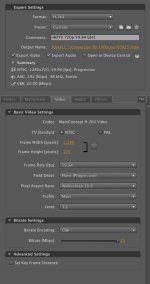
I also just go my GH1 this week. Only used a little bit so far. Here is my work flow and I am fairly certain the settings are correct. Please let me know if something does not jive. I'll assume you use Premiere but if you do not, import your .mts file into Adobe Media Encoder and then start at number 3 below.
_______
Workflow in Premiere:

1. Open Premiere CS4.1, create a project to match your file type. Choose AVCHD 720p60 as the preset.

2. Import the media using the Media Browser. Place clip in timeline and then choose Export>Media. AME then Launches

3. Under Format, choose H264

4. Click Custom under the Preset menu

5. Choose HDTV 720p 23.976 High Quality as the preset

6. Change the frae rate to 59.94

7. Change the Bitrate Settings to CBR and then move the slider all the way to the right for max quality of 20.

8. Save your preset to the desired name.

9. Click Ok

10. Click Start Queue

________

Adobe Media Encoder (AME) Standalone

If you are using AME and not Premiere, just import the .MTS file into AME and choose the same settings.

For 1080P and the other AVCHD formats, just choose a similar preset and make sure the Pixel Aspect Ratio (PAR) and the Frame Rate match your clips.

See the attached picture for the settings.
__________

I hope this helps and if there are errors, please advise.

Be well,

Erik
 

Attachments

  • GH1 720p to MOV settings.jpg
    GH1 720p to MOV settings.jpg
    129.9 KB · Views: 0
Last edited:
just import it directly into AME as suggested by slackblade. I thnk you will get slightly bigger files. what I do is make low res proxies and edit with those then swap them with the original MTS files for final export. works well for me, esp with 1080 stuff on my PC laptop.

Alot of people here use VoltaicHD also.
 
'5dtoRGB' is another solution. (from Rarevision).

ClipWrap is another and there is no transcode in the process.

Why are you wanting to converting the file anyway?
 
MTS変換
Using MTS Video Converter, you can convert MTS files into other popular video formats like AVI, MP4, MPG, WMV, FLV, MP3, WAV and etc. in order to play on iPod, iPhone, Apple TV, Zune, PSP, PS3, Creative Zen, Archos, and other Video

players and audio players.:thumbsup::tongue::D
 
Erik,

May I ask why you set the frame rate in Media Encoder to 59.94 fps? You suggest matching the frame rate for 1080P, so I'm wondering why you suggest changing it for 720P. I'm new to this, and a bit confused about changing frame rates.

cheers,
Dave

Hello,

...

5. Choose HDTV 720p 23.976 High Quality as the preset

6. Change the frae rate to 59.94

...

________

...

For 1080P and the other AVCHD formats, just choose a similar preset and make sure the Pixel Aspect Ratio (PAR) and the Frame Rate match your clips.


Erik
 
Hi, I just got my hands on the new GH1 camera and it shoots video very nicely so far.

Just one thing i've been trying to figure out for a while now is the .mts file.

I've been doing recording tests, etc... and also trying to encode it on the Adobe media encoder.

I was wondering if anyone can help me out to figure out how to get the .mts to an .mov format. To get the closest as possible as the original .mts file without losing any quality.

I shoot mostly in 720p

Can anyone help out.

I work on a mac.
:thumbup:

Thank you@

I use the AppGeeker Video Converter and I like it quite a bit, here below is a guide.

How to convert mts files to an .mov on mac

Converts to a lot of format and support drag and drop.
 
Last edited:
Back
Top