How to add many clips to play at the same time in resolve

rob norton

Veteran
I'm thinking about some dynamic text design, with the end result being letters that have moving clips inside them.

I'll have maybe 20-30 cropped clips to be part of the text. I don't know what the crop will look like, but they'll likely various crops in the form of "strips"/"boxes", or even singled out parts of the clip with background removed (ambitious), I haven't got that far.

I don't need a fusion tutorial, but was wondering the best workflow to test the concept, without a full commit.

The crops will make them TINY, but my concern is having so many clips will still be too much for the computer, although I haven't tested the lower quality viewing mode in resolve.

Do you think it's just a matter of stacking full res clips, then making compound clips every time it starts slowing down. Or should I reduce all clips to lower res first then try adding them?

Footage is all 6.2K 3:2 pro res LTT.

Thanks!
 
Come up with a quick test. Some way to duplicate the computing power needed without having to deal with 30 clips. For example, try it with one clip repeatedly used over and over to see how it behaves.
 
Are all these 'see through' text blocks going to be over a common background video? How many text blocks on screen? Do they have to sit at various angles?

The technique I work with for this type of job is as follows.

First I select all the videos / clips I want. I then batch render them out at full size as H.264 MP4s at anywhere between 10-20Mbps at the frame rate of the project.

Using these clips I edit all my video clips at full resolution and build the timeline as:

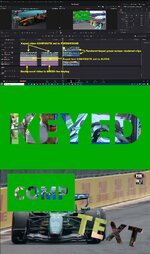
TOP TRACK The video to key into the text goes on this top track. The Composite mode for all the video clips used is set to FOREGROUND

SECOND TRACK All text titles to key through go on this track. Each title has its Composite mode set to ALPHA

BOTTOM TRACK Solid colour green for CHROMA KEYING

Then I render out full res keyed videos of each text block at the duration required. Most times at 1080p. These clips now have video keyed through the text and all are sitting on a green background.

These are now brought back into Resolve. Then resized and placed as required, on a new timeline if you wish. I tend to do all of it on one multi-track timeline.

I then use Resolve's 3D Keyer to key out the green background of each imported clip over a new background. Then I use the 3D keyer's Spill, Key Adjustments and Matte Finesse tools to get a clean key. The Clean Black and White sliders usually doing a very good job of it.

What I like about this approach is if a client wants the keyed video or text on keyed clip #5 changed it's just a simple process to go to clip #5 on your timeline and re-select a new range of the video or replace that video and change the text if required. Then re-render the altered clip #5 back out with the original clip #5 name. Using the same name will automatically update the clips changes in your multi-clip screen keyed timeline.

Then I render out the piece.

You can of course do all your editing work with these previously rendered low bit rate H.264s. And when you are happy with the finished project go back and substitute the low bit rate files with your original high-res source files and render out using those.

TBO, I find in most cases the low res H.264s when resized down to smaller dimensions for your final multi-text screen hold up really well. I can't remember back to when I last replaced my lower bit rate H.264s with the full bit rate original camera or source files. If I see no issues or artifacts when rendered out I just leave it all as is.

With a reasonable CPU / GPU combination I find my multi-keyed green screened text comps play well enough. Dropping the 'Playback' setting to 1/2 res also helps if necessary.

Chris Young

See attached layout
 

Attachments

  • Text Comp x 3.jpg
    Text Comp x 3.jpg
    507.9 KB · Views: 1
Back
Top