Filming with AF100 and Samurai... ProRes help

Kindredmachine

Well-known member
So today, I finally hooked up a Samurai to my AF100 and shot a few things around town to see how much better it holds up to heavy grading vs AVCHD. My issue though is that I have never used ProRes files before and I am a CS6 PC user so I'm not exactly sure what the best way is to import and edit these files. I've heard you can still import the files into Premier for editing but it's not a native decoding? As a result, will I lose quality or have any drawbacks from importing/editing these files in this manner on a PC?

ALSO: Next month is an purchasable update for the samurai that adds Avid NDxHD. Is there a codec available to buy/download for editing these files natively in Premier... maybe that would be easier for me to work with that PreRes?
 
Bring them in and edit them natively in CS6.

I am not sure if you need to have QT Pro Installed or not... because I do and I have no issues.

When (and if ) you need Avid NDxHD...google that and download the free codec.
 
Thanks shooter. So far, the native AVCHD looks virtually identical to ProResHQ except for moments of banding (especially on skin tones) that appear in the AVCHD shots which don't show up in the ProRes shots; keep in mind it's really only noticeable at 200%-400% zoom. Even with heavy grading, both seem to hold up very well and I don’t notice an editing performance increase with the ProRes files over the native AVCHD either. I'm actually a little bummed because I was hoping for some sort of noticeable quality increase (even slight) with the Samurai but it's just not there. I'll do some more tests with burning and comparing Bluray disks but I'm expecting them to be pretty much identical.

FYI: I'd like to note that I used an AVCHD preset in Premier and imported both AVCHD and ProRes files onto the same timeline; not sure if that affects the quality of the ProRes files or not. I'll take some screenshots and upload comparisones. Even though it's been before, this will be just another example.
 
Last edited:
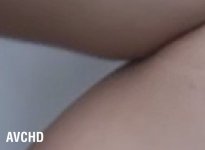
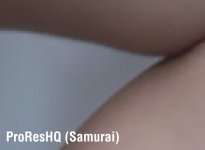
OK, here are my screenshots. They're blown up 400% from Premier Pro CS6 and I croppe dout a small section of the frame so it could upload to DVX without being resized. both images were exported at 100% queality. You'll notice that there is less banding in the ProResHQ file but the detail is LESS than the AVCHD shot (huh?). Notice the blocking in the ProRes shot? I'm not sure how this is possible since I thought ProResHQ at 220mbs was suppote to capture more detail... not less.

AF100_AVCHD.jpg
AF100_Samurai.jpg
 

Attachments

  • AF100_AVCHD.jpg
    AF100_AVCHD.jpg
    42.2 KB · Views: 0
  • AF100_Samurai.jpg
    AF100_Samurai.jpg
    42.6 KB · Views: 0
Last edited:
I have stated previously that one will not see any difference between the two codecs viewed on usual NLE monitors.

Test : Lay them up in video synch on two video layers in your NLE and switch between the layers. Not much to see here I think you will find.

You will notice a degree of difference in your waveforms and scopes but difficult to interpret what benefits are derived from this though.

Now the real test is CC and grade.

By test and experience...I repeatedly see the difference in FX and CC Suites eg Resolve and Flame. My Colorists and FX compositors repeatedly tell me the higher bit rate files with 4:2:2 perform better than the AVCHD.

An example we worked on two days ago. I shot pieces of raw (uncooked) chicken for a TVC ( Seasonings and spices). The chicken flesh is a complicated color, hue and can be either very un appetising or ..my job..make it appetising.

The colorist ( in Resolve) was able to apply a significantly far greater degree of subtlety by working with the Prores HQ files and achieved the desired effect. We purposely tried with the same shot from the AVCHD..and were not as succesful.

Here is how they put it in some sort of perspective.

There are codecs that are designed to look great...but as soon as you mess with them..they fall apart.

BTW - I dont think your test of screen grabbing a shot from a GUI and blowing it up proves anything. That is a flawed process involving factors that are not in a video workflow. You are capturing the pixels on the NLE screen and the screen is derived from the NLE preview codec. ie. Its not the "raw" camera image . Its liking taking a photo of a TV screen or the screen at the cinema.

A frame grab would be more informative.

In your case you are seeing the way your NLE and your monitor screen processes the image and it obviously does not handle the higher bitrate Prores well ie artifacts.

I am also concerned when anyone mentions " banding". Too me the skin tone in your Prores example has superior tonal contour over the AVCHD.
 
That makes it a bit more clear. So basically, the artifacts in the ProResHQ footage arn't "really there"? So if I render out a heavily graded AVCHD clip and a ProResHQ clip, burn each one to a Bluray disk to view on a large 1080p screen, most likely the footage originating from ProResHQ will look "better"?
 
Well try it and see... but to compare the scenario...you should do the same "heavily graded" CC and grade to each clip.

I tend to notice the abilty to subtle grade is where the difference lies.
Heavy looks cover a multitude of "sins" and most clips will take a big fat grunge look.

Try laying up a lot of subtle grades on the same clip instead of one big mother of a "LOOK".

Try skin tone subtlety ( the hardest of them all).

The test is about what control you have over the image ..not the maximum impact..which may induce issues of its own.

Try legalising for broadcast.

Try shooting a bit flat and use the CC / Grade to create a "light".

Mostly..test your secondaries. Thats the magic of the colorist and that will test the Codec.
 
Great descriptions Shooter. Where I notice codecs falling short is with secondary color corrections. Especially when I switch the black & white "show the key" screen on. The stronger codecs will show smooth transitions in and out of the colors you are targeting where lesser codecs/bitrates are hard edged and blocky. Makes all the difference when trying to never leave a trace of doing a secondary correction in the first place.
 
So... I took the native AVCHD and PRHQ clips and just rendered them out H.264 Blu-ray and burned it to a disk; threw it up on a 55" HDTV to compared. Again, the PR clip was identitcal to what the editor was showing in the above screenshots. Though it handles the skintones better, the artifacting on object edges and hair was inferior to the native AVCHD. The detail in the shadows on the PR clip WAS noticably better though. Please note that I didn't do any sharpening or CC/grading. Is this just how PR handles edges and lines?
 
Last edited:
Absolutely...thats what I see too.

It makes sense of course that more color info provides more to work with.

Great descriptions Shooter. Where I notice codecs falling short is with secondary color corrections. Especially when I switch the black & white "show the key" screen on. The stronger codecs will show smooth transitions in and out of the colors you are targeting where lesser codecs/bitrates are hard edged and blocky. Makes all the difference when trying to never leave a trace of doing a secondary correction in the first place.
 
I have no idea why you are getting artifacts but I dont believe it is the way PR handles edges and lines. I dont see that and besides...it would be unacceptable.

What are your project sequence settings for the AVCHD and the Prores?

So... I took the native AVCHD and PRHQ clips and just rendered them out H.264 Blu-ray and burned it to a disk; threw it up on a 55" HDTV to compared. Again, the PR clip was identitcal to what the editor was showing in the above screenshots. Though it handles the skintones better, the artifacting on object edges and hair was inferior to the native AVCHD. The detail in the shadows on the PR clip WAS noticably better though. Please note that I didn't do any sharpening or CC/grading. Is this just how PR handles edges and lines?
 
In my original post, that was one of my questions. I wasn't sure what preset to use for editing PRHQ files since I'm running CS6 on a PC, I don't have a ProRes preset. I imported both files into an AVCHD 1080/24p preset. I wasn't sure if this would have negative implications on the PR file was decoded?
 
Yes. I use 3 mounted 1920x1080 ASUS monitors from 2 Nvidia cards via SLI. But I just noticed a funny thing. Comparing the files wihout any alterations I see what was posted earlier... but if I apply CC the PRHQ file; the "added" artifacting (especially the large stair stepping pixles on the edging) dissapear and now looks just like the AVCHD files but with added detail in the shadows. This is starting to sounds like an issue with a codec in Premier or something...
 
Maybe the QT isn't at full res?

I've seen something similar (decrease in quality and more jaggies on edges etc) a long time ago when using normal QT files running DV (SD!) codecs. Unless the file was told to run at hi-quality, it always defaulted to a lower res look. But this was ages ago.

Just thought it worth throwing into the mix as this is an interesting thread :)
 
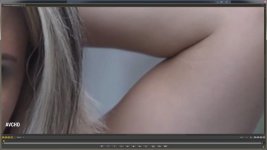
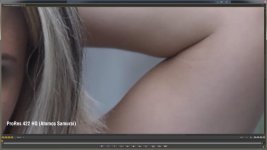
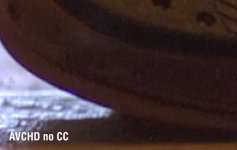
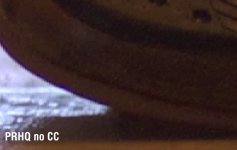
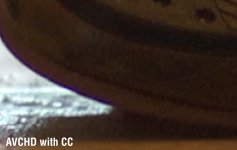
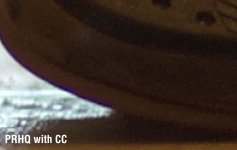
Thanks for the suggestion but everything is set to 100% Here's some parisons from CS6 and looks identical to how it shows up on a TV. You'll see that PRHQ looks "better" once CC is applied...

compare1.jpg
compare2.jpg
compare3.jpg

compare4.jpg
 
Brent.

Just remember that your preview codec is not the native source codec.

The issue may lie within that but ..I dont see it.

I have never seen an artifact from the AF102 or the Samurai no matter what I shoot.
 
Maybe it has to do with how I'm capturing it. I'm using HD-SDI cables (obviously) and using the Samurai setting of 3:2p23.98 > ProRes HQ and the AF100 has the SDI 24PsF set to off. Do you record with that set to ON?
 
Back
Top