Compositing in After Effects - The Jaggies

ToddWayne_AZ

Active member
Okay, here's some stuff I shot yesterday (greenscreen), in both 1080i AND 720/24 at 60fps. I pulled them both into After Effects and composited a little shot in 3D space with a lot of camera movement. You'll notice the "jaggies" on part of the shots (a little hard to see on this version, but the full res version it's VERY apparent) , and I'm wondering how best to get rid of them in After Effects? Is it something you have to do when you ingest the footage, or is there a effect you can apply or a switch I'm missing somewhere. I didn't see them during editing so I thought I was okay...They only showed up after I rendered it. Any thoughts would sure be appreciated.

Thanks

http://homepage.mac.com/todd_fowler/iMovieTheater31.html
 
If the artifacting is in the key you could try a preblur of 2 or 3 pixels. I can't really see any artifacting in the footage linked so its hard to say if its compression or not.
 
Jim,

Thanks. I pulled the key using Keylight and actually had 3 pixels of pre-blur on. The more I use Keylight, the better I like it, and the pre-blur is such a helpful feature.

Yeah, it's tough to see it in footage I linked to, but it's definitely there. I rendered it in 10-bit uncompressed 4-2-2. I wondered if it was because I mixed 720 and 1080 footage?
 
Post a frame render from AE and then the same frame from the compressed footage and see if we can eliminate a rendering artifact issue. You might only need to apply a simple matte choker to the offending track.
 
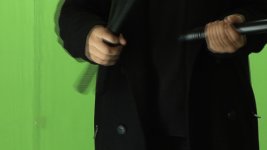
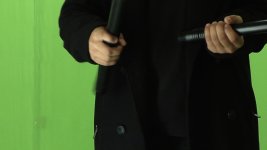
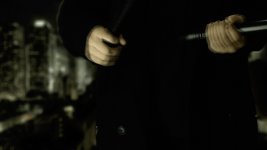
Okay Jim...I think I figured it out. Here's a grab from the original greenscreen footage. And here's the same frame after I've Interpreted the footage. Also here's a grab of the same frame from the final output.

I right clicked on the footage in the project window, and under the Fields & Pulldown section separated the fields (lower field first). Instant fix! Now I'll rendered everything again and see what it looks like.
 

Attachments

  • Warp Blast Pre-Interpret.jpg
    Warp Blast Pre-Interpret.jpg
    174.5 KB · Views: 0
  • Warp Blast After-Interpret.jpg
    Warp Blast After-Interpret.jpg
    163 KB · Views: 0
  • Warp Blast 4, final.jpg
    Warp Blast 4, final.jpg
    132.4 KB · Views: 0
is that just a stock photo you used? I'm going to be doing a similar project of a woman standing in front of a city skyline I'm slowly creaiting in photoshop, but my photos are from the daytime and fear it wont look as good as what you just presented.
 
xyouthx,

yeah, it's just a stock photo I grabbed off the internet. It was large (3024 x 1998) to give it enough resolution to work in the comp as I panned the camera around. It's a night shot of some area of New York. Didn't do any color correction except a final adjustment layer over the entire comp.
 
I tried to create my own skyline of photos taken of various skylines but it didn't work, so I'm now searching for the right stock photo that isn't a recognizable city shot, but thanks for posting yours, it really helped me visualize. any tips for the HVX on green screening, it'll be my first time
 
I pulled the key in After Effects using the plugin Keylight. It comes bundled with AE7 I think. It's really a powerful plugin, and surprisingly fast to use once you get familiar with the options. Here's Andrew Kramer's tutorial that walks you through Keylight:

http://www.videocopilot.net/tutorial.html?id=50

A few things that I've found that can make a difference shooting greenscreen (I'm definitely no veteran...shot maybe a dozen different scenes against a greenscreen) are:

1. Light your greenscreen as even as possible.

2. Keep your subject as far away from the greenscreen as you can to minimize spill onto your subject (not always possible though).

3. In Keylight under the view options is the "Screen Matte" view. Use it! I spent weeks trying to key out ALL of the green before I discovered that you simply click on the screen matte view and under the screen matte options adjust the "Clip Black" & "Clip White" options until your matte is perfect.

Good luck
 
Last edited:
Back
Top