Andrew Stone
Veteran
Fired up Catalyst Browse today and tried to find the LUT generation function. Couldn't find it. Went to the online manual and it shows how to do it.
http://www.sonycreativesoftware.com...se/10/enu/Content/Color_correction_export.htm
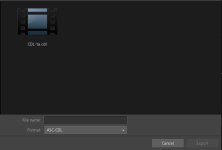
You can do ASC-CDLs but it's not the same thing. Not even close.
Did they put it in Catalyst Prepare?
Posting Operating Manual copy for posterity:
http://www.sonycreativesoftware.com...se/10/enu/Content/Color_correction_export.htm
You can do ASC-CDLs but it's not the same thing. Not even close.
Did they put it in Catalyst Prepare?
Posting Operating Manual copy for posterity:
Exporting a 3D LUT for Resolve or HDLink
When the source color space is Sony RAW, S-Gamut/S-Log2, S-Gamut3.Cine/S-Log3, or S-Gamut3/S-Log3, you can export a 3D LUT in Resolve or HDLink format.
Click the Browse button at the top of the Catalyst Browse window to view the Media Browser.
Double-click a clip in the Media Browser to load it.
Color correction is available only in View mode.
Click the Adjust Color button at the bottom of the Catalyst Browse window. In this mode, Catalyst Browse displays a waveform monitor, a histogram, a video preview, and color controls that you can use to adjust the appearance of your video.
Click the Inspector button in the toolbar to display the Inspector pane and adjust your color settings as needed. For more information, see "Editing color-correction settings."
Click the Tools button at the bottom of the Catalyst Browse window and choose Export color settings from the menu.
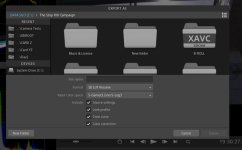
Use the Export As dialog box to specify the folder, file name, and settings you want to export:
Use the browser to select the folder where you want to save your file.
In the File name box, type the file name you want to save your color-correction settings.
Choose 3D LUT Resolve or 3D LUT HDLink from the Format drop-down list.
Choose a setting from the Input color space drop-down list to specify the color space of your source media.
Select the Source settings check box if you want to include exposure, temperature, and tint settings with your LUT.
Select the Convert to setting check box if you want to export your LUT using the color space selected in the Convert to drop-down list in the Inspector.
The Tone curve and Color correction check boxes are available only when Convert to setting is selected.
Select the Tone curve check box if you want to include the tone curve from the Inspector in your LUT.
Select the Color correction check box if you want to include the color correction adjustments curve from the Inspector in your LUT.
Select the Look profile check box if you want to include the selected look profile from the Inspector in your LUT. The LUT file will be saved in the folder you selected in step 6a.
The Look profile check box is available only when the grading color space is Log or Rec.709.
Click Export.