
Navigation
Install the app
How to install the app on iOS
Follow along with the video below to see how to install our site as a web app on your home screen.
Note: This feature may not be available in some browsers.
More options
You are using an out of date browser. It may not display this or other websites correctly.
You should upgrade or use an alternative browser.
You should upgrade or use an alternative browser.
blown out background... any solution in post?
- Thread starter ajwwong
- Start date


Capt Quirk
Veteran
How long is the clip? I have used a photoshop trick in the past for either bringing out detail, or bringing down a too bright scene. You copy the clip, and drop it in the timeline directly above the original. Then you set the top clip's properties to multiply I think, and tweak the settings until you get the desired result. You may need to add a mask over the subject, to keep them the same.

PhantomVideo
Well-known member
Turn on maxium bit rendering, and use the Curves Effect, then knock the tops off, what is the souce footage? 420 or 422?
Wow.. thanks for all the suggestions... I'm really a beginner here... so let me try and answer the questions. It will take me a little while to try and implement some of your suggestions... but I'll definitely look into them and see if I can make it work... :
1) Version of Premiere:
I have Premiere CS3. Also AfterEffects CS3, if it makes a difference.
2) Length of clip:
The clip is ... well... 8 minutes long, but I'll probably only try to salvage about 30 seconds worth, to be intercut with dialogue with the other person in the scene.
3) Source footage is ... uh... I think 420. I mean I shot this with my DVX100b... and I think I used squeeze mode 24pa.
Thanks again for all your ideas...
1) Version of Premiere:
I have Premiere CS3. Also AfterEffects CS3, if it makes a difference.
2) Length of clip:
The clip is ... well... 8 minutes long, but I'll probably only try to salvage about 30 seconds worth, to be intercut with dialogue with the other person in the scene.
3) Source footage is ... uh... I think 420. I mean I shot this with my DVX100b... and I think I used squeeze mode 24pa.
Thanks again for all your ideas...
PhantomVideo
Well-known member
yeah i guess your right shooter thats a paint job, for AE, google a video paint Tutorial, I used it to restore a house that had been burnt down but the clouds were changing the shot, so i needed the consitancy does your talent cross the burnt out area ?
Update:
On second thought it might be worth replacing the whole wall, cut the scene first then you'll know how much you need to rotor, then it will probably be a case of using a bezier mask over a couple of layers and rebuild the shot
Update:
On second thought it might be worth replacing the whole wall, cut the scene first then you'll know how much you need to rotor, then it will probably be a case of using a bezier mask over a couple of layers and rebuild the shot
Last edited:

Not on Premiere but heres where Id start in FCP - mask the area (using a selection tool - or matte depending on how often she crossed in to that area). Id do this in color but Im sure theres a similar technique in AE.
So once I have a satisfactory mask, Id determine then which color range still has the most detail - simply by turning of reds and blues to see greens and so on. Once I know I would use that as a start point to reintroduce detail. I often find that whilst something is blown out, one of the color channels has retained detail.
So once I have a satisfactory mask, Id determine then which color range still has the most detail - simply by turning of reds and blues to see greens and so on. Once I know I would use that as a start point to reintroduce detail. I often find that whilst something is blown out, one of the color channels has retained detail.

Have you considered simply re-shooting? Time-wise, it'll be much less of a hassle.
Of course, it may be difficult to get the person back, or expensive if you have to pay people again, but if you can do it, you'll be much better off.
Of course, it may be difficult to get the person back, or expensive if you have to pay people again, but if you can do it, you'll be much better off.
Well, i don't even know how i quite did this, but I'm at least hopeful, now, that something is going to work out.
Basically, I applied the "4-Color Gradient" Effect -- I have no idea how this works... but anyways, this what I did:
(1) I selected 4 colors from the Burnt out area, upper left, upper right, lower left and lower right corners...
(2) I put Blend at 500%
(3) I chose "blending mode" of "darken"
And it looks *way* better now... who knows if it will hold up on the big screen, but it seems at least passable...
I'll have to figure out how to get rid of the lamp pole, but I guess that's another whole kettle of worms...
Here's the pictures in case you want to take a look.
Thanks!
PS. Oh, and yeah, the talent does turn and move her head into the burnt out area some, as well... but this seems to work decent enough for that too!
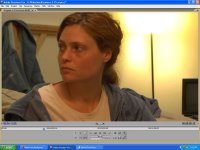
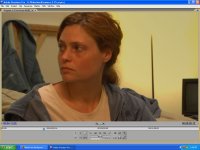
Basically, I applied the "4-Color Gradient" Effect -- I have no idea how this works... but anyways, this what I did:
(1) I selected 4 colors from the Burnt out area, upper left, upper right, lower left and lower right corners...
(2) I put Blend at 500%
(3) I chose "blending mode" of "darken"
And it looks *way* better now... who knows if it will hold up on the big screen, but it seems at least passable...
I'll have to figure out how to get rid of the lamp pole, but I guess that's another whole kettle of worms...
Here's the pictures in case you want to take a look.
Thanks!
PS. Oh, and yeah, the talent does turn and move her head into the burnt out area some, as well... but this seems to work decent enough for that too!
Anyhow, it looks like I've got a lot to learn... but at least I feel confident enough that I can cut the scene, using the footage and then there *will* be *some* way of getting things to look better in post...
I could *maybe* get the talent back... but then there's the sound crew and dp's and putting everything together for the location again... whew... and I'd much rather just try and work with the footage.. plus I think she might have dyed her hair red. :-(
I could *maybe* get the talent back... but then there's the sound crew and dp's and putting everything together for the location again... whew... and I'd much rather just try and work with the footage.. plus I think she might have dyed her hair red. :-(
PhantomVideo
Well-known member
A good start 
Not sure that works too well. Yeah seems the blowout is gone - well done. But now you have an empty space of nothing.
Maybe you could just add a new layer on top and drop the opacity to suit so you can get some of the original back in.
Maybe you could just add a new layer on top and drop the opacity to suit so you can get some of the original back in.

Hunter Hampton
Carbonite Member
I don't think its that bad, but you can always apply a "Norris" filter. Really covers up problems like that.


Richard Allen Crook
Well-known member
Well, i don't even know how i quite did this, but I'm at least hopeful, now, that something is going to work out.
Basically, I applied the "4-Color Gradient" Effect -- I have no idea how this works... but anyways, this what I did:
(1) I selected 4 colors from the Burnt out area, upper left, upper right, lower left and lower right corners...
(2) I put Blend at 500%
(3) I chose "blending mode" of "darken"
And it looks *way* better now... who knows if it will hold up on the big screen, but it seems at least passable...
I'll have to figure out how to get rid of the lamp pole, but I guess that's another whole kettle of worms...
Here's the pictures in case you want to take a look.
Thanks!
PS. Oh, and yeah, the talent does turn and move her head into the burnt out area some, as well... but this seems to work decent enough for that too!
View attachment 9963
View attachment 9964
I don't care for this correction. I like the original better, because now you can't tell that's a light in the background, looks like black pole sticking in the are gradually disappearing into thin air. Hmm. I think if you keep this correction, darken the whole picture like jordandov mentioned and then add a spotlight that has a smaller radius where the light is, so it "looks" like a light is back there.