Black spots on lights

erikbc

Member
I posted this thread over at Cinema5D: http://cinema5d.com/viewtopic.php?f=14&t=20510

I'd like to also post it here, to try and figure out if this is a problem with all 5Ds, most, or just a few.

Basically, under certain conditions, mostly night and bright lights it seem, or lots of contrast in other words, black/purple spots/dots appear in lights.

With my camera it appears ONLY at these ISOs: 640, 800, 1000, 1250, 1600, 2000.

Unfortunately that's the ISO range I use the most for night shooting/low light situations.

Switch over to 500 and it's gone, same with 2500.

You might have this without knowing, an easy test, is film against headlights of a car at night.

I'm also interested figuring out if this is just the 5D or 7D also. Or what about The other ones, 550d, etc.

Personally, I will go for a replacement/repair if this is something that doesn't affect all the 5Ds.
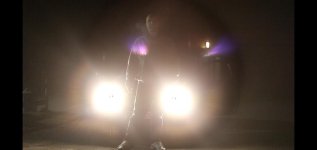
 

Attachments

  • blackspots.jpg
    blackspots.jpg
    22.3 KB · Views: 0
This is something that was highlighted (no pun intended) when the 5D2 first came out. I thought they fixed this with the firmware upgrades. Are you on the latest firmware?
 
I read about those issues, mostly, I read about "black spots to the right of lights", or something like that. It was also said that it was fixed. I also read that it was mostly on still images?

I'm on 2.0.7.
 
Its causing the sensor to overload, and go back to black... I forget how someone explained it, but dealing with audio, when a sound gets too loud, it goes beyond the highest wavelength, and starts at zero again....


so basically it's too white for the sensor to handle, so it goes full circle back to black.... its a safety precaution
 
So you're saying this happens on all 5Ds?

Also, if it was causing some kind of overload, at 2000 iso, why not at 2500?
 
Yeah, on the Red One they used to call it "Sensor Protect"; whenever you shot a scene with the sun in it, there'd be a black dot in the center.
 
So you're saying this happens on all 5Ds?

Happens on mine, only when there is a really really hot spot and then I get a small black spot, it's pretty easy to remove in post.

Also, if it was causing some kind of overload, at 2000 iso, why not at 2500?

Might have something to do with the 'magic' ISO settings:

160 - 320 - 640 - 1250 - 2500 - 5000

All these ISOs are cleaner (less noisy) than lower ISOs (until you hit the next lower 'magic' ISO.)

So 2500 is actually cleaner (less noisy) that 2000.

???
 
So, do you have any tips on a good workflow for removing it from shots? Frame by frame or is there a means of auto-tracking stuff like that? I'm on Premiere/After Effects.


I don't know about the more "clean" ISO numbers as, like I said, it happens on: 640, 800, 1000, 1250, 1600, 2000.

On 2500 it's not there, and not on 500. Just that range 640 - 2000, and that's both native ISO numbers and non-native.

I find it weird, filming a light bulb at night for instance, at 2000 ISO, seeing the black spot, switching to 2500, and even higher, and it's gone. The white point should be no less hot with the higher ISO, even more hot, if anything. So it's just not very logical to me.
 
Last edited:
it's just not very logical to me.

The 'clean' ISO thing was a wild guess, so as you say probably not connected.


So, do you have any tips on a good workflow for removing it from shots? Frame by frame or is there a means of auto-tracking stuff like that? I'm on Premiere/After Effects.


The very nature of the problem means it's easy to remove - as the artefact appears in the centre of a pure white area.

So - using After Effects:

Place the footage onto the time line.

Make a new solid big enough to cover the black artefact.
(probably best to stick a circular mask on it - and feather the edges a little)

Place the problem footage on the timeline and make sure it is selected.

Open the motion tracker (Window >> Tracker).

Drag the tracking square onto the black artefact.

Hit the play button, let the tracker track all the problem frames.

Hit Apply . . . . it will ask you if you want to use both X and Y dimension - Hit 'OK'.

That's the basics.
 
Aha, great, thank you! Coming from a Photography background I'm not used to working with motion yet. Removing something like this from a still image is a one-click operation in Photoshop. But this wasn't bad at all, works out great.
 
Aha, great, thank you! Coming from a Photography background I'm not used to working with motion yet. Removing something like this from a still image is a one-click operation in Photoshop. But this wasn't bad at all, works out great.


You can also open the movie into Photoshop and step through frame by frame with the brush tool 'spotting' out the black artefact - usually you would avoid this as there is a chance that when played back you might see the little painted dot jump around (as obviously it would be in different places from one frame to the next as it is hand painted) - but seeming as this particular artefact is always on a pure white area (and assuming your brush is set to 100% white) this method should also be perfectly ok for this particular job - and pretty straightforward too.
 
Back
Top