Gentleman,
I experimented with conversion of 550D 4:2:0 file into RGB raw with smooth chroma channel. I believe that I found the way to convert H264 DSLR 4:2:0 chroma files into RGB 4:4:4 uncompressed files by using free software. This workflow will also interpolate chroma into 4:2:4 colour space.
I did it this way:
1. Install VirtualDub 1.9.9
2. Install Quicktime plugin for VirtualDub (quicktime must be installed as well)
3. Install AutoYUY2 plugin for VirtualDub (found here: http://www.thedeemon.com/VirtualDubFilters/detailed.html)
4. Open 5D/7D/550D clip, use "AutoYUY2" filter and configure it to "4:2:2 Planar".
5. Save file as RGB uncompressed.
6. Edit files in any NLE you choose.
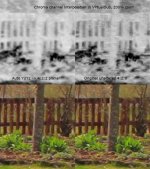
I tested the output by capturing the frame from both H264 original file and RGB processed 4:4:4 file. I converted both frames into YUV colour space and looked at chroma channels. Original H264 chroma channel had 2x2 pixel blocks, which is understandable as it's quantized into 4:2:0. RAW RGB file contained much smother chroma channel. See attached picture.
Best of all, RGB file still had 0-255 colours and wasn't cut into 16-235 space, which is something that plagued NLE software which uses Quicktime to edit native DSLR files.
So I will try this as my new workflow. I don't use any intermediate lossy codecs or extra utilities. I just use VirtualDub and forementioned plugins and then edit RAW lossless RGB. Shure, files are big but RAID-0 array takes care of speed problems.
I compared the end result of interpolated 4:2:2 vs. 4:2:0 chroma. It's very hard to see any difference unless you are filming red and white tiles. But if you do heavy grading the 2x2 pixel "blocks" of 4:2:0 will get noticeable.
Cudos to creators of this VirtualDub plugin creator of VirtualDub as well. This software only gets better and better!
Please observe that chroma channels is pic are heavily exaggerated in order to show interpolation. In reality, they have much lower contrast.
I experimented with conversion of 550D 4:2:0 file into RGB raw with smooth chroma channel. I believe that I found the way to convert H264 DSLR 4:2:0 chroma files into RGB 4:4:4 uncompressed files by using free software. This workflow will also interpolate chroma into 4:2:4 colour space.
I did it this way:
1. Install VirtualDub 1.9.9
2. Install Quicktime plugin for VirtualDub (quicktime must be installed as well)
3. Install AutoYUY2 plugin for VirtualDub (found here: http://www.thedeemon.com/VirtualDubFilters/detailed.html)
4. Open 5D/7D/550D clip, use "AutoYUY2" filter and configure it to "4:2:2 Planar".
5. Save file as RGB uncompressed.
6. Edit files in any NLE you choose.
I tested the output by capturing the frame from both H264 original file and RGB processed 4:4:4 file. I converted both frames into YUV colour space and looked at chroma channels. Original H264 chroma channel had 2x2 pixel blocks, which is understandable as it's quantized into 4:2:0. RAW RGB file contained much smother chroma channel. See attached picture.
Best of all, RGB file still had 0-255 colours and wasn't cut into 16-235 space, which is something that plagued NLE software which uses Quicktime to edit native DSLR files.
So I will try this as my new workflow. I don't use any intermediate lossy codecs or extra utilities. I just use VirtualDub and forementioned plugins and then edit RAW lossless RGB. Shure, files are big but RAID-0 array takes care of speed problems.
I compared the end result of interpolated 4:2:2 vs. 4:2:0 chroma. It's very hard to see any difference unless you are filming red and white tiles. But if you do heavy grading the 2x2 pixel "blocks" of 4:2:0 will get noticeable.
Cudos to creators of this VirtualDub plugin creator of VirtualDub as well. This software only gets better and better!
Please observe that chroma channels is pic are heavily exaggerated in order to show interpolation. In reality, they have much lower contrast.