
Navigation
Install the app
How to install the app on iOS
Follow along with the video below to see how to install our site as a web app on your home screen.
Note: This feature may not be available in some browsers.
More options
You are using an out of date browser. It may not display this or other websites correctly.
You should upgrade or use an alternative browser.
You should upgrade or use an alternative browser.
How to create this Pride and Glory Logo
- Thread starter lhmaloney
- Start date


Kyle Stebbins
AD GURU
Alright, here we go... and I apologize that this is rough and rather brief. I'm making this whilst honing in on the election results. It kind of keeps my mind off things  I am using Adobe Photoshop CS4, but in the end I explain why and when you should use both Photoshop and InDesign in this project.
The first thing I did was find a picture of Arnold.

No real reason I chose him... I think I was just attracted to the easily "eyedroppable" background. Anyway, I brought it into Photoshop and quickly eliminated the background by using a mixture of the magic eraser tool as well as the polygonal lasso tool.
I suggest you spend more time on it than I did. It's important that you isolate the subject from the background as we will later be replacing the background with our blue color.

As I said... spend more time on it than I did. There is some serious aliasing going on that I decided not to address for the sake of brevity. I've shrunken my Arnold layer and isolated him from the background. The next step is to choose my blue background color. I just used the paint bucket tool to drop my color onto my background layer.

(I decided the blue was the wrong color eventually and proceeded to drop in another one)
The next set of steps is your money maker. Follow these instructions specifically.
1. Select the Arnold layer
2. Go to Image > Adjustments > Hue/Saturation (Or press Apple + U)

3. Completely desaturate the layer by pulling the slider all the way to the left.
4. Next go to Image > Adjustments > Brightness/Contrast
5. Make sure "Use Legacy" is checked and find the sweet spot where enough of your subjects face is overexposed, but you still retain the facial features you'd like to show in the final poster.
6. Go to Select > Color Range
7. Use the "Add to sample" eye dropper (the one with the "+" sign) to eye drop the white color on your subjects face.

Click Ok.
8. Now you should have a flashing marquee over the whiteness on your subjects face. -- CLICK DELETE.
Here is where you should end up:

If yours doesn't look right, play around with the feather level and go back to rework step #5 until you get it.
Next thing to do is compose your design. I set Arnold on the right, and used the paint tool to mock up the rest of his suit (and what ended up looking like a sweatervest... heh heh heh).

Then bring in your second subject... in my case, I just duplicated the Arnold layer for sake of simplicity and set him on the left side, a little bit behind. In fact, mine kind of looks like a miniature version of Arnold. Ha!

I should note that in order to get the kind of fine detail in the face that the official poster did, you will probably need to eye drop even more colors and tweak the feather setting to look just right. It ends up being a bunch of trial and error because, quite simply, not every photo is the same. I do feel like my final version is a bit TOO overexposed and that the feathering isn't quite right... but I'll post it here for the sake of completing this tutorial.
I altered the levels on my two Arnolds a bit and added some text.

This was a rough tutorial that kind of went fast, but the important thing here is that you follow those 8 steps in the middle... everything else is common play.
Another note: As you can tell around here I'm a HUGE proponent of utilizing ALL of Adobe's Creative Suite. You should manipulate the photos in Photoshop at a HIGHER RESOLUTION than they will end up in the final design. Once you've finished your photos, save the .psd file and open up InDesign. "Place" the .psd file into your project and add the text from there. -- Even the blue background should be placed in InDesign.
I could write forever about how important it is to use these methods, but I'll save it for later.
I hope this helps.
I am using Adobe Photoshop CS4, but in the end I explain why and when you should use both Photoshop and InDesign in this project.The first thing I did was find a picture of Arnold.
No real reason I chose him... I think I was just attracted to the easily "eyedroppable" background. Anyway, I brought it into Photoshop and quickly eliminated the background by using a mixture of the magic eraser tool as well as the polygonal lasso tool.
I suggest you spend more time on it than I did. It's important that you isolate the subject from the background as we will later be replacing the background with our blue color.
As I said... spend more time on it than I did. There is some serious aliasing going on that I decided not to address for the sake of brevity. I've shrunken my Arnold layer and isolated him from the background. The next step is to choose my blue background color. I just used the paint bucket tool to drop my color onto my background layer.
(I decided the blue was the wrong color eventually and proceeded to drop in another one)
The next set of steps is your money maker. Follow these instructions specifically.
1. Select the Arnold layer
2. Go to Image > Adjustments > Hue/Saturation (Or press Apple + U)
3. Completely desaturate the layer by pulling the slider all the way to the left.
4. Next go to Image > Adjustments > Brightness/Contrast
5. Make sure "Use Legacy" is checked and find the sweet spot where enough of your subjects face is overexposed, but you still retain the facial features you'd like to show in the final poster.
6. Go to Select > Color Range
7. Use the "Add to sample" eye dropper (the one with the "+" sign) to eye drop the white color on your subjects face.
Click Ok.
8. Now you should have a flashing marquee over the whiteness on your subjects face. -- CLICK DELETE.
Here is where you should end up:
If yours doesn't look right, play around with the feather level and go back to rework step #5 until you get it.
Next thing to do is compose your design. I set Arnold on the right, and used the paint tool to mock up the rest of his suit (and what ended up looking like a sweatervest... heh heh heh).
Then bring in your second subject... in my case, I just duplicated the Arnold layer for sake of simplicity and set him on the left side, a little bit behind. In fact, mine kind of looks like a miniature version of Arnold. Ha!
I should note that in order to get the kind of fine detail in the face that the official poster did, you will probably need to eye drop even more colors and tweak the feather setting to look just right. It ends up being a bunch of trial and error because, quite simply, not every photo is the same. I do feel like my final version is a bit TOO overexposed and that the feathering isn't quite right... but I'll post it here for the sake of completing this tutorial.
I altered the levels on my two Arnolds a bit and added some text.
This was a rough tutorial that kind of went fast, but the important thing here is that you follow those 8 steps in the middle... everything else is common play.
Another note: As you can tell around here I'm a HUGE proponent of utilizing ALL of Adobe's Creative Suite. You should manipulate the photos in Photoshop at a HIGHER RESOLUTION than they will end up in the final design. Once you've finished your photos, save the .psd file and open up InDesign. "Place" the .psd file into your project and add the text from there. -- Even the blue background should be placed in InDesign.
I could write forever about how important it is to use these methods, but I'll save it for later.
I hope this helps.
Last edited:

Matt Grunau
Adobe Demigod
Rock! Great method and tutorial. This one goes as a sticky for a while.
Thanks a ton for sharing your methodolgy (or however that's spelled).
Thanks a ton for sharing your methodolgy (or however that's spelled).

Alex DePew
Señor Schmarty Pants
Nice job on the tute.
Kyle Stebbins
AD GURU
Wow, thanks for the sticky, guys. =)
It was fun to make this tutorial and I think I might start making more.... though I think there are plenty of DVXusers around here more qualified to make tutes
It was fun to make this tutorial and I think I might start making more.... though I think there are plenty of DVXusers around here more qualified to make tutes
Last edited:

Tom Marshall
Actor!!!!!!
Nice job, Stebbs... :beer:

Jeff Anderson
Custom Title!
Kyle! Sweet! Love these step by step things where I can see how someone else goes about something - learn something new everytime! And yes Illustrator is the king of the Adobe suite!
Tom Marshall
Actor!!!!!!
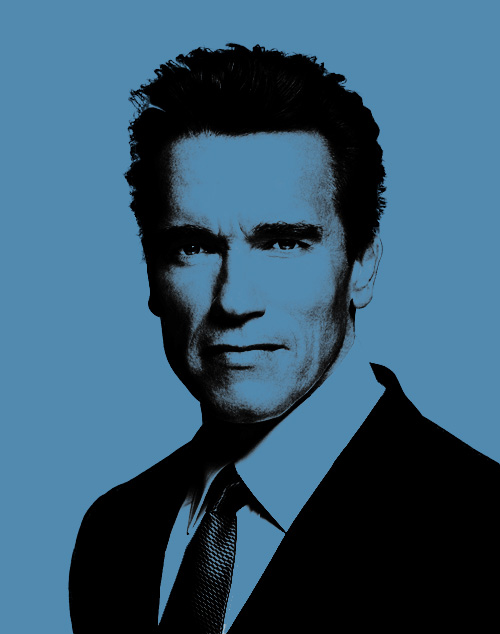
My version...
Kyle Stebbins
AD GURU
Tom, that looks waaaay better than the one I crapped out.
NICE
Did you just modify the settings a little bit, or did you take a whole new approach? I'm sure there are billions of ways to do this.
NICE
Did you just modify the settings a little bit, or did you take a whole new approach? I'm sure there are billions of ways to do this.
Tom Marshall
Actor!!!!!!
Thanks Kyle! 
The way I did it was actually pretty simple. I didn't do any of the selecting and deleting or any of that.
Should I post my steps?
The way I did it was actually pretty simple. I didn't do any of the selecting and deleting or any of that.
Should I post my steps?
ConspiracyPenguin
Nosey Penguin
Should I post my steps?
You're asking US if you should post the steps? This is a forum, Tom, hell yes post the steps!
Tom Marshall
Actor!!!!!!
You're asking US if you should post the steps? This is a forum, Tom, hell yes post the steps!
Well, I mean it's Kyle's tutorial. I don't want to step on his toes or anything.
Kyle Stebbins
AD GURU
Dude. I totally want to see how you did it. GO!
Kyle Stebbins
AD GURU
Did you just change the hue and colorize it??
I tried that method but lost all of the black data.
I tried that method but lost all of the black data.
Tom Marshall
Actor!!!!!!
I'll try and put it together this afternoon.
Tom Marshall
Actor!!!!!!
OK, here's the tutorial, my version. It's for intermediate users, but beginners might be able to follow along.
We're going to be using the same Arnie pic that Kyle originally used because it's a good choice.
1. Create a mask that will separate Arnie from the background. You can use any method you like, such as Select > Color Range or whatever you like. I usually go into the channels layer and find the channel with the best contrast between to background and foreground, duplicate that layer, and then create a mask based on that.
It's important that you create a mask instead of just erasing part of the image.
Your layer pallet will look like this when you're done:

2. Add a new adjustment layer. At the bottom of the Layers pallet, click the half black / half white circle and choose "Solid Color".

Now drag your new layer under the Arnie layer, like so:

3. Add a new adjustment layer. Make it a Hue / Saturation layer.
Drag the Saturation slider all the way to the left to get rid of any color.
4. Add a new adjustment layer. Make this one a Levels layer. Adjust the levels until you blow out what you want in the face and crush the blacks a bit. Don't worry about the colored background yet. What you're left with should look something like so:

5. This next step might be tricky if you've never seen it before. What you need to do is mask a layer based on a layer below it. How you do this is by alt-clicking between layers. Hold the alt key and click right between the lower adjustment layer (Hue / Saturation) and the Arnie layer. Your mouse will turn into a grouping icon, like so:

6. Do the same for the Levels adjustment layer. Your layer palette should now look like this:

7. Now set your Arnie layer to "Multiply" as the layer mode.
Go back to your Levels layer and tweak it until you have the result you're happy with. Something like this:

The nice thing about this method is that you can tweak the levels as much as you'd like and not have to worry about screwing up the original image.
We're going to be using the same Arnie pic that Kyle originally used because it's a good choice.
1. Create a mask that will separate Arnie from the background. You can use any method you like, such as Select > Color Range or whatever you like. I usually go into the channels layer and find the channel with the best contrast between to background and foreground, duplicate that layer, and then create a mask based on that.
It's important that you create a mask instead of just erasing part of the image.
Your layer pallet will look like this when you're done:
2. Add a new adjustment layer. At the bottom of the Layers pallet, click the half black / half white circle and choose "Solid Color".
Now drag your new layer under the Arnie layer, like so:
3. Add a new adjustment layer. Make it a Hue / Saturation layer.
Drag the Saturation slider all the way to the left to get rid of any color.
4. Add a new adjustment layer. Make this one a Levels layer. Adjust the levels until you blow out what you want in the face and crush the blacks a bit. Don't worry about the colored background yet. What you're left with should look something like so:
5. This next step might be tricky if you've never seen it before. What you need to do is mask a layer based on a layer below it. How you do this is by alt-clicking between layers. Hold the alt key and click right between the lower adjustment layer (Hue / Saturation) and the Arnie layer. Your mouse will turn into a grouping icon, like so:
6. Do the same for the Levels adjustment layer. Your layer palette should now look like this:
7. Now set your Arnie layer to "Multiply" as the layer mode.
Go back to your Levels layer and tweak it until you have the result you're happy with. Something like this:
The nice thing about this method is that you can tweak the levels as much as you'd like and not have to worry about screwing up the original image.


Simon Höfer
Veteran
Yeah, nice job Tom!