SurJones
Veteran
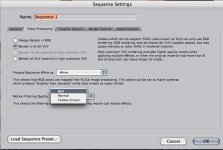
1) Has anyone toyed with the Video Processing settings, and is there an avantage to having it set to BEST, and also selecting RGB? Why Would one change these from the defualt?
2) I have a logo and I want to make it travel ( for visual purpeses, lets say a triangle) I think that it is called tweening, Flash mode kicking in
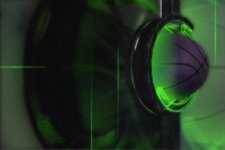
3) I had a freind who took a JumpBack of a basketBall spinning in place and a ring cirlices around the basket ball, He took his logo which was egged shaped and made it look like it was traveling with the outside ring. It spun in sync with the ring, He did this in FCP. First I should say I know he distorted the picture, but dont know if it is the distort in the motion tab of the clip.
I am attaching some images for refrence Thanks for the help in advance.
2) I have a logo and I want to make it travel ( for visual purpeses, lets say a triangle) I think that it is called tweening, Flash mode kicking in
3) I had a freind who took a JumpBack of a basketBall spinning in place and a ring cirlices around the basket ball, He took his logo which was egged shaped and made it look like it was traveling with the outside ring. It spun in sync with the ring, He did this in FCP. First I should say I know he distorted the picture, but dont know if it is the distort in the motion tab of the clip.
I am attaching some images for refrence
Thanks for the help in advance.