Tools: Sony Vegas 9.0c Pro 64 bit
OS: Windows 7 64 bit
Source: Canon HV30 HDV 1440x1080 60i
Goal: Fix white balance, trim out a section and render preserving as much possible original quality.
I cannot seem to figure out how to preserve the same quality as my source after doing two very minor edits in Sony Vegas. I cut out the section of the video I wanted to keep using the timmer and then dragged the trimmed section into the time line and added the FX Color corrector. I then fixed white balance using color corrector which at the beginning of my video I took a shot of my white/Grey/Black cards. Clicking high - complementary and then clicked white, then low - complementary and clicked black, then mid - complementary and clicked grey and this appears to have fixed white balance.
I am now stuck on how to render this video while keeping as much quality as possible. The goal for these videos is to store them on my local 6TB NAS box which I then stream to my TV (60" Plasma Pioneer Kuro) I can either stream to the TV media center directly or can purchase a popcorn hour or similar device.
I can view the original M2T files I shot on my Canon HV30 on my TV now and they are super sharp with lots of detail but are washed out and the white balance is way out of wack. Plus my TVs 100 mbit connection or the internal decoder cannot handle the full quality HDV as it starts to stutter after about 10 seconds.
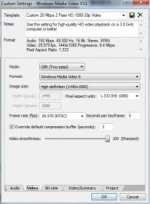
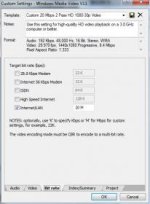
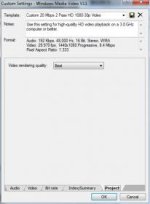
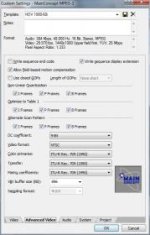
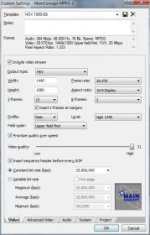
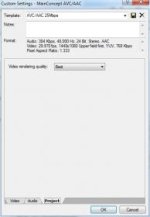
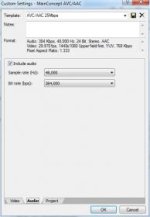
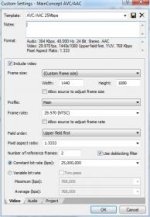
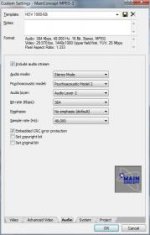
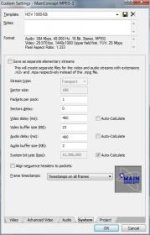
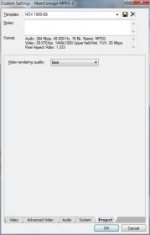
My best attempt so far was using the attached screen shots settings:
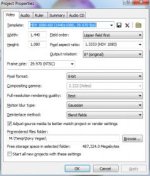
My project settings are
HDV 1080-60i (1440x1080, 29.970 fps)
Rendering quality set to best
I tried rendering as
Mode CBR (Two-pass)
Windows Media Video 9
High Definition (1440x1080)
Pixel aspect ration (1.333 HD 1080)
FPS 29.970
100 for sharpest
20 Mbps bit rate
video rendering quality best
The WMV white balance looks great the color saturation is nice now, but the sharpness and detail is nothing close to the original HDV.
Is there any way to get more detail out of WMV?
Should I render as m2t and if so what settings would give me the same quality as the source and still use smart rendering so as not to have to recode every frame?
My TV can play 12gb TS files with no issues, but even if my output from vegas has issues on my TV I plan to get a popcorn hour or something similar that can play huge mkv and m2t without issues.
If you can help point me in the right direction I would greatly appreciate it. By the way, I really love this Sony Vegas Pro software, I was really hesitant to spend so much, but many hours on you tube watching how to videos has really paid off.
Dennis
OS: Windows 7 64 bit
Source: Canon HV30 HDV 1440x1080 60i
Goal: Fix white balance, trim out a section and render preserving as much possible original quality.
I cannot seem to figure out how to preserve the same quality as my source after doing two very minor edits in Sony Vegas. I cut out the section of the video I wanted to keep using the timmer and then dragged the trimmed section into the time line and added the FX Color corrector. I then fixed white balance using color corrector which at the beginning of my video I took a shot of my white/Grey/Black cards. Clicking high - complementary and then clicked white, then low - complementary and clicked black, then mid - complementary and clicked grey and this appears to have fixed white balance.
I am now stuck on how to render this video while keeping as much quality as possible. The goal for these videos is to store them on my local 6TB NAS box which I then stream to my TV (60" Plasma Pioneer Kuro) I can either stream to the TV media center directly or can purchase a popcorn hour or similar device.
I can view the original M2T files I shot on my Canon HV30 on my TV now and they are super sharp with lots of detail but are washed out and the white balance is way out of wack. Plus my TVs 100 mbit connection or the internal decoder cannot handle the full quality HDV as it starts to stutter after about 10 seconds.
My best attempt so far was using the attached screen shots settings:
My project settings are
HDV 1080-60i (1440x1080, 29.970 fps)
Rendering quality set to best
I tried rendering as
Mode CBR (Two-pass)
Windows Media Video 9
High Definition (1440x1080)
Pixel aspect ration (1.333 HD 1080)
FPS 29.970
100 for sharpest
20 Mbps bit rate
video rendering quality best
The WMV white balance looks great the color saturation is nice now, but the sharpness and detail is nothing close to the original HDV.
Is there any way to get more detail out of WMV?
Should I render as m2t and if so what settings would give me the same quality as the source and still use smart rendering so as not to have to recode every frame?
My TV can play 12gb TS files with no issues, but even if my output from vegas has issues on my TV I plan to get a popcorn hour or something similar that can play huge mkv and m2t without issues.
If you can help point me in the right direction I would greatly appreciate it. By the way, I really love this Sony Vegas Pro software, I was really hesitant to spend so much, but many hours on you tube watching how to videos has really paid off.
Dennis