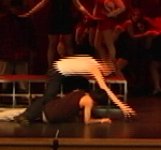
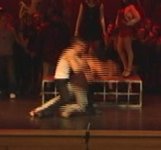
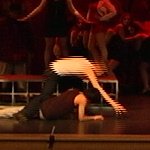
Stuck in interlacing purgatory (DVX100B -> CS5)

Jon Forsyth

New member
Hi,

I thought the hard part was done -- shoot it, edit it, tweak it -- now I just had to create the DVD. That was 4 days ago.....

My previous project (also shot on a DVX100B), which was my first big one with CS5, ran into quality problems: The encoding by AME looked terrible. After much trial and error, I learned about encoding using lagarith and HC Encoder, and that seemed to work (finally), so I thought it would be easier this time. But, that hasn't been the case. The main problem is interlace combing in the finished product (or really lousy quality if I get rid of the interlacing, even with lagarith).

Some details:
Footage: Mostly SD shot on Pan DVX100B. My last project was at 24P, and I thought maybe (probably mistakenly) that my quality problems were related to going from 24 to 30 for the NTSC DVD, so this time, I thought I shot at 30. However, thanks to user error (mine), about half of the footage was at 24P.

Editing: In Premiere Pro CS5 (v5.0.3, Win 7 64 bit), everything looked fine on the timeline and during playback, in the Source Monitor and Program Monitor. I created the sequences by dragging the primary file to the New>Sequence icon, so the sequences were created with the same specs as the file.

* Sequence 1
** Settings: DV NTSC, 29.997 fps, Lower Field First
** Clip, Modify Clip/Interpret Footage: Use Frame Rate from File: 29.97 ; use Field Order from File: Lower Field First

* Sequence A
** Sequence Setting: DV 24p, 23.976 fps, No Fields (progressive scan)
** Clip, Modify Clip/Interpret Footage: Use Frame Rate from File: 23.976; Remove 24p DV Pulldown checked, Use Field Order from File: Lower Field First (not sure about this one, but under Properties, it also says Frame Rate: 29.97 (24p), so I assume that's related to the "24p but not really" deal with the DVX)

When it came time to export, I first tried an entire sequence, but after seeing how bad the results were, I tried small segments, eventually just exporting a 5-second clip and trying every combination I could think of to get good results. I've tried it on multiple sections of the clip, without any great success.

I've tried every export combination I could think of, with both the interlaced footage and the progressive footage. It either has terrible interlace combing (if I use Interlace/LFF settings), or it comes out splotchy and jerky (if I use progressive). The only one that works reasonably well is the Microsoft AVI/NTSC DV preset -- however, that has be further transcoded, so it doesn't do me any good. All of the others, including AVI with lagarith codec, mpeg2 DVD, etc., result in terrible interlacing combing (or blotchiness).

interlacing.jpg

I don't want this to go on to long, so I'll stop with the detail, but I am totally stumped. Making the DVD used to be the relatively easy part, after the hard work was done, but CS5 doesn't like this footage, for some reason.

Can anyone help (or is there more detail I can provide)?

Thanks,
Jon
 
So did you shoot at 60i or 30p? The problem is whether the source footage is interlaced or progressive. 24p is obviously progressive but if you try to mix that in with interlaced footages you might end up running into problem on export. The blurriness from the progressive export setting is because Premiere is trying to deinterlaced your footage (and it has to deal with the 30 fps version 24 fps motion difference), costing you half of your resolution. And if you set the export setting to Lower Field First, Premiere will add interlaced pulldown frames to the progressive footages and that's why you're seeing interlacing.
 
Need more info.

Are you making separate files for the two sequences you created, or are you trying to combine the sequences in some way?

When you export, what are the frame rate and field order settings? For both sequences?

If you export the 24p material using MPEG-2 at 23.976 as progressive (no field order), the file should have no interlacing.

If you export anything to a non-progressive file, including NTSC DV, it will always have interlacing. If there is a field order, there will be interlacing.


(BTW, the DVX shoots 24p for real, not "but not really." It has to be conformed to NTSC DV when it's recorded to tape, but it's actual, bona fide 24p footage in an NTSC stream.)
 
Huy and David,

Thanks for the reply. Your questions helped me to go back and look very closely what I was doing, keeping track of all the parameters each step of the way, so I could answer your questions as thoroughly as possible. I had done lots of test exports, but I had a hard time keeping track of what I tried where, so I finally made a spreadsheet.

As it turns out, I think the answer is...the way I was reviewing the exported files was making it look like I had bad results. (Seems like a dumb mistake....) That is, when I reviewed the exported files (.m2v, .mpeg, etc.), I was using my default viewer, which is VLC -- usually a great, do-anything media viewer. However, I find that it doesn't do interlaced footage very well -- it shows all the combing. There is a "blend" interlacing option that you can turn on separately, but it's not very good.

However, viewing the same files in Windows Media Viewer (not typically my favorite), the files looked fine. I know a PC isn't an interlaced environment, but I thought the viewers would figure it out by default. WMV did very well, but VLC didn't.

Further complicating things was the fact that I did make a couple of test DVDs, and viewing them on a TV didn't look too great either, but that was probably affected by various other factors along the way.

So, anyway, it seems to be working now -- or at least well enough that I think I can tweak what I have. I've made a bunch of short test DVD folders from Encore with different clips at different settings, and I think it will work now.

So, thank you for setting me in the right direction!

(To answer your questions: I have both 30i and 24p footage. My test shots were straight 30i -> 30i LFF export and 24p -> 24p export, although the final project will have mixed footage. I have two sequences -- one primarily 30i (but with some 24p), and the other mainly 24p (but with some 30i), so that doesn't help. Based on what I'm learning, I may try to split up the sequences so each format get exported without extra interlacing or deinterlacing, as the case may be.)

And about the 24p "for real" -- that just shows my ignorance, I guess. The stuff I've read is more confusing than helpful, but I'll keep trying to understand what is really happening.

Thanks again,
Jon
 
Still stuck....

Still stuck....

OK, I thought I had it fixed, but I was wrong. My previous testing seemed to indicated that it would work, but when I take it to a finished product, it's not good.

I'll just focus on the 24P footage at this point.

My "24P" footage continues to have serious interlacing problems. (That's why I made the comment about "24P not really". I just don't understand how progressive footage gets so messed up with interlacing.)

Clearly, I am doing something fundamentally wrong, because if the output were this bad for everyone, or if it were so difficult to get output that isn't all messed up, then no one would be using Premiere Pro. I'm not trying anything fancy here -- 24P footage in, DVD out. That's all. (I'm also having problems with 30i, as described above, but I'll just focus on the 24P footage here.)

My steps:
* I have footage shot with with the DVX100B at 24P.
* I capture it from tape into an avi file, using the capture facility in Premiere Pro. I don't change any settings for the capture.
* I play the avi file (using Windows Media Player), and it looks fine -- clear, clean, like I would hope the finished footage will look.
* I import the avi file into a new project in Premiere Pro.
* I review the imported footage in the source monitor. At 100%, when stopped, it looks fine. When playing, it looks a little pixelated, but I assume that's a rendering issue. There is no interlacing.
* I take that avi file and drag it to the "New Item" icon, then choose "Sequence," so I get a Sequence with the clip in it, with the settings to match the clip. Both the clip and the sequence are 23.976 fps, 720x480.
* I play the clip in the new sequence, and the Program monitor shows interlacing like crazy.
* As a second try, I create a new sequence using the "DV - 24P" preset settings, and add the avi file to it. The results are the same.
* When I try to export, regardless of the settings, the interlacing problems remain.

Exports I've tried:
* Microsoft AVI, Preset: NTSC DV 24p
* MPEG2-DVD, Preset: Match Source Attributes (High Quality)
* QuickTime, Preset: NTSC DV 24p

I just don't know. I've thought maybe there was something wrong with my camera, or with the tapes, but the captured avi looks fine, as I mentioned above, so something is happening after that point, apparently.

Can anyone see what I am doing wrong? (I've tried Adobe support, but they haven't helped. I call and wait on hold for an hour, then give up. I open a case on the website; two days later they respond. I write back immediately; two days after that, the case is closed. I reopen it....)

Thanks,
Jon
 
You see interlacing in a 24p sequence, and also if you export as 23.976?

Do you capture with scene detection on, which will create separate clips every time you stopped and started recording? If not, if you captured all at once, the pulldown cadence can get out of sequence and then you'll definitely have these kinds of problems. Do you find that the early part is OK but there's a point at which the problems start? If so, then it may be your problem.
 
Yes to both. I see it in the 24p sequence, and in the 24p (23.976) export.

Here's a capture from the 24p sequence (200% size, cropped):
crop example from 24p sequence.jpg
and here's a screen capture from the exported footage (in this case, the .m2v file, exported with MPEG2-DVD, Preset: Match Source Attributes (High Quality), which set the export at 23.976 fps):
crop example from 24p export.jpg
The scene detection is an interesting idea -- in fact, I usually just capture all in one batch, rather than with scene detection -- but in this particular case, it wouldn't be an issue because it was a single take, 45" long (I was filming a short play), and the interlacing shows up from the very beginning. But, it certainly seems like something (the pulldown cadence, perhaps) is out of whack. Any thoughts about what I could do about it?

Thanks,
Jon
 

Attachments

  • crop example from 24p sequence.jpg
    crop example from 24p sequence.jpg
    14.1 KB · Views: 0
Yes to both. I see it in the 24p sequence, and in the 24p (23.976) export.

Here's a capture from the 24p sequence (200% size, cropped):
View attachment 34929
and here's a screen capture from the exported footage (in this case, the .m2v file, exported with MPEG2-DVD, Preset: Match Source Attributes (High Quality), which set the export at 23.976 fps):
View attachment 34928
The scene detection is an interesting idea -- in fact, I usually just capture all in one batch, rather than with scene detection -- but in this particular case, it wouldn't be an issue because it was a single take, 45" long (I was filming a short play), and the interlacing shows up from the very beginning. But, it certainly seems like something (the pulldown cadence, perhaps) is out of whack. Any thoughts about what I could do about it?

Thanks,
Jon

I don't think the B is that different from the A. I shot almost exclusively 24pA mode. I would Final Cut Express to capture from the DV tape, but I would use After Effects, to remove the Pulldown... I wasn't using Premiere at the time.

I'll have to look at some of that footage in Premiere to see what may happen...

But the times that I've seen obvious interlace effects is when someone has not properly delt with (or not automagically dealt with) field order. In the case of my capture of the DV material, I would often have
'breaks' on capturing a 'full tape', so, that would break the cadence along with the field ordering, well potentially...

If you can cut a clip, original media, not one that's rendered by Premiere... that has the problem and place it on one of these transfer servers, people could look at the actual media in more detail.
 
I would use After Effects, to remove the Pulldown....the times that I've seen obvious interlace effects is when someone has not properly delt with (or not automagically dealt with) field order.

Thanks for the idea. It may be too soon to declare victory (I was wrong once already), but your post made me wonder, if the field order is wrong, how I change it.

I've read of others using After Effects, especially before Premiere "automagically" figured it out for you, so I went into AfterEffects and looked at the field order options. (Import footage, right click on it, "Interpret Footage" > "Main"). There were a bunch of W/S combinations, so I went through all of them, and it looks like AE thought the file needed SWWWS (which is probably what PP was doing as well), but WSSWW is what it really needed to get rid of the artifacts. I rendered it and imported it back into PP, and it seems to be working. I've still got to finish the process to see if it works, but I'm hopeful....

Of course, I wonder why PP wasn't able to figure it out -- and, if my footage is "non-standard," how it got that way. ???
 
Back
Top