Question about Interlacing

Mark Seibert

Well-known member
Hi all,

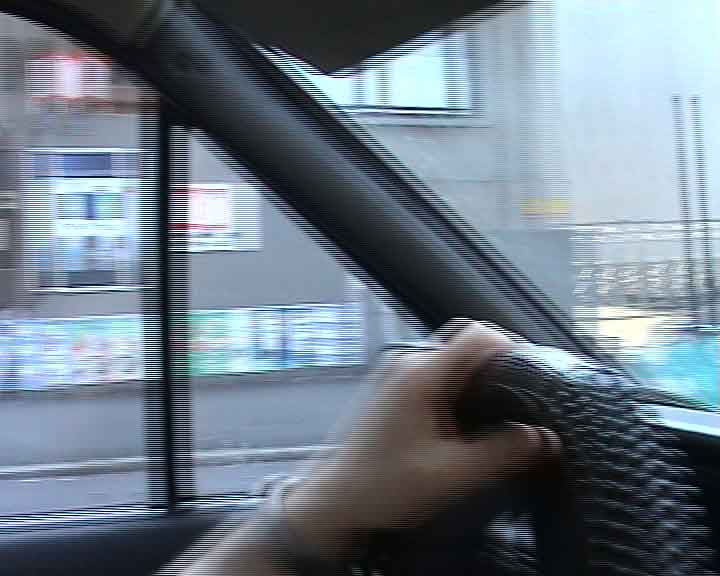
I'm now to this board, and I have some questions that are probably obvious to most...but I'm a newbie, so here goes. I'm transferring video from a DV cam via firewire using Vegas. When I load up the transferred clip and view it in the preview window I see the interlace lines on any fast moving objects <See the attached image, I hope I did this right>. The transferred clip properties say it is lower field first. However, unless I set the project properties to interpolate, the image tears at the interlace lines. Is this supposed to happen? Am I doing something wrong? Oh, and yes, I have the preview set to Best if that makes any difference.

Hope someone can help me – thanks all

 

Attachments

  • Image1.jpg
    Image1.jpg
    18.9 KB · Views: 0
Your clips are viwed on computer monitor.Once you finish your work,and transfer to DVD,picture on your TV is going to be just fine.
Computer monitors are progressive and they do not show interlaced pictures properly.
 
Last edited:
Unless this is progressive footage (30p, 24p), you don't want to set the deinterlace method to "interpolate" or "blend fields." You want "none" if you want to keep full resolution.

The only reason to set the deinterlace method to anything but "none" is if you want to convert the footage to progressive. And in that case, you will lose up to half your vertical resolution.
 
David Jimerson said:
Unless this is progressive footage (30p, 24p), you don't want to set the deinterlace method to "interpolate" or "blend fields." You want "none" if you want to keep full resolution.

The only reason to set the deinterlace method to anything but "none" is if you want to convert the footage to progressive. And in that case, you will lose up to half your vertical resolution.


David,

What tools have you used to de-interlace? I've used blend fields on Vegas and was underwhelmed. After poking around, I found some tools for Avisynth and virtualdub. I must say, I am VERY pleased with the results. I am also using Xsharpen in virtualdub right after the de-interlace and side by side with the original footage, it looks nearly the same minus the scan lines.

Now, as you say, there is no reason to go to progressive in most cases, but when you do have to, these tools are a far cry from what's available in Vegas.

I'm not trying to suggest that you don't know about and use other tools, merely suggesting that some of the tools available provide excellent results despite the idea of "losing half your vertical resolution."
 
So, it sounds like you're saying that I should ignore the interlace tearing, but I'm still a little confused. I have been rendering everything as progressive scan, which I guess is also wrong then for standard DVD format?

However, progressive scan seems to look best to me when I use non-interlaced footage (Still images, or progressive scan footage). I work in the computer games industry, so I get a LOT of non-interlaced footage, and I often am working with material that will be shown both on a TV and on a computer. In my experience I have found that unless I render as Progressive scan with deinterlace on for interlaced footage, playback on a computer results in this interlace tearing.

On a side note, I do have and use VirtualDub. I have not noticed much of a difference using its deinterlace method over Vegas deinterlace. One posting said it was much superior in quality. Has anyone else tried this - and/or can you tell me what you are seeing that looks better - maybe I should give this a try again?

So in short, any suggestions on how to work with both interlaced and non-interlaced footage that is targeted for both TV and the computer will be greatly appreciated. Thanks all -
 
PerroneFord said:
David,

What tools have you used to de-interlace? I've used blend fields on Vegas and was underwhelmed. After poking around, I found some tools for Avisynth and virtualdub. I must say, I am VERY pleased with the results. I am also using Xsharpen in virtualdub right after the de-interlace and side by side with the original footage, it looks nearly the same minus the scan lines.

Now, as you say, there is no reason to go to progressive in most cases, but when you do have to, these tools are a far cry from what's available in Vegas.

I'm not trying to suggest that you don't know about and use other tools, merely suggesting that some of the tools available provide excellent results despite the idea of "losing half your vertical resolution."

Blend fields as a deinterlace method is rarely the optimal choice. It's good for preserving resolution when you don't have much motion, but when do you not have much motion? If you do have motion, which is probably most of the time, you end up with ghosting around the edges of moving objects. This is one of the reasons Premiere is a poor option for deinterlacing, because it only offers blend fields as a deinterlace method.

You want to interpolate fields. Yes, you lose more resolution, but the motion is smoother and no ghosting.

I haven't spent much time with third-pary deinterlacers, mostly because 99.9% of what I shoot is progressive and there's no need to deinterlace anything (I can't stand interlaced.)
 
Mark Seibert said:
So, it sounds like you're saying that I should ignore the interlace tearing, but I'm still a little confused. I have been rendering everything as progressive scan, which I guess is also wrong then for standard DVD format?

However, progressive scan seems to look best to me when I use non-interlaced footage (Still images, or progressive scan footage). I work in the computer games industry, so I get a LOT of non-interlaced footage, and I often am working with material that will be shown both on a TV and on a computer. In my experience I have found that unless I render as Progressive scan with deinterlace on for interlaced footage, playback on a computer results in this interlace tearing.

On a side note, I do have and use VirtualDub. I have not noticed much of a difference using its deinterlace method over Vegas deinterlace. One posting said it was much superior in quality. Has anyone else tried this - and/or can you tell me what you are seeing that looks better - maybe I should give this a try again?

So in short, any suggestions on how to work with both interlaced and non-interlaced footage that is targeted for both TV and the computer will be greatly appreciated. Thanks all -

What I'm saying is, if you have interlaced footage and you want to preserve a) the resolution and b) the look of it, then don't set a deinterlace method, and don't render as progressive.

You can make a 24p DVD, and the material will be progressive, and with a progressive-scan player and TV, it will be displayed progressively. But if you're making a 29.97 DVD, the file on disc will always be an interlaced file, so you gain nothing by deinterlacing your interlaced footage UNLESS you want the look of progressive. But you will sacrifice resolution; there's no way around that.

If your source material is progressive, then indeed you want to stay progressive. If it's 30p material, yes, the file burned to disc at 29.97 will technically be an interlaced (59.94i) file, but you won't lose any of the resolution or aesthetic quality of the progressive material.

If it's 24p material, you've got no worries -- stay in progressive through your edit all the way to DVD.
 
Mark Seibert said:
So, it sounds like you're saying that I should ignore the interlace tearing, but I'm still a little confused. I have been rendering everything as progressive scan, which I guess is also wrong then for standard DVD format?

However, progressive scan seems to look best to me when I use non-interlaced footage (Still images, or progressive scan footage). I work in the computer games industry, so I get a LOT of non-interlaced footage, and I often am working with material that will be shown both on a TV and on a computer. In my experience I have found that unless I render as Progressive scan with deinterlace on for interlaced footage, playback on a computer results in this interlace tearing.

On a side note, I do have and use VirtualDub. I have not noticed much of a difference using its deinterlace method over Vegas deinterlace. One posting said it was much superior in quality. Has anyone else tried this - and/or can you tell me what you are seeing that looks better - maybe I should give this a try again?

So in short, any suggestions on how to work with both interlaced and non-interlaced footage that is targeted for both TV and the computer will be greatly appreciated. Thanks all -


If you have to display on both comptuer and TV, then progressive is the way to go. As fas as virtualdub is concerned, the de-interlace that comes built in is the same as Vegas. However there are many, many other filters that you can download and install that are FAR better.

Spend some time here:

http://www.100fps.com/


Then download the good stuff here:

http://neuron2.net/

Best of luck.
 
David Jimerson said:
Blend fields as a deinterlace method is rarely the optimal choice. It's good for preserving resolution when you don't have much motion, but when do you not have much motion? If you do have motion, which is probably most of the time, you end up with ghosting around the edges of moving objects. This is one of the reasons Premiere is a poor option for deinterlacing, because it only offers blend fields as a deinterlace method.

You want to interpolate fields. Yes, you lose more resolution, but the motion is smoother and no ghosting.

I went to 100fps.com and was looking at what they were saying but I just have to chime in about Premiere pro (2.0)

I think PPro does an excellent job at deinterlacing... being a semi-educated user. Take for instance these stills:

chromainterlaced_interlaced.jpg


chromainterlaced_deinterlaced.jpg


That second one is an example of how it DOESN"T look coming out of premiere. That one is horrible. Its like it 1/2 worked...

Deinterlacing in Premiere can take you from this:

distortion2.jpg


To this:

distortion_ok.jpg


Thats how the frames come out looking after I deinterlace with premiere. Maybe the old versions of premiere completely suck on a professional level and maybe thats what people are speaking of. Pro 1.0 - 2.0 are completely different much better tools compared to 6.5 or earlier.

Just my .02
 
Probably not a fair example...the first has vertical and horizontal movement it has to try to blend together. The second is almost completely horizontal...much easier.
 
reflex said:
I went to 100fps.com and was looking at what they were saying but I just have to chime in about Premiere pro (2.0)

I think PPro does an excellent job at deinterlacing... being a semi-educated user. Take for instance these stills:

chromainterlaced_interlaced.jpg


chromainterlaced_deinterlaced.jpg


That second one is an example of how it DOESN"T look coming out of premiere. That one is horrible. Its like it 1/2 worked...

Deinterlacing in Premiere can take you from this:

distortion2.jpg


To this:

distortion_ok.jpg


Thats how the frames come out looking after I deinterlace with premiere. Maybe the old versions of premiere completely suck on a professional level and maybe thats what people are speaking of. Pro 1.0 - 2.0 are completely different much better tools compared to 6.5 or earlier.

Just my .02

Dan's right -- in the second example, there's almost nothing needing all that much work.

But there's also nothing to indicate that it was deinterlaced in Premiere. Those are simply stills grabbed from the 100fps.com site. If you were to take the original video, you may well find that your results in Premiere are not what you find in that still.

Yes, I'm speaking of Premiere Pro 2.0, which has only "blend fields" as its deinterlace option, and 100fps.com itself says that blending fields is problematic with motion. I've done deinterlacing in PP2.0, and the results were exactly as you'd expect from blending fields -- ghosting around moving objects. It's mathematically impossible for it to come out any other way.

But if you're finding different results, feel free to post some before/after clips with a lot of motion.
 
Shooting with a very fast shutter speed (like 1/2000) will make the "ghosting"/double distinct images from blend fields a lot worse. However, to me, it looks fine when you are shooting witha 1/60 (or 1/50) shutter.
 
Back
Top