Pixels problem?

galapagos

Member
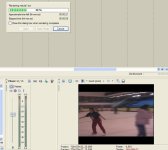
hi, I keep on having that "pixels problem", when I render my video. I'll attach the picture to show what I mean.
As you see, the image isn't clear at all, it comes out the same thing when finnished rendering. What am I doing wrong? My project is in PAL Widescreen 25 fps, my camcoder films in PAL since I am in Europe
 

Attachments

  • vegas.JPG
    vegas.JPG
    58.4 KB · Views: 0
You are exporting in .avi. The .avi option on Vegas is for archival only. Leave it with the jaggies. But i you want to be exporting for the web or your PC, then you must select another format, .e.g. the AVC or the WMV options. And there, select a "progressive" format. But for .avi, while you can export progressive too, keep it interlaced and use that only if you want to archive stuff.
 
This isn't a "pixel problem", this is interlacing and you are seeing it because you are viewing this on an LCD monitor (I am assuming). On a CRT you will not see the interlace lines.

If you want to turn your footage into progressive then in your project settings select "none (progressive)" for the field order drop-down and select "interpolate" for deinterlace method.

Rendering to a DV compressed .avi will let you retain your best quality to then burn a DVD or encode for web distribution so I definitely recommend rendering out to it first, then doing any other encoding. It is by no means an archival only codec and it will play perfectly fine on your PC.
 
On a CRT you will not see the interlace lines.

You will on a progressive-scan CRT, which is what any computer monitor still in use will be, as well as CRT HDTVs.

You won't see them on an interlaced screen.


Rendering to a DV compressed .avi will let you retain your best quality to then burn a DVD or encode for web distribution so I definitely recommend rendering out to it first, then doing any other encoding. It is by no means an archival only codec and it will play perfectly fine on your PC.

Yes -- .avi is for more than just archival purposes.

But if you're rendering for a specific purpose, like DVD, then you should most often render straight to that format from the timeline, instead of, say, importing the .avi into DVD Architect and having DVD Architect transcode it.
 
Of course David, sorry for the interlace CRT confusion.

For anything short I almost always render an uncompressed .avi and then do all my transcoding from there. For long form work I spit it out natively.
 
thanks to all of you!
William, what is the best settings for me to choose? As I see it I can't choose 24 P since it's for NTSC only? I film using european camcoder, it's native shooting mode is PAL 25P. I mgith upload it to youtube to show what I got, there's some white boarder is running on my video now
 
Galapagos, it is not about framerate, use whatever framerate the source material is. It is about selecting "progressive" instead of upper/lower field in the "field order" option when exporting.
 
Well here's another

Well here's another

question in this regard, I went and now I think stupidly shot 720 50p. I could have sworn previously I had done so and dropped it on a 720 25p timeline and it worked fine. But now I'm wondering whether that was just me dreaming.
When I play it on the timeline with only Good Full preview or draft Full it looks fine, when I turn it up to best full for example I get heaps of ghosting, which explains why my renders to 720 25p avi look so terrible, why does it look ok on good and draft, but not best, I can understand lag, or dropping frames, but not the ghosting?
The only cure I've found so far which is less than satisfactory rendering it out to 1080 50i, and then using DVD architect to change that into a PAL widescreen DVD. Which looks very average.
I know unfortunate for us PAL users the majority of people on this forum are NTSC users. But can someone give a heads up on this?
I hope this is not too far off from the original post.

Peace Out

Adam
 
Euginia, I disagree with you, if you read the Vegas manual it says in "Setting Project Properties":


None (progressive scan)
Select this option when viewing the video on a computer. This option ignores interlacing.

Upper field first
Select this option (also called odd or field A) for video that will be viewed on a television.

Lower field first
Select this option (also called even or field B) for DV output or if Upper field first produces jittery or shaky output


so I guess if my video output is shaky as it is on an attached picture then I shoul use Lower field first.


Well, this is what worked for me:


Field order: None
Pixel: 1.0926(PAL DV)

Alpha channel: NONE

PAL DV (720x576 25 fps)
Lower field first
1.0926(PAL DV)
BEST
Gausian
NONE


render as PAL DV


William, I was at your web page and I have to admit that you do a great job with DVX100 and Vegas 7, I film with Samsung DV 351i consumer camcoder my amateur videos, but planning on doing something with HVX 200.
 
Honey, you are talking about project properties here, and I am talking about RENDERING OUT. If you want to render out as DV, then the interlacing WILL be there because it's part of the DV standard.

But if you want to export for the web or for PC viewing, then in your exporting dialog, you must select "Progressive", in order to not have the jaggies. So, decide what you want: do you want a DV output for archiving, or do you want to export to PC/web? These are different options and settings.
 
Back
Top