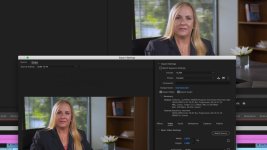
New iMac destroys colors after exporting? (i believe most macs have done this?)

PegLeg Media

Well-known member
My company just spent $3500 to get me a new imac for video editing. I have a nice asus as a dual monitor. When color grade on the imac and export, the colors are desaturated and a little on the green side when viewing the exported video on both the second monitor and even when played back on my imac. If i move premiere to my external monitor the color matches like that monitor is just calibrated better. But I dont think this can be the case because im having to bump normal video to 150% to get it to look normal.

I also tried uploading from premiere straight into youtube and when playing it on youtube (using the same imac monitor), the colors are desaturated and pushed toward the greens again. If it was a calibration issue why would the exported video not be off like the premiere video?

anyone know what is wrong with macs?
 
My company just spent $3500 to get me a new imac for video editing.

…


anyone know what is wrong with macs?

To keep my guessing on the conservative side, there are about 341 things that can go wrong based on your description. It's always nice to be able to single out where the culprit is: "macs"

See if you can have you company swap it for an Asus?
 
Yeah I experience this too. It's actually known issue regarding how Premiere mishandles the P3 display of the Retina iMacs. There are no colour management settings within Premiere (unlike AE) so the app assumes your screen is Rec709 and this results in the footage looking over-saturated while editing on the iMac screen.

Some people say to use a P3 to Rec709 lut in Premiere as a work around, although I found this doesn't really work perfectly in practice.

I'd say calibrate your second monitor the best you can and trust that for now.

FCP X works properly with the P3 display, so you could also switch to that as a worst case scenario. I'm hoping Adobe fixes this in a future update.

More info here: https://forums.adobe.com/thread/2231813
 
Start by opening your iMac's video display settings and change it from the default 1.8 gamma Apple color space to sRGB or REC709 2.4 gamma.

I thought 2.2 was the correct gamma for REC709. I think Macs have been 2.2 gamma by default for a number of years now, maybe since they got Intel processors.

The built-in Mac display calibration utility yields a lot better results than the default settings, but it's obviously not a replacement for true calibration with a spectrometer. Windows has a similar utility, but I didn't find it as thorough as the Mac one.
 
I thought 2.2 was the correct gamma for REC709. I think Macs have been 2.2 gamma by default for a number of years now, maybe since they got Intel processors.

The built-in Mac display calibration utility yields a lot better results than the default settings, but it's obviously not a replacement for true calibration with a spectrometer. Windows has a similar utility, but I didn't find it as thorough as the Mac one.

It is not an absolute value in any case. http://www.spectracal.com/Documents/3_Gamma_2.0_2.2or2.4.pdf
Calibration to match your viewing environment is certainly preferred if you have the means to do it.
Given the variability of everything from browser color management to monitors to viewing conditions and user preferences, I think it is futile to expect exact gamma matches for videos distributed via the web. The best you can do is to calibrate your own viewing chain so that what you export looks the same or very nearly the same played back from the web or your export file in a common browser or player on your own reference monitor as it does in your editing/grading software. It is not necessarily easy to achieve that, but don't blame the computer, Mac or PC.
 
Last edited:
Start by opening your iMac's video display settings and change it from the default 1.8 gamma Apple color space to sRGB or REC709 2.4 gamma.

Tried both, both gave different colors but neither matched what the video was outputting. Another weird thing is if i have my computer on and everything on my asus monitor, when i click export the preview is super saturated on my asus monitor but then exports fine. No idea why this would happen, especially with any color space to the monitor not being used.
 
Yeah I experience this too. It's actually known issue regarding how Premiere mishandles the P3 display of the Retina iMacs. There are no colour management settings within Premiere (unlike AE) so the app assumes your screen is Rec709 and this results in the footage looking over-saturated while editing on the iMac screen.

Some people say to use a P3 tocolordifference.jpg
 
It is not an absolute value in any case. http://www.spectracal.com/Documents/3_Gamma_2.0_2.2or2.4.pdf
Calibration to match your viewing environment is certainly preferred if you have the means to do it.
Given the variability of everything from browser color management to monitors to viewing conditions and user preferences, I think it is futile to expect exact gamma matches for videos distributed via the web. The best you can do is to calibrate your own viewing chain so that what you export looks the same or very nearly the same played back from the web or your export file in a common browser or player on your own reference monitor as it does in your editing/grading software. It is not necessarily easy to achieve that, but don't blame the computer, Mac or PC.


The issue is NOT just the colors of the mac. If i export the video color corrected to my second monitor and then drag it over to my imac, the colors do not oversaturate again, they look great. Why would the colors match on the two monitors after exporting, but be completely different when dragging the premiere sequence between the two monitors?
 
The program monitor in Premiere bypasses any screen calibration. Try it - open a project and then click through a bunch of different display profiles. You'll see that the program monitor always looks exactly the same.

Basically, Premiere ignores any calibration and serves up Rec709/srgb which looks oversaturated on the P3 display.
 
The program monitor in Premiere bypasses any screen calibration. Try it - open a project and then click through a bunch of different display profiles. You'll see that the program monitor always looks exactly the same.

Basically, Premiere ignores any calibration and serves up Rec709/srgb which looks oversaturated on the P3 display.

Yea that is really weird. So what do you guys do to get around it?
 
The program monitor in Premiere bypasses any screen calibration. Try it - open a project and then click through a bunch of different display profiles. You'll see that the program monitor always looks exactly the same.

Basically, Premiere ignores any calibration and serves up Rec709/srgb which looks oversaturated on the P3 display.

That's a useful piece of info I was not aware of. But that would only affect GPU display settings, not calibrations applied internally to a TV or reference monitor.
Lightworks only displays REC709 color space, but I don't think it bypasses GPU display settings. Resolve on the other hand provides seemingly infinite ways to screw up end to end workflow calibration.
I do think it best to calibrate for and work in the color space you are delivering to if possible. For me that is still pretty much end to end REC709/sRGB. I like Resolve's color managed workflow. But I've still just barely scratched the surface of Resolve's sophisticated capabilities as a grading tool.
 
Yes, it really is a big flaw with Premiere considering how many Retina iMac (and presumably new MBPs w/ P3 displays) are out there.

The classic advice if you ask on a forum is to pay up for a broadcast monitor and video card which will bypass the GPU and can be calibrated precisely to Rec709. I think this is a bit of a jump if you're producing content mostly for web.

I find sending it to Resolve provides the best results usually. However there are many jobs that don't have the time/budget for this, so I occasionally compensate by cranking the saturation slightly on export (via an adjustment layer over the whole sequence). Far from ideal... but close enough for less colour critical projects.

Adobe needs to fix this asap in my opinion as Lumetri is getting better all the time, but it's futile when you can't trust what you see on screen.
 
Yes, it really is a big flaw with Premiere considering how many Retina iMac (and presumably new MBPs w/ P3 displays) are out there.

The classic advice if you ask on a forum is to pay up for a broadcast monitor and video card which will bypass the GPU and can be calibrated precisely to Rec709. I think this is a bit of a jump if you're producing content mostly for web.

I find sending it to Resolve provides the best results usually. However there are many jobs that don't have the time/budget for this, so I occasionally compensate by cranking the saturation slightly on export (via an adjustment layer over the whole sequence). Far from ideal... but close enough for less colour critical projects.

Adobe needs to fix this asap in my opinion as Lumetri is getting better all the time, but it's futile when you can't trust what you see on screen.

Unless you are delivering DCI packages for theatrical projection, you should not be grading or monitoring in P3. For the web sRGB is the universal default display color space for computers and mobile devices. Same is still true for general cable and broadcast delivery in the US regarding REC709 too. Default out of the box factory calibration for virtually all computer monitors is sRGB.
In this light Premiere just keeps you out of trouble. You should use an external video interface and monitor as appropriate for other color spaces. Most computer monitors, Macs included, are still 8-bit displays suitable for cursory grading and corrections.
 
Last edited:
Unless you are delivering DCI packages for theatrical projection, you should not be grading or monitoring in P3. For the web sRGB is the universal default display color space for computers and mobile devices. Same is still true for general cable and broadcast delivery in the US regarding REC709 too. Default out of the box factory calibration for virtually all computer monitors is sRGB.
In this light Premiere just keeps you out of trouble. You should use an external video interface and monitor as appropriate for other color spaces. Most computer monitors, Macs included, are still 8-bit displays suitable for cursory grading and corrections.

We weren't talking about creating or delivering work in P3 space, just wanting footage in Premiere to look correct on the P3 monitor of the retina iMacs.

Without any colour management options in Premiere, there's nothing you can do to stop footage looking oversaturated on the timeline and getting exports that look different .
 
New iMacs might be capable of emulating P3. But what they actually display is determined by your color space choice in GPU display settings, or by external software in the case of Premiere or Resolve. Come to think of it, Suzy's 2012 iMac has a P3 emulation lut, but it can' t come anywhere close to actually showing P3 color gamut.
My Nvidia cards have a driver setting that defaults to external applications for calibration settings. That could be anything from a game to Resolve or dedicated calibration software.
But the principle remains the same. Calibrate your post chain and displays to match your delivery format. Otherwise what you see when you grade is not what the rest of the world sees when you export it.
P3 is only relevant for theatrical JPEG 2000 DCI on 12 bit laser projectors like Sony's SXRD series.
 
New iMacs might be capable of emulating P3. But what they actually display is determined by your color space choice in GPU display settings, or by external software in the case of Premiere or Resolve. Come to think of it, Suzy's 2012 iMac has a P3 emulation lut, but it can' t come anywhere close to actually showing P3 color gamut.
My Nvidia cards have a driver setting that defaults to external applications for calibration settings. That could be anything from a game to Resolve or dedicated calibration software.
But the principle remains the same. Calibrate your post chain and displays to match your delivery format. Otherwise what you see when you grade is not what the rest of the world sees when you export it.
P3 is only relevant for theatrical JPEG 2000 DCI on 12 bit laser projectors like Sony's SXRD series.

I'm sorry, you're not understanding my point or the source of OP's frustration...

Check the specs of new new iMacs, they display P3: https://www.apple.com/imac/specs/

If you use Premiere on an iMac, the colours on the timeline look oversaturated as Premiere is built to work only in Rec709. If you change the calibration of your screen within system preferences, it does nothing as Premiere bypasses this in the background. There are no colour management settings within Premiere, so essentially there is no solution apart for using a second display.

FCPX doesn't suffer this problem as it's engineered to take the P3 screens into account.

I think you've gone on a real tangent as we never talking about trying to deliver in P3, just the problems this particular display has displaying colours accurately in Premiere.
 
I'm sorry, you're not understanding my point or the source of OP's frustration...

Check the specs of new new iMacs, they display P3: https://www.apple.com/imac/specs/

If you use Premiere on an iMac, the colours on the timeline look oversaturated as Premiere is built to work only in Rec709. If you change the calibration of your screen within system preferences, it does nothing as Premiere bypasses this in the background. There are no colour management settings within Premiere, so essentially there is no solution apart for using a second display.

FCPX doesn't suffer this problem as it's engineered to take the P3 screens into account.

I think you've gone on a real tangent as we never talking about trying to deliver in P3, just the problems this particular display has displaying colours accurately in Premiere.

The point is still relevant. The problem is not with the iMac. Just because the new iMacs have 10-bit wide gamut displays that can display P3 doesn't mean you should use P3 color space. You should not unless you are editing and grading a feature for DCI theatrical distribution. If you set the iMacs color space to sRGB it should match Premiere's default sRGB override when you work in other software like FCPX or Resolve (if you also set that software to sRGB color space for monitoring and export). If you are shooting and grading for web delivery, the default color space is sRGB. 99.9% of your audience will be viewing on 8 bit sRGB / REC709 color space displays. sRGB is REC709 color space for RGB video formats as opposed to YUV video formats. You still have to calibrate your production chain end to end for all of your software. iMac displays can be calibrated. Suzy's iMac is calibrated to an ICC color profile to match her Epson fine art printer output. If you want to edit and grade in a wide gamut color space, REC2020 or 2084, DCI P3, then you have to use software that supports that, either internally or through an external hardware interface and monitoring solution. You can't mix color spaces across different software, display and delivery systems and expect to see consistent results.
 
Last edited:
Back
Top