
Navigation
Install the app
How to install the app on iOS
Follow along with the video below to see how to install our site as a web app on your home screen.
Note: This feature may not be available in some browsers.
More options
You are using an out of date browser. It may not display this or other websites correctly.
You should upgrade or use an alternative browser.
You should upgrade or use an alternative browser.
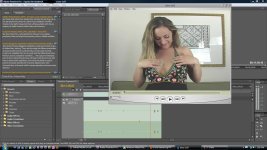
Is this Interlacing? Pictures included.
- Thread starter mungk
- Start date

ihatedv
Well-known member
The artifacts happen throughout the clip. Source was 60i.
Here are the properties for the clip
File Path: J:\pp\**************
Type: AVI Movie
File Size: 303.5 MB
Image Size: 720 x 480
Pixel Depth: 32
Frame Rate: 29.97
Source Audio Format: 48000 Hz - 16 bit - Stereo
Project Audio Format: 48000 Hz - 32 bit floating point - Stereo
Total Duration: 00:01:23:26
Average Data Rate: 3.6 MB / second
Pixel Aspect Ratio: 0.9091
AVI File details:
Timecode:
Reel name: **************
User Timecode: 08:00:00:11
Reel name: ***************
Contains 1 video track(s) and 1 audio track(s).
Interleave: 1 : 28.59
Video track 1:
Size is 287.93M bytes (average frame = 123.44K bytes)
There are 2516 keyframes.
Frame rate is 29.97 fps
Frame size is 720 x 480
Depth is 24 bits.
Audio track 1:
Size is 15.37M bytes
Rate is 48000 samples/sec
Sample size is 16 bits
Here are the properties for the clip
File Path: J:\pp\**************
Type: AVI Movie
File Size: 303.5 MB
Image Size: 720 x 480
Pixel Depth: 32
Frame Rate: 29.97
Source Audio Format: 48000 Hz - 16 bit - Stereo
Project Audio Format: 48000 Hz - 32 bit floating point - Stereo
Total Duration: 00:01:23:26
Average Data Rate: 3.6 MB / second
Pixel Aspect Ratio: 0.9091
AVI File details:
Timecode:
Reel name: **************
User Timecode: 08:00:00:11
Reel name: ***************
Contains 1 video track(s) and 1 audio track(s).
Interleave: 1 : 28.59
Video track 1:
Size is 287.93M bytes (average frame = 123.44K bytes)
There are 2516 keyframes.
Frame rate is 29.97 fps
Frame size is 720 x 480
Depth is 24 bits.
Audio track 1:
Size is 15.37M bytes
Rate is 48000 samples/sec
Sample size is 16 bits
Did you render as progressive? If so, AME will deinterlace the footage (but Adobe's deinterlacing quality is pretty low, but you shouldn't see what you're getting in that screenshot)
EDIT: sorry I didn't see your last post
Do your sequence settings match the clip? Is this 4:3 NTSC DV footage ?
(nice content BTW LOL . I can see the uncensored title )
)
EDIT: sorry I didn't see your last post
Do your sequence settings match the clip? Is this 4:3 NTSC DV footage ?
(nice content BTW LOL . I can see the uncensored title
)
Last edited:
ihatedv
Well-known member
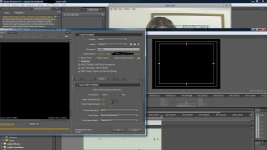
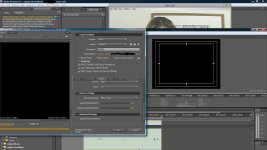
Did you render as progressive? If so, AME will deinterlace the footage (but Adobe's deinterlacing quality is pretty low, but you shouldn't see what you're getting in that screenshot)
EDIT: sorry I didn't see your last post
So what do you think.. It's frustrating to render for 8 hours and get this crappy result.
ihatedv
Well-known member
I am concerned about this, only because I cant get it to work correctly. Moving forward, this piece of footage was the last of the 60i stuff because now I'm shooting progressive.
What's even stranger is the fact that I rendered a clip yesterday with some of the same 60i stuff and it came out great, no interlace lines.
Being a new editor I thought it was just something that I overlooked.
What's even stranger is the fact that I rendered a clip yesterday with some of the same 60i stuff and it came out great, no interlace lines.
Being a new editor I thought it was just something that I overlooked.
Does field order match for sequence (DV is lower field first).
Any dropped frames during capture? This could screw up the cadence and deinterlacing
I suggest instead of rendering the whole sequence and wasting time troubleshooting, limit your testing to 10-20 sec clips until you figure out your workflow and what you're doing wrong
Any dropped frames during capture? This could screw up the cadence and deinterlacing
I suggest instead of rendering the whole sequence and wasting time troubleshooting, limit your testing to 10-20 sec clips until you figure out your workflow and what you're doing wrong
ihatedv
Well-known member
1. Does field order match for sequence (DV is lower field first).
2. Any dropped frames during capture? This could screw up the cadence and deinterlacing
3. I suggest instead of rendering the whole sequence and wasting time troubleshooting, limit your testing to 10-20 sec clips until you figure out your workflow and what you're doing wrong
1. Not sure what you mean by this?
2. None
3. Great idea
ihatedv
Well-known member
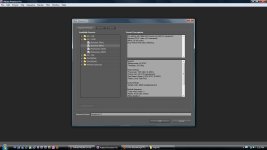
When you place your clip on the timeline is there a red render bar (before you add any effects?)
I just made a new sequence and added the aforementioned clip into it and NO, I don't see a red bar above it.
BTW, I appreciate your help!
I'm stumped. Not sure why you're getting that.
Adobe's deinterlacer leaves jaggies as deinterlacing artifacts (or blends if you use blend deinterlacing), but not combing like the screen shot you posted
But you said some other clips from the same camera worked fine with this process/workflow?
Describe what kind of editing did you do? ie. What kind of effects?
Do a test: If you render the clip straight without any effects but using the same settings (ie. just place it on the timeline and export a 10sec clip) , what happens?
Adobe's deinterlacer leaves jaggies as deinterlacing artifacts (or blends if you use blend deinterlacing), but not combing like the screen shot you posted
But you said some other clips from the same camera worked fine with this process/workflow?
Describe what kind of editing did you do? ie. What kind of effects?
Do a test: If you render the clip straight without any effects but using the same settings (ie. just place it on the timeline and export a 10sec clip) , what happens?
ihatedv
Well-known member
1. Describe what kind of editing did you do? ie. What kind of effects?
2. Do a test: If you render the clip straight without any effects but using the same settings (ie. just place it on the timeline and export a 10sec clip) , what happens?
3. But you said some other clips from the same camera worked fine with this process/workflow?
1. I use the most simple effects. Fade to black/white.
2. Currently I have a clip in AME it should be finished in 15 min (no effects)
3. Correct, I rendered a clip yesterday using the same footage and it came out clean. No artifacts! The ONLY difference is the whole sequence was slowed down between 50 and 80%
What? 15min for a 10sec clip? What are your system specs? There is no way it should take that long. Are you playing games in the background?
If this is for web delivery, you won't notice the difference between using "MRQ" and not using it. It's way, way slower with it on. You can test this and prove it for your own eyes
How did you do the slowdown on the clip that worked (what method did you use?)
Are you sure you used the exact sequence settings and render settings?
If this is for web delivery, you won't notice the difference between using "MRQ" and not using it. It's way, way slower with it on. You can test this and prove it for your own eyes
How did you do the slowdown on the clip that worked (what method did you use?)
Are you sure you used the exact sequence settings and render settings?
ihatedv
Well-known member
Actually it is 50 minutes. No games I hate'em. I just purchased Dedicated computer to cut on.
AMD 2.5 Duo 8GB ram
EDIT: my mistake I think I took a 10 minute clip instead of 10 seconds, I'll know in a few minutes
AMD 2.5 Duo 8GB ram
EDIT: my mistake I think I took a 10 minute clip instead of 10 seconds, I'll know in a few minutes
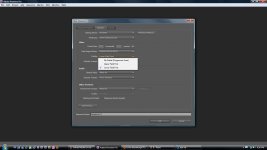
That's the field order, DV is lower field first, and that's the correct setting from the information you've provided about your footage
AVCHD and HDV are usually top field first.
If you have a matching preset, Adobe should automatically set it for you
When you export, and set to progressive in AME, it will deinterlace it (albeit poorly)
AVCHD and HDV are usually top field first.
If you have a matching preset, Adobe should automatically set it for you
When you export, and set to progressive in AME, it will deinterlace it (albeit poorly)