How to tint everything but skintones

David Evans

Well-known member
hey,

I was curious how the colorists here usually give a distinctive tinted look to a footage, without affecting skin tones. I've seen literally dozens of tutorials where people show how to do this by creating a special node to mark skintones and bypassing through a layer node, thus not affecting them with the teal tint. But this actually can be true if applying to a photo or a very steady shot, but usually, in a production, most shots are not with a fixed camera. In fact, most of the times, actors are moving through different lighting conditions, thus affecting their skintones. No software could track that. Even with a mask, it would be weird... At least, an absurd amount of work.

So, how do you guys do it? Do you usually just use color wheels? Something else, maybe?

Thanks
 
A mix of qualification by HSL and shape?

Should the shot be complex then it is hard and the reason big budget movies spend big dollar on colouring.

Ultimately software can only do maths so it cannot isolate a pink face from a pink wall of similar tone (yet).

S
 
30u4uab.jpg
 
Ok stupid picture joke aside, a lot of what you see online in tutorials, etc.. will be using a qualifier on skin in Davinci Resolve and then adjusting the hue, saturation and luminance sliders to help hone in on the skin color itself.

Qualifier.jpg


Sometimes if the qualification spills out to other parts of the frame you can use a power window to limit what it affects, so hence for example a large oval over top of the head. Using a qualifier is a great technique as a subject walks through a frame and moves around, it even works if the subject gets temporarily covered by other things that can appear in a frame such as tree branches, chain link fence for example, etc..

A very simple way to adjust only the skin without using qualifiers is by using a power window as seen in 6:20 of this video. This won't work in every situation but it is very easy to do and Davinci Resolve's auto tracking is an amazing tool for automating these tracking masks on a subject moving through a frame.

https://www.youtube.com/watch?v=wWwmIwxd4YA

Sometimes for real complex shots where as you suggested an actor or whatever will go through lighting changes, etc.. you will have to use keyframes to adjust values within Davinci resolve to accommodate for changes in the part of the subject you are trying to isolate.

Sure it is time consuming, but not as time consuming as say trying to draw and animate masks manually in After Effects which is how I use to do it before I switched to Davinci Resolve. In Davinci Resolve, all this stuff is just way more efficient and expeditious to perform - especially when you're talking about pieces that are really long like TV episodes or feature films.


Some more online videos on the subject:

https://www.youtube.com/watch?v=2YLVG57wkfk

https://www.youtube.com/watch?v=AqTr_TuE-SY#t=88
 
Thanks for the info!

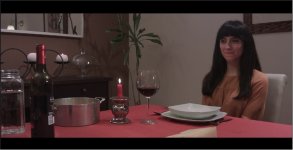
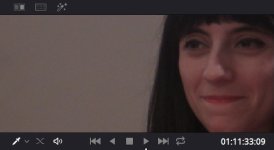
I know it's out of the topic that I created, but I was trying to color this particular shot and I think it has a bit of chroma noise that I wanted to eliminate. I shot this with the BMCC at 800 ISO and I don't think it's that underexposed. It was shot in RAW and after I did some basic color balance, this is the shot:

Still 1.jpgStill 2.jpg

I just own the free Resolve 12 version which I believe doesn't have any denoiser. Do you guys know any free denoiser good enough to do the job?

Thanks!
 
I have the full version of Davinci Resolve, the built in NR is not very good. I bought the OFX plugin by Neat Video and in my opinion it is the best one out there.

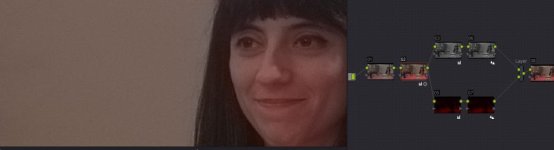
With the LITE version of Resolve, what you can do is separate your image into two using a layer mixer and make one node black and white, and the other color. These nodes are then re-combined using the mixer to your output. On the color node you can add a serial node and then blur the color channel a bit. This gives really good results with footage from most camera's.

If you don't know what I mean, google layer mixer node or chroma blur.
 
Thanks! I actually saw some videos talking about that, but the idea would be to denoise the chroma channel and since I didn't have any denoiser, I didn't really know how to use that. But I did as you said, and I think I actually got rid of most of the chroma noise.

Here is a screen shot:

Still 3.jpg

What do you think? I actually think this noise is strange since I don't believe the shot is underexposed. More so, the camera shouldn't have any noise, right? At least, not until I would push up the blacks in post. But I read somewhere that noise in BMCC is actually common and most people don't say anything because they denoise it in post... weird nonetheless... I have a Canon XH A1 which uses older technology, older sensors and terrible codecs and I never had noise issues with it straight from the camera (unless I'm using high gain settings).
 
To me your final shot looks underexposed (white bowl looks light gray not white) but that might just be your choice in grade. you'd have to show your original image before grading to study exposure. In general BMD camera's have some chroma noise, so you may want to save this layer node structure in your Davinci and then you can add it to your clips easily and don't have to remake it from scratch each time.

Camera's like the ones from Canon, Sony etc.. have really good noise reduction built in whereas the BMD camera's don't really seem to go nuts with it. Even newer Sony camera's when shooting in "cine" mode has NR disabled. They assume you want the most unadulterated image from the sensor so you can treat it 100% yourself in post. Well, what can I say I'm on the fence with that decision because NR in post costs a lot of CPU cycles. My neat video NR plugin really eats the CPU's and slows down rendering quite significantly if I use it. So now I tend to overexpose my footage a bit losing dynamic range, but ending up with a cleaner looking image in post. You can do the same with your BMD camera. Overexpose 1-2 stops and then bring it down in post and you won't have nearly as much noise.

cheers,
 
Back
Top