How can I use FCP or Color to benifit this footage

craigodvx

Member
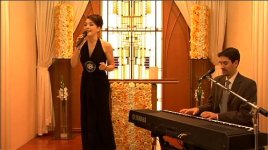
Hi, I have shot this footage and edited it all up (cross fades only), I want to get the colour correct, not so orange, I've played around with the presets in Color.... but not sure if I'm using it right. I'm wondering if someone can help out here and suggest where I should start the adjustments.

I've learnt a lot about my camera (DVX100B) since shooting this, so I only have this as a problem.... for now.

It's a wedding entertainment promo, I'm only using these 2 angles and all the footage is the same.

It's going to NTSC DVD.

Where do I start?
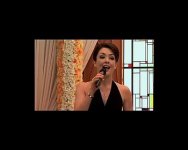
The images attached are the raw footage, no cc.

Thanks
C.

 

Attachments

  • Picture 1.jpg
    Picture 1.jpg
    26.4 KB · Views: 0
  • Picture 2.jpg
    Picture 2.jpg
    30.1 KB · Views: 0
Here's a quick correction I made with FCP's 3-way color corrector.

As you said, the image is clearly too orange / yellow, so you have to adjust the complementary color, which is blue in this case. You can drag the white wheel's dot towards blue, or you can quickly adjust the white by using the white wheel eyedropper on the white rose on the wall. Of course the roses are not totally white, but check if there's purer white on the video (the keybooard keys for example) that you can use, and the click it with the white eyedropper. This adjusts the white towards blue, it has the same effect if you dragged the point manually.

There is a problem when you do this, however: If you look at the window, you'll notice how the yellow-ish warm hue of the glass diappears and turns into even light cyan. You could try to mask the window, or try to use selective corrector on the 3-way color corrector. Unfortunately I don't know how this is done, so that you could preserve the original hue on the window while correcting the other colors. A more qualified dvxuser could help you with that, I hope.

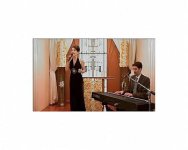
I used the selective correction to remove the cyan hue off the window (see cor1pic) You can do this by desaturating the windows manually with selective correction, clicking on the window, or by using the desature highs filter.
The result is clean normal picture with overexposed windows look, which might work for your client, or then not, it depends.

Te other pic (pic2) was done just using the same filter from pic1. Of course you'll have to fine tune the contrasts and black / white levels, so it doesn't look too harsh like the example picture.

Check your vectorsope so that the skin values follow the skin line, and the talents look healty. With mids and whites hue values you can fine tune the skin color. In my examples I think they look a little too pale.
 

Attachments

  • Picture 1.jpg
    Picture 1.jpg
    10.8 KB · Views: 0
  • cor1pic.jpg
    cor1pic.jpg
    10.6 KB · Views: 0
  • pic2.jpg
    pic2.jpg
    11.2 KB · Views: 0
Back
Top