Having a terrible time with colors...

David W. Richardson

Chapelgrove Films
Not just colors. Also brightness, contrast, saturation, etc.

I'm editing footage from 4 cameras of a wedding. Using Sony Vegas Movie Studio HD 11. Have had the same problem with Vegas Pro 8 in the past. Working on a PC -- 6-core processor, 16 GB RAM, 65-bit processor running Windows 7. I have as a 2nd monitor a Philips 20" 720p LCD TV, connected via HDMI. I put the video preview window on the Philips TV.

For the life of me, I can't seem to get things configured so that the image I see in the preview window (on the LCD TV) is even remotely what I see after I render out, burn a DVD, and play that DVD on the 32" Samsung 720p LCD TV in my living room. I've done everything I can think of to adjust the TV on my editing desk to match what I see when playing the DVD in the living room, thinking then I can adjust colors and other stuff and what I see on the editing TV will be what I'll see when rendered to DVD and played in the living room. But no matter what I do, I can't seem to get a decent looking image on the burned DVD.

I know things will tend to look different on different people's TVs because people adjust them to suit their own visual tastes, but that shouldn't be a factor here since it's MY visual taste in both instances.

I know "real" editors use expensive calibrated monitors, which I can't afford to do. So I'm left with the 'trial and error' approach. I burn a DVD, play it in the living room, make notes about adjustments to make to the various clips. Then I come back to editing, make the adjustments, burn another DVD, and go watch that in the living room. It's tedious! And many times the adjustments I make that SHOULD have improved the image, don't actually do that and I don't know why. It's extremely frustrating!

This wedding video should have been finished long ago. I can't figure out what to do to get my system to where what I see on my editing screen matches what I wind up with on the burned DVD.

Any ideas?

 
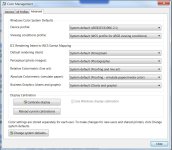
You didn't mention what kind of video card you are using. Nvidia video cards have a number of settings that control how it shows images. ATI cards have similar settings (but I can't help you there). Specifically Nvidia has an option to use a limited dynamic range that often causes issues with overall brightness when compared to normal TV monitors. It also has options for Dynamic contrast enhancement and color enhancement, depending on which driver version you are using. Install the latest driver and open the NVidia control panel and restore the defaults. Windows 7 also has a bunch of control panel settings that control color and how it looks, which may also be a factor.

If you play the DVD on the computer does it look the same as it did when you were editing it? (you don't have to burn it, just make a disc image and play that image)
 
Wait. I spoke too soon. Upon closer examination it appears that the DVD image is a little bit either darker or more contrasty. It's only a slight difference, and the difference is harder to spot if I view the two images on my PC's monitor rather than the LCD TV. But it's there.
 
Screen shot.jpg

Don't know if you can see that well enough to spot the difference or not.

The image on the left is from the paused DVD. On the right is the Preview window in Vegas Studio HD.
 
I'm sorely tempted to pack up my editing PC and desk, move them into the living room, and connect the Samsung TV in there to my computer as the 2nd monitor. See if that helps.
 
David,
This sounds similar to a problem I was having with Vegas Pro 12. The problem was caused because I had made an incorrect choice in the Project Properties. Under Video/Pixel format, I had selected "32 bit floating point (full range)". Once I switched to "32 bit floating point (video levels)", everything looked fine.:thumbsup:

EDIT: After re-reading your posts, this seems more like a monitor-matching problem. So my "solution" might not apply to your case.
 
Last edited:
Interesting. I'll have to see if Studio HD 11 has that setting.

I had been using a different LCD TV as my preview monitor. But I discovered with that TV that whenever there was a point in the video where it went to black -- a fade out to black or something similar -- the entire screen, not just the clip window, got darker. So I figured that wasn't good. I'm sure it was some 'energy saver' setting on the TV, but I couldn't find anything in the menus to turn it off. So I changed to using this TV, which doesn't do that.
 
I can't check the Studio HD right now because it's in the middle of a longer render job. I did check my Vegas Pro 8.0 though. It only had two options -- either "8-bit" or "32-bit floating point". Nothing about 'full range' or 'video levels'. Maybe that's some other setting in the earlier versions of Pro?
 
Oh wait. If I change it to "32-bit floating point", then it gives me the option to change the "Compositing Gamma" to either "1.000 (Linear)" or "2.222 (Video)". Interesting.

Trying a couple of test renders now.
 
Last edited:
Changing it to 32-bit floating point does make the video preview look sharper and better, but I did 3 test renders -- 1 with properties set to 8-bit, 1 with properties set to 32-bit floating point and compositing gamma set to 1.000 (linear), and 1 with properties set to 32-bit floating point and compositing gamma set to 2.222 (video). I can see no difference at all when those are burned to DVD and played on the TV in my living room. I didn't try applying any effects (levels, saturation, etc.) to see how that worked on the rendered and burned video.

I will say that when I watch the rendered DVD, it still doesn't look like the video preview. It seems brighter and not as sharp -- that is, less contrast.
 
David, however you slice it, rendering out for DVD, in a DVD's color space, with DVD color sampling, you need to be previewing on a standard-definition CRT screen to get a match between what you see and what you get.

This doesn't have to be an expensive professional monitor, but it should at least be a good SD TV that you can make some adjustments to and calibrate it as best you can. Then you'll be able to better see what you're going to get on DVD.

The color/contrast responses of any 720p TV or monitor are going to be broader and finer than what you'll be able to reproduce on a DVD. If you're not previewing as I described above, you're basically flying blind.
 
Datacolor's Spyder calibrator with the TV calibration upgrade isn't too expensive and will get all your monitors to line up color wise. I can still do a decent job of getting a monitor in line with just color bars and a remote after years of practice doing it that way, but the Spyder HD makes it pretty easy and more accurate than I can do by eye.
 
You can also use these to calibrate your monitors http://www.lagom.nl/lcd-test/

Those images can also be brought into your NLE project and then burned to a DVD to test that. And you can use that test DVD on your TV as well. It's very likely you are seeing a shift due to changes from sRGB to REC709. I'm still running Vegas 10 and have no experience with the consumer versions, but I do know that every MPEG2 encoder on earth has tons of settings that try to help you out, mostly by hurting you. There are a dozen pieces of software between what you see in Vegas and what makes it to the DVD.

You will need to do some work to figure out who/what is changing your colors. It could be your video card driver, it could be Windows 7's color management, it could be Vegas, it could be Vegas's MPEG2 encoder (MainConcept I think). Color space changes of one sort or another can be very annoying.
 
David, however you slice it, rendering out for DVD, in a DVD's color space, with DVD color sampling, you need to be previewing on a standard-definition CRT screen to get a match between what you see and what you get.

This doesn't have to be an expensive professional monitor, but it should at least be a good SD TV that you can make some adjustments to and calibrate it as best you can. Then you'll be able to better see what you're going to get on DVD.

The color/contrast responses of any 720p TV or monitor are going to be broader and finer than what you'll be able to reproduce on a DVD. If you're not previewing as I described above, you're basically flying blind.

Seriously???? A CRT screen???? I haven't had one of those dinosaurs in this house in forever. Geez, I'd probably have to go to Goodwill to even find one. That is SOOO bizarre! I'm not doubting you, just surprised.

So you're talking about a monitor that connects to the VGA port on the computer???? Wow.

How is it that all these other professional editors manage with editing bays with 2, 3 or 4 widescreen flat-panel monitors???
 
It's what the color space of DVD is designed for.

The problem you're running into is that your 720p TVs can display more shades of colors, and a better contrast curve, then a DVD can display. You're color-correcting based on subtleties that DVD will demolish.

You can still do very good job at color-correction; you just need to be able to see what it'll end up looking like while you're doing it.

If you can find one on Craigslist, the Toshiba AF43 or AF45 series TVs are pretty good for the purpose. They can even be set to 16:9 display.

Here's one:

http://charlotte.craigslist.org/ele/4681107055.html

You can connect through a DV camcorder, or even component.

(The pros have lots of very expensive equipment.)
 
Back
Top