Good Premiere Books?

Dan Clark

Active member
Hi. Is it just me or do other people find the Premiere help a bit uhhh... "limited". (I'm trying to be nice.)

I'd like to find a decent book that describes each Premiere window and the options on that window. Currently I have "Premiere Pro CS3 Classroom in a Book" and "Visual Quickpro Guide Premiere Pro CS3".

Classroom in a Book is a pretty limited and seems to have mistakes. For example, there's a entry in the index for "Preferences", but the content is almost useless. Under "Capture" preferences on page 75, it states "Sets four basic capture parameters." That's it! (I believe this falls under the definition "content-free".)

The QuickPro Guide seems more detailed, but it doesn't even have an entry in the index for setting preferences at all.

Are there any good quality Premiere CS3 books that provide detailed information about Premiere?

Thanks,

Dan.
 
I think you are better off with the DVD Tutorials to get you started and then a lot of playing around with the program. (Trial and Error)

Ive been using it for years and still learn something by having a play and a search and checking out the forums.

I have never seen a "single" book with all the settings and explanations for all the aspects of Premiere.
 
Shooter,

I agree about just "trying it". I can usually figure out most things. My biggest issue is the myriad of options that have no definition. Sometimes it's frustrating.

Thanks,

Dan.
 
Last edited:
Dan,

Shooter's recommendation is solid--there is no teacher like experience. I, personally, never found any feature or setting of PPro that a little experimentation didn't explain, but PPro users right here and over at the Adobe user-to-user forums are usually pretty quick to help. I think you'll find that *most* people in the video/film production community are more than eager to help. In short, ask away...
 
cbroughm,

Thanks. Here's an issue that popped up...

When I select File --> Export --> "Export to Tape...", I expect to see the "Export to Tape" dialog box. Instead I immediately get a popup that says the sequence is rendering. When that's finished, it automatically writes to the camcorder.

Any idea why that's happening?

Thanks,

Dan.
 
Do you see red bars above the footage in your timeline? If so, that's indicating footage that needs to be rendered in order to play back in realtime. Since you want your output to tape to play back stutter-free, rendering is going to be your only course of action here.

What you want to do is set your work area (the slightly darker gray area in the time ruler) to the full duration of your sequence. The easiest way to do this is to zoom your timeline out fully (either use the zoom slider at the bottom of the timeline window or just press the backslash "\" key), and then double-click on the time ruler. The work area will automagically be set to the full duration of your sequence. Then, hit Enter on your numeric keypad. Anything that has a red bar above it will be rendered to DV, and will be indicated as rendered with a green (vs. red) bar. Now, everything will play back realtime...

(ASIDE: I'm assuming you're working with DV footage here, but correct me if I'm wrong--is it HDV? I think that if it's HDV, your entire sequence has to render even if you didn't apply any effects, because the footage needs to be repackaged into an MPEG-2 transport stream for recording to tape.)

Once everything is rendered, with your timeline window active (there will be a yellow line around the whole pane), select Export to Tape. You should see a small window pop up, and you'll be able to set up the export here. Post back if that's not the case.
 
cbroughm,

Hi. Thanks again and thanks for the timeline tips. I need to clarify a bit...

It's HDV shot at 30p. (That's pretty much all I shoot right now.) The entire sequence was rendered prior to this. No problems; line is green.

This and other sequences have been successfully exported to DVD, and to files formatted for upload to Vimeo. I've had the normal learning hassles and confusion with these processes and I'm not sure I have the best workflow settings, but overall, everything worked pretty much as expected.

With this Export to Tape issue, things are not working as expected. I expected to see the options dialog and didn't.

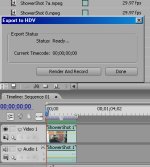
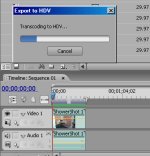
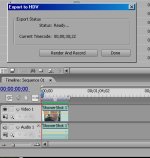
I retested using a different sequence from a different project. It was much simplified - just one 30 second clip. I got the same results, but this time, I captured the exact dialog box screen shots. In order:

First pic - Dialog box just after clicking "Export to Tape".

Second pic - Dialog box while sequence is exporting. Note that with this short one, I could see that the tape was being written while transcoding was still being done.

Third pic - Dialog after sequence had finished writing to tape.

I can't figure out how to get the Export to Tape options dialog box. I wonder if this is one of those issues where certain Premiere features are not available when editing High Def footage?

Thanks,

Dan.

p.s., I'm very focused (pardon the pun) on High Def. I quit shooting and editing video about 6 years ago after being frustrated with the quality of SD and the limited options for distribution. I wasn't satisfied with SD, even shooting family stuff.

Now, with HD, much faster 'puters, and easy, high resolution distribution options like Vimeo, I'm back in the game.
 

Attachments

  • ExportToTape1.jpg
    ExportToTape1.jpg
    69.7 KB · Views: 0
  • ExportToTape2.jpg
    ExportToTape2.jpg
    57.2 KB · Views: 0
  • ExportToTape3.jpg
    ExportToTape3.jpg
    68.1 KB · Views: 0
Last edited:
Dan,

Unfortunately, I don't work with HDV, so I'm probably not the best guide through this jungle :) I'm wondering though, that because of the way the HDV format works, there simply aren't the options for exporting to HDV tape like there are for exporting to DV tape. I looked in the LiveDocs for PPro CS3 (right here), and you're right: it's vague at best. A quick Google search somewhat confirms that "it is what it is"--in other words, the software is doing what it's programmed to do. Is there a specific feature/function you're wanting during the export process?
 
Cbrougham,

Regarding "Is there a specific feature/function you're wanting during the export process?", that's the issue... If I can't see the options dialog, I can't try them to see the impact. And if I can't see the impact, I don't know if I want the feature.

I am... "Frustrated in Seattle". (I don't think Tom Hanks will mind.)

Dan.
 
Dan,

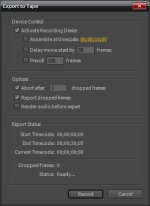
Here's a snap of the export to tape window (for DV, anyway). When I export to tape, I usually don't use any of these features, beyond the "abort" options. And again, I think that due to the way that HDV works, none of these options would be applicable anyway. If it works, then I wouldn't sweat it. Export to tape is old skool, anyway :D
 

Attachments

  • export_to_tape_dv.jpg
    export_to_tape_dv.jpg
    59.4 KB · Views: 0
Cbrougham,

I'm writing the final video to tape for archiving only. If there's a better way to archive, I'll be happy to switch methods. How do you archive?

Anyone else have a good way to archive? Anyone?? Buehler??? :D

Thanks,

Dan.
 
Shooter,

That sounds like an interesting idea. The video that I was archiving generated a 11Gb file. (Actually, it should have created a 14Gb file but it failed at the 45min mark. ) This leads to obvious question...

How do I archive a large file like this? Can you write the file to a MiniDV tape?

Thanks,

Dan.
 
Hard drives. Gigabytes for the dollar, hard drives are the cheapest way to archive anything right now. You wouldn't even need to spit out a rendered file, if you didn't want to. Instead, you could simply archive the whole project, or a trimmed version of it using the Project Manager (though again, I'm not sure if this is the case with HDV). If you needed to go back to the project, you'd simply pop the drive into your computer (if it's an internal) or plug it in (if it's external) and reopen it. All your assets will automagically be back online. From there, you can master to tape, render for DVD, or compress for the web. In this day and age, with hard drive storage media being as cheap as it is, and as reliable as it is (it's cheap enough that you can, and should, make two backups), there's never any reason to wipe out all your hard work. It's the equivalent of spending hours or days creating a Photoshop composition with multiple layers, only to flatten the entire thing at the end and lose all future editability. You can, and this is valid, but 99.99% guaranteed, it'll come back to bite you :)
 
Cbrougham,

That's a very good point. I've seen some very reasonable prices for 750Gb and 1Tb SATA drives. I could get a drive just for archiving. When full, I could just get a new one.

Thanks,

Dan.
 
I, personally, wouldn't recommend one of the monster drives for archiving. Convenient in some respects, but I find it easier to manage smaller drives in the 250-320GB range. They're big enough that you can keep a number of projects on one for a given client (even HD projects), and they're cheap enough that you can buy a matched drive and create a redundant backup, which is always a good idea. And, if one crashes (which can happen, and is the reason for redundancy), it's a lot easier to restore and copy a smaller drive's contents than a much larger drive's contents.

If the cost is an issue, I suggest starting to build in an "archive fee" on your invoices. Charge for the drive(s), plus a bit of premium for your time and storage, and then let you client know that they material they've paid for is safe and readily accessible at short notice. 'Tis the price of peace of mind...

Good luck!

colin
 
Colin,

Thanks. This looks like a very nice option. I'm going to get either one or two mobile racks and then archive the files to them. When a disk is full, I can just slip in another.

Thanks,

Dan.
 
Yes, the mobile racks (you can find some that require trays to be mounted to the drives, and others that will accept a bare drive, sans trays) are a great way to archive. Bare internal drives are cheaper, faster, and easier to store than external drives, but the problem, of course, is that you need to figure out a way to actually interface them with your computer. That's where the swappable racks come into play nicely. I don't have a recommendation in this regard (been using some inexpensive externals I picked up for now), but I'm eyeing a few at CoolDrives.
 
Colin,

Thanks for the link. I'm looking at that now. And I'm going to move forward with this approach. I'm researching now, and would like to share and compare notes.

One thing... This thread has drifted far off-topic into a very productive direction. I think it should have it's own, new thread with a title something like, "Archiving Your Video Projects". Hopefully we can attract more people to the discussion.

I think that there are two sub-topics - "Archiving Workflow" and "Archiving Hardware and Software". Regarding the hardware portion, it appears that there are several mobile racks and boxes available. On the HV20 forum, I found:
http://www.hv20.com/showthread.php?t=664
http://www.wiebetech.com/home2.php

Wiebetech seems to have several types products that might fit several types of needs. Initially, I was looking for a docking case, but this guy looks more appropriate: http://www.wiebetech.com/products/RTX100.php. One downside of some of the solutions is cooling. A trayless or tray-free approach solves this without cooling fans. Apparently many of the ones with cooling fans are very noisy.

This is a VERY good discussion. I appreciate you suggesting this methodology and pushing me in the right direction.

Regarding the new "Archiving Your Video Project Files" thread, where is the place to post it? Since it involves both workflow and hardware (and probably software), where should it be posted to in the forum to get maximum exposure?

Thanks,

Dan.
 
Back
Top