
Navigation
Install the app
How to install the app on iOS
Follow along with the video below to see how to install our site as a web app on your home screen.
Note: This feature may not be available in some browsers.
More options
You are using an out of date browser. It may not display this or other websites correctly.
You should upgrade or use an alternative browser.
You should upgrade or use an alternative browser.
Exporting Letterboxed Footage without Bars
- Thread starter Pasquale
- Start date


NorBro
Major Contributor
I'm not sure how it works in Premiere, but in FCP X anything with a non-standard resolution that you attempt to drop in a timeline will prompt FCP X to ask you if you'd like to choose a standard timeline. If you do, the software will automatically create bars. If you don't and choose (in FCP X's case) 'custom' then the software will display the footage natively (no bars).
In short, maybe revisit how you're working with the footage on the timeline.
In short, maybe revisit how you're working with the footage on the timeline.
Hi. Could anyone please advise me on how I could export a film shot with a AG DVX 100BE (in Letterbox mode), trimming off the black bars? I've tried everything and can't get a trimmed export. Thank you in advance.
I'm not a Premiere guy, but in Vegas Pro I would start by turning off the "maintain original aspect ratio" setting and then cropping it down to a 16x9 HD timeline, because it's going to have to playback in a standard format on most devices. ( computers and some tablets will allow you to playback custom video sizes, which are usually multiples of 16 pixels because of the CODEC used )
NorBro
Major Contributor
I'm not sure either, but in Apple's compressor there is a little section you can use.
If I wanted to crop the top and bottom of your video, I would type in a number and watch the split screen with the before and after until the after is just a fingernail past the original (before) to make sure it's a full and clear cut.
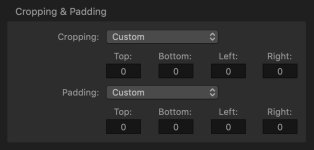
If I wanted to crop the top and bottom of your video, I would type in a number and watch the split screen with the before and after until the after is just a fingernail past the original (before) to make sure it's a full and clear cut.
NorBro
Major Contributor
People shoot in different formats and if you have to make something an exact size and none of the above is doable then your only choice left is stretching the material by zooming in.
For example: If I had 1280x720 footage and it needed to be 1920x1080 with NO bars then I would have to zoom into the footage in a 1920x1080 timeline.
There is nothing else that you can do...besides re-shooting the material.
So you have to either crop/cut the bars out (still would be 16x9) or throw the footage into a standard timeline and zoom in (you'd lose your sides).
Or re-shoot. (Obviously not practically most of the time.)
For example: If I had 1280x720 footage and it needed to be 1920x1080 with NO bars then I would have to zoom into the footage in a 1920x1080 timeline.
There is nothing else that you can do...besides re-shooting the material.
So you have to either crop/cut the bars out (still would be 16x9) or throw the footage into a standard timeline and zoom in (you'd lose your sides).
Or re-shoot. (Obviously not practically most of the time.)
Maybe I'm not reading this correctly (so please forgive me if this isn't what you're looking to do), but it seems to me that instead of trying to CROP it somehow, why don't you just drop it into a 16:9 timeline and then export?
e.g. (if using Premiere)
- duplicate your finished timeline
- change settings on your new timeline to 16:9 (1920x1080, 1280x720, or whatever)
- select your first letter boxed clip on the timeline and use Position and Scale to fit the clip as needed
- select this clip, copy (ctrl/cmd + C)
- next select all other clips that need to be affected, right-click and select Paste Attributes
- export
e.g. (if using Premiere)
- duplicate your finished timeline
- change settings on your new timeline to 16:9 (1920x1080, 1280x720, or whatever)
- select your first letter boxed clip on the timeline and use Position and Scale to fit the clip as needed
- select this clip, copy (ctrl/cmd + C)
- next select all other clips that need to be affected, right-click and select Paste Attributes
- export
NorBro
Major Contributor
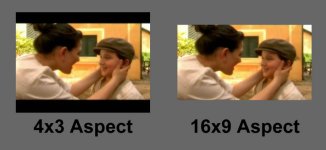
It's a standard-definition camera and what he/she recorded - if I remember correctly - is a 4:3 image with black bars burned into it. So it looks 16:9 in a 4:3 box (again, IIRC). There is also a "squeeze" mode but I don't remember the resolution of it. But I think that may have been the better choice for 16:9 playback.
G
Guest
Guest
+1Maybe I'm not reading this correctly (so please forgive me if this isn't what you're looking to do), but it seems to me that instead of trying to CROP it somehow, why don't you just drop it into a 16:9 timeline and then export?
e.g. (if using Premiere)
- duplicate your finished timeline
- change settings on your new timeline to 16:9 (1920x1080, 1280x720, or whatever)
- select your first letter boxed clip on the timeline and use Position and Scale to fit the clip as needed
- select this clip, copy (ctrl/cmd + C)
- next select all other clips that need to be affected, right-click and select Paste Attributes
- export
Good advice.