
Nicholas Natteau
Veteran
I just recently downloaded Philip Bloom's Canon 1DC native sample clips, from his 1DC review here:
http://philipbloom.net/2013/01/27/1dc/
Here's what I don't understand about the downscaling process in Premiere Pro CS6:
Let's say I have two sequences: one is 2K (2048x1080) and the other is 1080p (1920x1080)
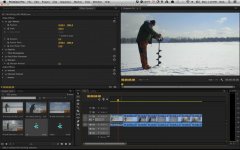
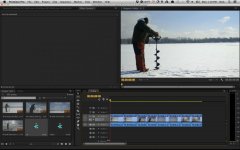
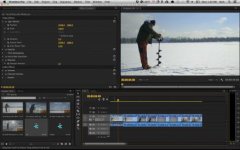
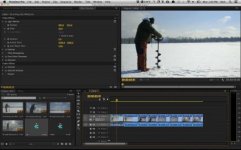
If 2K is only 6.7% bigger than 1080p (2048 being 6.7% bigger than 1920), why is it that the same original 4K clip (4096x2160) shows up at 100% scale in a 2K sequence, and 53% scale in a 1080p sequence. That doesn't make sense.
Given that 4096 is twice 2048, shouldn't a 4K clip (4096) dropped into a 2K sequence (2048) show up scaled at 50% in a 2K sequence?
Thanks in advance for any feedback / clarification.
http://philipbloom.net/2013/01/27/1dc/
Here's what I don't understand about the downscaling process in Premiere Pro CS6:
Let's say I have two sequences: one is 2K (2048x1080) and the other is 1080p (1920x1080)
If 2K is only 6.7% bigger than 1080p (2048 being 6.7% bigger than 1920), why is it that the same original 4K clip (4096x2160) shows up at 100% scale in a 2K sequence, and 53% scale in a 1080p sequence. That doesn't make sense.
Given that 4096 is twice 2048, shouldn't a 4K clip (4096) dropped into a 2K sequence (2048) show up scaled at 50% in a 2K sequence?
Thanks in advance for any feedback / clarification.
Attachments
Last edited:
