DNxHD shifting color & contrast

ROCKMORE

Veteran
I transcoded some footage for the first time from H-264 to Quicktime using NDxHD at 10 bit 25fps It all converted quickly and easily however/
1.The exposure drops about a half stop
2.The contrast drops and my blacks are no longer black. The picture starts to look muddy.
3.The color shifts a little to yellow/green cast

I converted the file at all different settings and arrived at the same final result in each case.
The shots before and after were compared side by side in both Quicktime windows and on a CS4 timeline with the same results.

I've now heard reports from other sources that this a normal problem that users live with and simply correct later.

True or False?
 
Well...

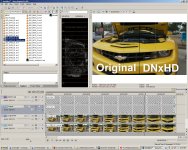
I decided to put your theory to the test since I know I've done this dozens of times. The experiment:

Take a short video filmed on the EX1, add it to Vegas timeline. Render an exact replica in DNxHD. Since the original was 720/60p, I chose DNxHD 220x in 720/60p. I placed that file on a layer underneath the original. I then used pan/crop to only show half of each image. I then added two text layers to show which side was which.

Then I took a screenshot showing the timeline, the preview window, the two files highlighted, etc. I am going to render this (in SD) and upload it.

My DNxHD settings were quality slider to 100%, RGB color space, no alpha channel, 220x 720p/59..94

It will be shaky since this is straight out of the cam with no corrections whatsoever. http://vimeo.com/10422737
 

Attachments

  • CamaroConversion2.jpg
    CamaroConversion2.jpg
    374.1 KB · Views: 0
Last edited:
True or False?

True.

It's Premiere's behavior to different formats for the most part, but also variation in the method of DNxHD encode. Look at your scopes. It clamps the levels during the RGB conversion. For DNxHD it clamps to about 7.5-90 IRE scale

Maybe Perrone will recall, but I did similar tests in another thread, with vegas' scopes comparing to premiere's yc waveform .

Even what you call "original" isn't really original. For 7D footage in .mov container, it clamps to 0-100 (which is "video legal"), but you still lose your highlight overbrights and shadows. (in vegas you can access them when you use 32-bit mode)

Remux the exact same video stream into a .mp4 container and check the scopes again , you will see more dynamic range to play with ( of course you can adjust to proper video legal levels once exporting, but the point is, many people like to have access to the entire range)

There are other problems. When you leave it in .mov container, Premiere will use BT.601 matrix when it does the RGB conversion (supposed to be BT.709 for HD video); not only that, the gamma is shifted (known issue with .mov and quicktime - google quicktime gamma shift bug for more information)

Now test with v210, and you will full dynamic range (not video legal, but at least you have the entire range to play with), and BT.709

If you want to be precise, neither mpegstreamclip or ffmpeg do the exact same conversion that Avid does for DNxHD. This doesn't mean it's right or wrong. It's the equations used when you convert Y'CbCr => RGB. See this thread for more info:

Code:
[U][B]Results:[/B][/U]
RGB colour values were sampled using Xpress Pro's inbuilt colour correction tool with 3x3 averaging enabled.
[U][I]Streamclip version:[/I][/U]
Black: 16,16,16
Gray: 124,124,124
White: 234,234,234
Red: 251,36,13
Green: 0,201,10
Blue: 12,28,241
[U][I]FFmpeg version:[/I][/U]
Black: 16,16,16
Gray: 125,125,125
White: 235,235,235
Red: 253,37,12
Green: 0,201,11
Blue: 13,29,244
[I][U]Official Avid-generated version:[/U][/I]
Black: 16,16,16
Gray: 125,125,125
White: 235,235,235
Red: 235,16,16
Green: 16,235,17
Blue: 17,16,235

http://community.avid.com/forums/p/60895/341626.aspx
 
Last edited:
PDR, I do remember, but didn't remember your outcome. That's a real shame that the behavior is so different. Honestly, I can't believe Vegas get's this right, and Premiere doesn't. My DNxHD conversions are dead on in Vegas. Absolutely zero shift in color or gamma.
 
PDR, I do remember, but didn't remember your outcome. That's a real shame that the behavior is so different. Honestly, I can't believe Vegas get's this right, and Premiere doesn't. My DNxHD conversions are dead on in Vegas. Absolutely zero shift in color or gamma.


Yes, and just to add for other folks' benefit (Perrone already knows this), it also the encoding software, because the 7D footage has to be decoded in order to be encoded. So converting 7D => DNxHD through Adobe Media Encoder is a no-no IMO because of the clamped range.

Taking the vegas encoded DNxHD that looks fine in Vegas' scopes, into PP shows the clamped range (again ~ 7.5 - 90 IRE) - this was discussed in that older thread I think - which highly suggested it was PP's decoding behaviour

This isn't a huge deal (only for those pixel peepers), but for Vegas, PP, Mpegstreamclip, you actually undergo YV12=>RGB=>YUY2 colorspace conversion, which is slightly lossy with rounding errors. YV12 4:2:0 being the original 7D, RGB 4:4:4 being the internal editor or program , and YUY2 being the 4:2:2 DNxHD footage. Accessing DNxHD though ffmpeg does a YV12=>YUY2 conversion directly, but it still uses the wrong BT.601 matrix, and the colors are a bit off - you can see this in the RGB color picker #'s above
 
True.

It's Premiere's behavior to different formats for the most part, but also variation in the method of DNxHD encode.

Probably better for me to continue with Uncompressed 10 bit. Big files, but reliable. When my project is done I don't have to save all the 10bit files, just the final 10bit export, camera originals and trimmed 10bit footage.
Soon Adobe should add dedicated H-264 support as with EXcam HD which is smooth as butter to work with. Just a matter of time.
 
Well...

I decided to put your theory to the test since I know I've done this dozens of times. The experiment:

Take a short video filmed on the EX1, add it to Vegas timeline. Render an exact replica in DNxHD. Since the original was 720/60p, I chose DNxHD 220x in 720/60p. I placed that file on a layer underneath the original. I then used pan/crop to only show half of each image. I then added two text layers to show which side was which.

Then I took a screenshot showing the timeline, the preview window, the two files highlighted, etc. I am going to render this (in SD) and upload it.

My DNxHD settings were quality slider to 100%, RGB color space, no alpha channel, 220x 720p/59..94

It will be shaky since this is straight out of the cam with no corrections whatsoever. http://vimeo.com/10422737

Yours is a lot closer than mine. Will the EX-1 files behave different than H-264?
Thanks for taking the time Perrone.
I'm going to shoot some better tests to evaluate and will post a few grabs.
 
Probably better for me to continue with Uncompressed 10 bit. Big files, but reliable. When my project is done I don't have to save all the 10bit files, just the final 10bit export, camera originals and trimmed 10bit footage.
Soon Adobe should add dedicated H-264 support as with EXcam HD which is smooth as butter to work with. Just a matter of time.


If you read my above post, you should be careful as to how you encode 7D=> uncompressed 10bit . It has to be decoded properly, in order to be encoded.

Another option , is to do offline editing (proxy editing), then swap to v210 (uncompressed 10-bit 4:2:2) on final render. This way you keep BT.709, 10-bit color correction, and accurate colors with no shift. It's a big PITA, but it's the only way that I know of that preserves everything. I guess it just depends how much of an attention freak you are.
 
If you read my above post, you should be careful as to how you encode 7D=> uncompressed 10bit . It has to be decoded properly, in order to be encoded.

Another option , is to do offline editing (proxy editing), then swap to v210 (uncompressed 10-bit 4:2:2) on final render. This way you keep BT.709, 10-bit color correction, and accurate colors with no shift. It's a big PITA, but it's the only way that I know of that preserves everything. I guess it just depends how much of an attention freak you are.

I'd need a more detailed procedure to follow. I've been shooting and editing a long time but v210 and BT.709 is breaking new ground. I did read your post carefully but it's still a new language of terms to me at this point. (Greek) All these procedures and terms become quite normal once you've gone through it a few times. I've been working with very complex 3d-max animation for about 6 years which was difficult at first but easy now, so I'm familiar with this kind of learning curve.
I've only been working with the H-264 files a few days. I loaded some files into a CS4 EXcam HD project which looks the closest choice to 1080p 25fps then exported to the media encoder to Uncompressed Quicktime. From the surfice it looks identical. You'll have to correct me if it's not technically identical.
Maybe you have a link to more detailed steps I can go through. I would prefer to work it as an offline as long as I can simply drop in files to create a final 10bit 4:2:2 online without starting form scratch.
Thanks for the advice
 
Last edited:
BT.709 or Rec.709 is the format used for most HD formats (as opposed to BT.601) , and it specifies color primaries through equations. Premiere has a bug, that converts everything to BT.601 = bad (unless you use v210), so that color will appear a bit off

http://en.wikipedia.org/wiki/Rec._709

Ideally, the entire workflow should be preserved if shot with Rec.709 all the way to final format.

v210 is the fourcc code for uncompressed 10-bit 4:2:2 video. Think of v210 as a name for it. Just like xvid or h.264 are identifiers for those respective formats

He is a guide for one way of treating 5D footage in PP CS4, the steps are similiar for 7D and there are numerous variations on how you might approach this, so you might have to experiment a bit to find out what works for you. For example, I use ffmpeg to convert to v210, instead of AME as used in that guide, but still with .avs scripts. It might be a bit difficult for you , if you're not familiar with avisynth or basic scripting (a bit of a learning curve).

http://www.dvinfo.net/forum/canon-eos-5d-mk-ii-hd/144428-premiere-pro-cs4-solution.html

As for general guides on proxy editing, there are many online, and ways to do it, but there was even a guide posted in this forum (a memeber made a downloadable pdf guide)

As for noting differences between encodes, all you need to do is look at a difference mask (e.g. in compositing software or avisynth), or do some PSNR or SSIM tests. Even exporting uncompressed from PP will lead to some quality loss because 1) Y'CbCr colorspace conversion to RGB 2) SD Rec.601 matrix conversion and levels clamping to 16-235 (or 0-100 IRE). 99% of people won't care or notice the difference, and 99% of people don't want to jump through all these hoops.

Cheers
 
Last edited:
Thanks for the link, What is your system of choice?

Sorry I don't understand your question?

If you meant my workflow, it varies greatly depending on what I'm doing or what the project is for (e.g if I need to integrate with AE, for example)
 
Sorry I don't understand your question?

If you meant my workflow, it varies greatly depending on what I'm doing or what the project is for (e.g if I need to integrate with AE, for example)


Yeah sorry I mean your system of working, workflow. I shoot 35mm film and HD, but mostly these days HD using a Sony EX-3. My projects incorporate a lot 3D animation, blue/green screen, composites. CS4 Premiere and Photoshop have been the main tools, but AE will integrated to streamline the workflow. I'm getting up to speed on AE now, I've had it but never needed to use it until now.
I have access to a Red One but the rental cost per day is 8x the cost of an EX-3 package including monitor, laptop, support etc. The biggest plus found with the EX-3 is the ease of editing on my i7 is more like editing DV as apposed to HD. My clients don't know the difference except the cost, so EX-3 has quickly become the daily driver.
This month I added a 550D as a test camera, but I think it will become a valuable addition as a 2nd camera along with the next generation of 5D when it is released.
I've been researching the H-264 mov. workflows for a while, but not until hearing your comments did I really get it. What I experienced with the first Streamclip, DNxHD conversion color shift was a real wake up call. You are only the 2nd person I've come across in a year that even agreed that a fundamental problem even exists. Everybody talks a lot about aliasing and moire being problematic, but nothing about the basic file conversion that can completely destroy your picture.
What I need to do is create a workflow that starts with H-264 move from the 550D and the 5D, and finishes with Uncompressed HD. The proxy edit system seems the way to go, using Adobe CS4, Premier, AE and Photoshop. Some projects will be used in Pal broadcast others will be released on DVD, and another series of documentary films I'm working on will be for both Pal and NTSC broadcast. I know it's a pretty wide spectrum, but I feel if it stays in the uncompressed domain, I will have the least amount of surprises.
Always starts from the first step. I'm pretty far off the grid right now. I have a studio in West Java Indonesia so some software may be hard to find if I can't get it from the web. That's why if I can create my workflow within the CS4 domain, I can start now.
 
Last edited:
You are going to have to experiment a bit to see what works for you. There are mulitple ways of going about , and several ways to do the workarounds. I would do some mini-tests until you get comfortable with a certain method

Some things to keep in mind:

When you scan your film , the transfer and chromacity parameters are usually done with ITU-R BT.709. But SD content is usually BT.601 . So if you're making DVD's you would usually do a colormatrix conversion, instead of attempting to retain BT.709 workflow for HD material.

This could become a bigger issue when you try multicam shoots and match footage between them. Make sure you shoot a colorchart at the beginning of each, to help you match as close as possible later on

The h.264 mov issue with "quicktime gamma shift bug" isn't new. It's been around and documented for years. Note this is a separate issue from the levels conversion or clamping behaviour that PP does (it clamps to legal range all sources that it doesn't have presets for - this includes 7D; so even lossless formats like lagarith or huffyuv or even 8-bit uncompressed AVI aren't treated as lossless in terms of levels - the only exception is v210). And that is a separate issue from MPEGStreamclip's colorspace conversion and encoding to DNxHD. i.e. there are multiple issues here contributing. Some people might argue that it's supposed to look like the raw footage (the native .mov) as when played in quicktime player - they're not necessarily wrong - but just note even rewrapping the raw stream or using a different decoder can get you a completely different image.

Scopes and waveform monitors don't lie and you should make liberal use of them. BUT, if that program does some funky business during the internal RGB conversion you can get varied results between programs. A prime example of this is Vegas vs. Premiere as discussed earlier, the difference is in how they work when decode the image , even though the video is identical

AE has working colorspace settings, and can acknowledge embedded color profiles for material, so it's a bit more flexible than PP

v210 preserves just about everything, but how you decode the image to encode to v210 is equally important. If your levels and gamma are screwed because of your decoding and workflow, it will transfer that to your v210 "master"

If you can, I would wait and see what CS5 brings to the table; there are way too many quirks and bugs with CS4. (All software has quirks and bugs, it's not just Adobe)
 
Last edited:
You are going to have to experiment a bit to see what works for you.

If you can, I would wait and see what CS5 brings to the table; there are way too many quirks and bugs with CS4. (All software has quirks and bugs, it's not just Adobe)

I've been testing many different conversions and trying to get them to match the camera original file. I can come very close, but I still think that if it has gone that far off in the first place it's not worth all the effort to convert all my camera files to another compression that I have to correct to get back to square one before editing.
When I convert to an uncompressed file I cannot see any difference from the camera original. Although scopes are valuable tools to keep things in line on a technical level, I must make my final decisions based on what I see.
There is really no reason for me not to convert the files to uncompressed files from the beginning to work with. It's only an issue of large amounts of data and that has become very low cost. When you add up the cost I can store about 40 minutes of trimmed uncompressed files on a 500 GB Hd.
Now the next question / What procedure would you use to convert the H-264 mov. files to uncompressed files if CS-4, M-peg_Streamclip, and Procoder 3 were your only tools to get the job done, and what file type to edit in CS4?
 
Last edited:
This assumes that you have captured rec.709 16-235 footage and need to give it to another editor using Avid.

Here's an Adobe only workaround for Quicktime gamma shift in DNxHD files exported out of Premiere Pro.


1) Import your Premiere Pro project into After Effects.
2) Place it in a timeline. Make sure your settings match framerate frame size, and aspect ratio.
3)Go to FILE-->PROJECT SETTINGS
4) You are going to enable Color management by going to working space and clicking "HDTV (REC.809) 16-235. Tick Blend Colors using 1.0 gamma. and change your depth to 32-bit Float.
5)Select the Project imported from Premiere pro in the PROJECT window. The status should now say "Profile: SRGB ICE61966-2.1" This means that AFX sees the footage is another color space, and is automatically translating it to the new color space.
6) Set up your footage for export and click on the Output module.
7) Go to the "COLOR MANAGEMENT" tab make sure the output profile is "Working Space - HDTV (REC.709) 16-235
8) Export your footage to DNxHD via the Quicktime output module.

When you hand your footage to your Avid Editor, let them know they should import the footage as 16-235 Rec.709 color space.

I've found this method to work for handing footage to AVID Editors. I have not attempted to edit the footage in Premiere Pro, but the file does match the footage very closely.

You have to do this huge round-about conversion because Adobe only outputs sRGB out of Premiere Pro and trusts that the Export Module is doing a color space conversion. Quicktime in Windows Does not do any colorspace conversion, so it's very messed up looking by just using adobe media encoder.
 
Now the next question / What procedure would you use to convert the H-264 mov. files to uncompressed files if CS-4, M-peg_Streamclip, and Procoder 3 were your only tools to get the job done, and what file type to edit in CS4?

Take a look at this thread, there are multiple solutions. Offline-Online editing tends to retain the most quality without spending any extra money. If you have money for cineform, it is a very good solution.

http://www.dvxuser.com/V6/showthread.php?t=205037
 
In related discussion, if I use proxies, they will most likely be encoded with Rec.601 colors, while HD masters will have Rec.709 colors, so the final render will look different. Is there any way to generate low-res proxies with Rec.709 color? In particular, in format that Vegas understands.
 
In related discussion, if I use proxies, they will most likely be encoded with Rec.601 colors, while HD masters will have Rec.709 colors, so the final render will look different. Is there any way to generate low-res proxies with Rec.709 color? In particular, in format that Vegas understands.


I have never had a concern about Proxy's accuracy other than "this frame occurs in the same time that the online does"

You wont be doing color correction or VFX work on a proxy anyway. A proxy is only to create the edit and watch it in real time. Once you lock down the edit you go onto the next portion of post production. This is one of the downsides of working with a proxy.
 
This assumes that you have captured rec.709 16-235 footage and need to give it to another editor using Avid.

Here's an Adobe only workaround for Quicktime gamma shift in DNxHD files exported out of Premiere Pro.


1) Import your Premiere Pro project into After Effects.
2) Place it in a timeline. Make sure your settings match framerate frame size, and aspect ratio.
3)Go to FILE-->PROJECT SETTINGS
4) You are going to enable Color management by going to working space and clicking "HDTV (REC.809) 16-235. Tick Blend Colors using 1.0 gamma. and change your depth to 32-bit Float.
5)Select the Project imported from Premiere pro in the PROJECT window. The status should now say "Profile: SRGB ICE61966-2.1" This means that AFX sees the footage is another color space, and is automatically translating it to the new color space.
6) Set up your footage for export and click on the Output module.
7) Go to the "COLOR MANAGEMENT" tab make sure the output profile is "Working Space - HDTV (REC.709) 16-235
8) Export your footage to DNxHD via the Quicktime output module.

When you hand your footage to your Avid Editor, let them know they should import the footage as 16-235 Rec.709 color space.

I've found this method to work for handing footage to AVID Editors. I have not attempted to edit the footage in Premiere Pro, but the file does match the footage very closely.

You have to do this huge round-about conversion because Adobe only outputs sRGB out of Premiere Pro and trusts that the Export Module is doing a color space conversion. Quicktime in Windows Does not do any colorspace conversion, so it's very messed up looking by just using adobe media encoder.

The projects will be finished with Premier. Is this still the way to go? I'm starting to think working uncompressed will save me more time at this point. The cost will only be HD space. CS5 should be out at some point soon which will streamline the workflow.
I would be interested in trying to correct the gamma shift though. Your system is very detailed and I will give it a try.
One question,

"1) Import your Premiere Pro project into After Effects." Are you referring to the Premiere project that contains the camera original H-264 files of files already converted to DNxHD?
 
Back
Top